6
3. (Recommended) Connect your wired headphones to the splitter by
inserting the former’s 3.5 mm plug into the latter’s 3.5 mm output port
(represented with an icon of headphones).
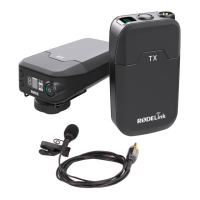
4. Place the Go transmitter at (or near) the desired source of sound.
5. (Recommended) Conrm the input source on your computer:
5.a. macOS
System Preferences -> Sound -> Input
5.b. Windows 10/1
Settings -> System -> Sound
6. (Recommended) Adjust the gain level (volume boost) by pressing the
receiver’s dB button (bottom side).
7. Open an audio-recording app and record.
8. (If no audio is recorded, consider using a different recording device.)
4. Recording to an iOS device with a
L
ightning port
1. Connect the Go receiver to your iOS device using
the
T
RS-to-
T
RRS cable and
L
ighnting adapter
(
F
ig. 4a):
1.1. Insert the
TRS
plug (blac
k
cover) into the
receiver’s 3.5 mm port (left side).
1.
2
. Insert the
TRRS
plug (grey cover) into the
L
ightning adapter’s 3.5 mm port (
F
ig.
4
a).
1.3. Insert the
L
ightning adapter’s plug into the i
OS
device’s
L
ightning port (
F
ig.
4
a).
2
. (Recommended) Adjust the gain level (volume
boost) by pressing the receiver’s dB button (bottom
side).
3. Open any audio-/video-recording app (e.g.
V
oice
M
emos) and record.
F
ig. 4a.
RX
connected
to i
P
hone


 To Next Page