does not function independently
installed software to function. Please contact your
vider before investigating hardware issues.
network link light lit on the rig
, check the cable and connections.
check the server software configuration
Is the network configured to pass broadcast
Destination port 2613 and source
ort 68 must be open for the
contact the server. TCP ports
Will another unit work in that same location?
Will that unit work in another location
l need a standard Cat5e Ethernet cable.
Check the LED status on the circuit board
when connected to the net
Does the copier enable when connection is made
with the server software? If not, make sure the
rect and that the copier is set to
foreign device or key coun
the copier test function found under the parameters
debit at all? If not, check that the
debit copies incorrectly? Check the
timing parameters (see page 4).
Check that the network terminal settings are
correct (you may need to contact the network
from the print software server?
Yes. Check all software settings.
diagnostic tool from your
laptop through the Ethernet port (you will need
Replace the terminal, if the pr
change the local hub and get the network
verified to your position.
The most common fault is caused by the terminal
setting having been changed inadvertently. Ask the
ministrator to keep a record of all
settings for easy reference.
INTERFACING WITH A COPIER
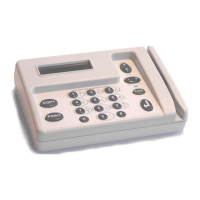
was designed to be used as a copier
controller and print release station. To function as a
harness specific to the copier an
interface timing to accurately read the debit pulse.
Copier harness wiring color
Interface modes: standard vs. steering
can be seen in the copier interface
schematic at the end of this guide.
terminal can be set to operate in normally
open or normally closed, default is normally open, t
change to the normally closed
terminal can provide up to 8 price lines
ided the server software gives the relevant
command at boot up. There is no requirement to move
jumpers or even open the enclosure to achieve this.


 To Next Page