WHAT TO DO STEP 3
CONFIGURE YOUR NETWORK
Step 3 establishes your network connection and brings out your inner geek.
You can do it!
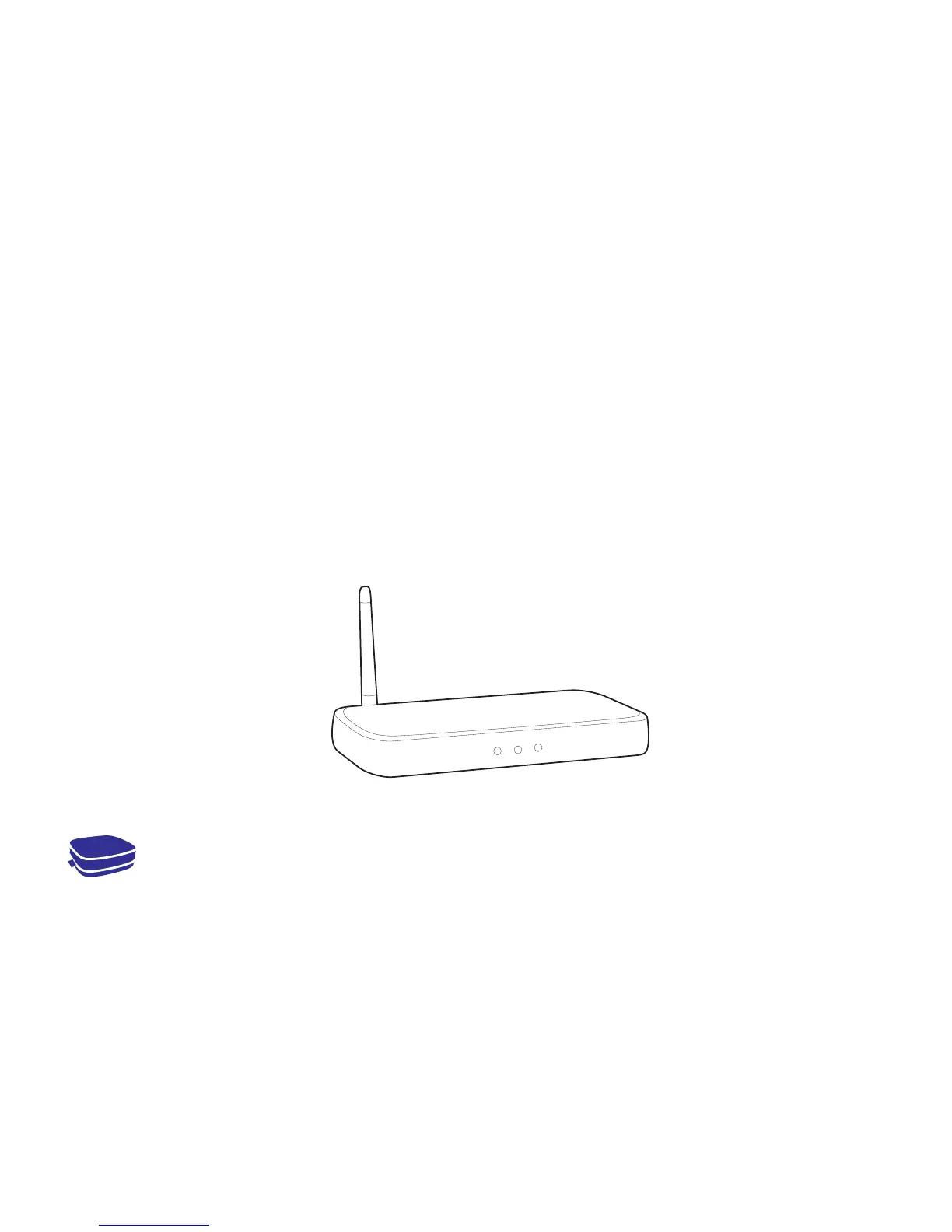
WIRELESS: The Roku player will automatically detect wireless networks in your
area, so you can grab that Roku remote and jump right into Guided Setup. At
wireless set up, have your network name & password ready and do the following:
• Select your network from the list of available networks.
• Enter your network password, if you use one. Remember, network passwords
are case sensitive.
DOS AND DON’TS ON WHERE TO PLACE YOUR ROKU PLAYER:
• DO place your player within range of your wireless network.
• DON’T place your player in an enclosed cabinet; it may interfere with
the wireless signal.
• DON’T place your player beneath anything; it may cause the player to
overheat. Eeeeks.


 To Next Page