EasyManua.ls Logo

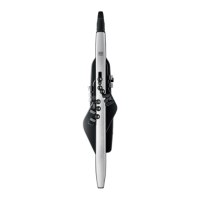
Roland AE-30 - User Manual

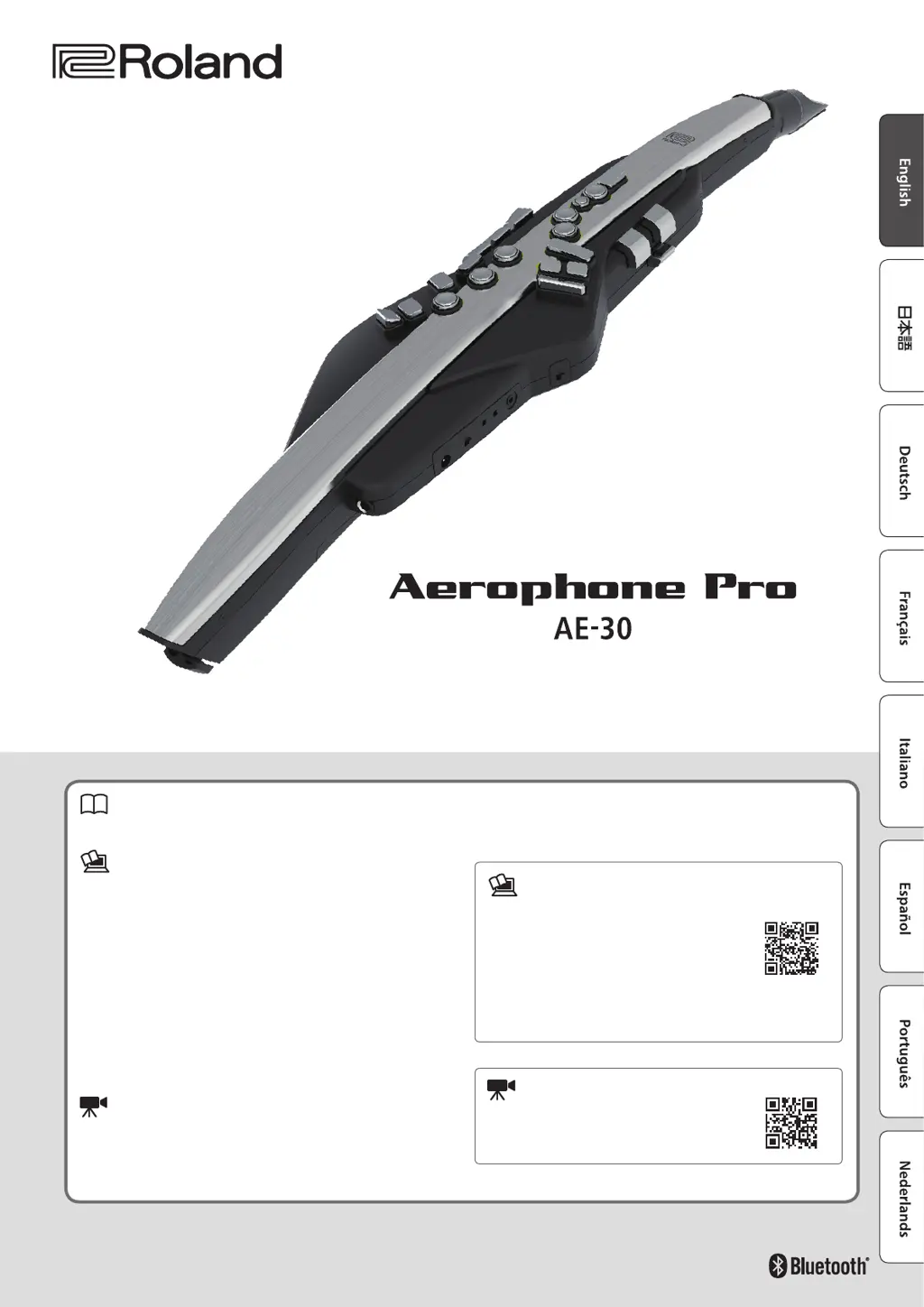
Roland AE-30
24 pages
Print Icon
To Next Page IconTo Next Page
Loading...
© 2020 Roland Corporation
Before using this unit, carefully read “USING THE UNIT SAFELY” and “IMPORTANT NOTES (the leaet “USING THE UNIT SAFELY” and the Owner’s
Manual (p. 2)). After reading, keep the document(s) where it will be available for immediate reference.
Owners Manual (this document)
This explains basic use of the Aerophone Pro.
PDF Manuals (download from the web)
5 Scene List
This is detailed information for the Aerophone Pro sound list.
5 Aerophone Pro Parameter Guide
This explains the parameters that can be edited from the unit itself.
5 Aerophone Pro Editor Owner’s Manual
This explains basic use of this unit’s dedicated app
Aerophone Pro Editor.
5 MIDI Implementation
This is detailed information about MIDI messages that you can use
when connecting the this unit with MIDI devices.
Video Manual
You can view a quick start video.
Owners Manual
To obtain the PDF manuals
1. Enter the following URL in your computer.
https://www.roland.com/support/
2. Search for “AE-30.
3. Download the manual as directed by the screen.
To access the “Video Manual”
http://roland.cm/ae-30_qs

Other manuals for Roland AE-30

Questions and Answers

  • J
    Jennifer KaneJul 25, 2025
    How to troubleshoot no sound or insufficient volume on Roland Musical Instrument Aerophone Pro?
    • J
      John WaltersJul 26, 2025
      If you're experiencing no sound or insufficient volume with your Roland Musical Instrument Aerophone Pro, start by checking the following: * Ensure batteries are correctly oriented. * Verify that the Aerophone Pro is properly connected to the amplified speaker using the OUTPUT jack, or headphones using the PHONES jack. * Try a different cable to rule out a broken audio cable. * If using an amplified speaker, check if sound outputs when headphones are connected. * Adjust the volume levels on the Aerophone Pro, the connected amplified speaker, and any connected smartphone to appropriate levels.
  • D
    Dr. Rhonda DayJul 30, 2025
    How to get sound from an external MIDI device on Roland Musical Instrument?
    • E
      Erica SmithJul 30, 2025
      To get sound from an external MIDI device connected to your Roland Musical Instrument Aerophone Pro, ensure that the MIDI channels of both the Aerophone Pro and the external MIDI device are set to the same setting.
  • W
    William DuranAug 3, 2025
    What to do if Roland Musical Instrument Aerophone Pro can’t connect to Bluetooth audio?
    • R
      Robin HunterAug 3, 2025
      If your Roland Musical Instrument Aerophone Pro is not connecting to Bluetooth audio, and your smartphone's Bluetooth device list shows “AE-30 AUDIO”, try these steps: In your smartphone’s settings, temporarily remove the registration of the “AE-30 AUDIO” Bluetooth device, turn the Bluetooth function off and then on again, and execute pairing once again. If “AE-30 AUDIO” is not shown, turn the Bluetooth function off and then on again in your smartphone’s settings, and then initiate pairing from the Aerophone Pro to pair it once again.
  • A
    Andrew ColemanAug 7, 2025
    Why is “AE-30” not shown on my smartphone for Roland Musical Instrument?
    • A
      Ann KimAug 7, 2025
      If your Roland Musical Instrument Aerophone Pro does not show “AE-30” on your smartphone, check if the unit’s Bluetooth function is turned off. Turn the Bluetooth function on by going to [MENU]0[-][+] “Bluetooth”0[MENU]0[-][+] “On”. Note that when pairing for Bluetooth audio, the device name “AE-30 AUDIO” will appear on your smartphone.
  • K
    kandersonAug 11, 2025
    What to do if I can’t charge the batteries of my Roland Musical Instrument?
    • S
      Stephanie SnyderAug 11, 2025
      If you are unable to charge the batteries of your Roland Musical Instrument Aerophone Pro, avoid connecting the AC adapter while batteries are installed. Instead, use a commercially available charger to charge the batteries.
  • A
    Allison DixonAug 16, 2025
    What to do if Roland Musical Instrument can’t communicate with a computer?
    • R
      Rhonda AndersonAug 16, 2025
      If your Roland Musical Instrument Aerophone Pro is not communicating with a computer, check that the USB cable is correctly connected.
  • S
    Steven JacksonAug 20, 2025
    How to connect to Bluetooth MIDI on Roland Musical Instrument?
    • D
      David KleinAug 20, 2025
      For the Bluetooth MIDI function on your Roland Musical Instrument Aerophone Pro, pairing is not done via your smartphone's Bluetooth settings. Instead, use the settings within the “Aerophone Pro Editor” app.

Summary

USING THE UNIT SAFELY

IMPORTANT NOTES

Main Specifications

Panel Descriptions

Before You Play

Selecting the Power Source

Options for powering the unit via batteries or AC adaptor.

Turning the Power On;Off

Procedures for powering the unit on and off.

Adjusting the Volume

How to control the overall volume output.

Connecting Headphones or External Speakers

Connecting audio output devices.

Performing

Making Sound Settings

How to adjust tones, parts, and overall scene settings.

Playing the Internal Sounds (PRESET SCENE)

Selecting pre-programmed sounds and categories.

Editing the Sound to Your Taste (USER SCENE)

Editing and saving custom sounds.

Using the Aerophone Pro with a Computer or Smartphone

Using the Aerophone Pro with a Smartphone

Connecting via Bluetooth for audio and app use.

Using the Aerophone Pro with Computer Software

Connecting to a computer for MIDI and audio via USB.

Making Settings in the Menu

Making System Settings and Scene Settings

Procedures for configuring system and scene parameters.

Assigning Functions to Controllers (ASSIGN)

Customizing controller functions for performance.

Assigning MIDI Control to a Controller (MIDI CONTROL)

Assigning MIDI functions to controllers.

Troubleshooting

Troubles with Bluetooth functionality

Problems related to Bluetooth connectivity.

Roland AE-30 Specifications

General IconGeneral
Breath ControllerYes
Sound EngineSuperNATURAL
Parts4
EffectsReverb, Chorus
ControllersBreath sensor, Bite sensor, Octave keys
BluetoothBluetooth 4.2
ConnectorsUSB, MIDI
Power SupplyRechargeable battery or AC adapter
ConnectivityUSB, Bluetooth
TypeDigital Aerophone

Related product manuals