12
Driver Installation
Windows XP
9. If a dialog box that asks whether you
want to connect to Windows Update
appears, select [No, not this time] and
click [Next].
10. Select [Install the software automatically
(Recommended)] and click [Next].
11. If the “Hardware Installation” dialog box
appears, click [Continue Anyway] to proceed
with the installation.
12. When “Completing the Found New Hardware
Wizard” appears, click [Finish].
13. When “Installation has been completed.” appears,
click [Close] to close the “DUO-CAPTURE Driver
Setup” dialog box.
If the “Change System Settings” dialog box appears, click [Yes] to restart Windows.
14. Open the “Control Panel,” click [Sounds, Speech, and Audio Devices], and
then click [Sounds and Audio Devices].
If you have selected Classic view, double-click [Sounds and Audio Devices].
15. Click the [Audio] tab and select [OUT (DUO-CAPTURE)] in the [Sound
playback] area.
16. Click [OK].
Proceed to p. 14
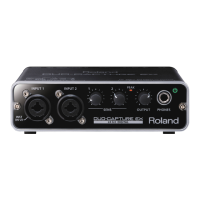
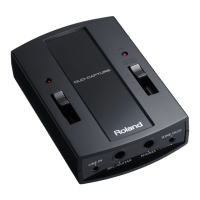
If you cannot select the DUO-CAPTURE, refer to “Using the DUO-CAPTURE” (p. 18).
If the DUO-CAPTURE is selected as the output device, the computer’s audio alerts will be
played using the DUO-CAPTURE; they will not be heard from the computer’s speakers.


 To Next Page
 Loading...