212
About V-LINK
V-LINK ( ) is a function that allows music and
images to be performed together. By using MIDI to connect two or
more V-LINK compatible devices, you can easily enjoy performing a
wide range of visual effects that are linked to the expressive
elements of a music performance.
(Examples)
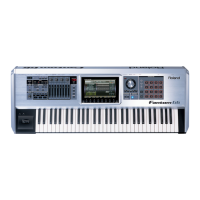
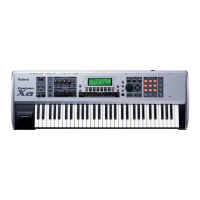
By using the Fantom-Xa and Edirol DV-7PR together, you can:
• Make Edirol DV-7PR playback settings remotely from the
Fantom-Xa.
• Use the Fantom-Xa’s sequencer to enjoy synchronized music
and video.
• Use the Fantom-Xa’s pads to switch the Edirol DV-7PR’s images
(clips/palettes).
• Use the Fantom-Xa’s knobs to adjust the brightness or color of
the image.
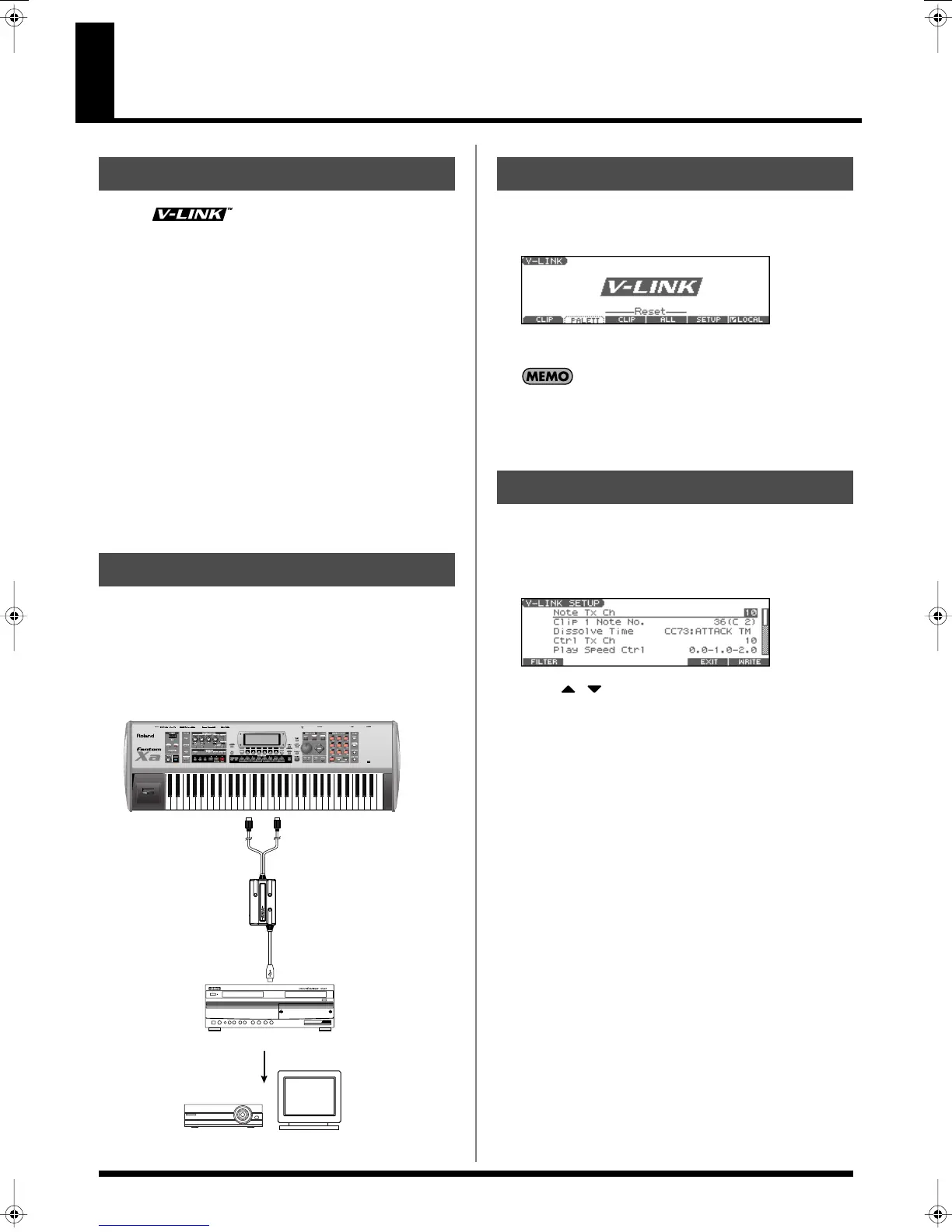
* In order to use V-LINK with the Fantom-Xa and Edirol DV-7PR, you
will need to make connections using an Edirol UM-1X/UM-1SX (sold
separately).
Use an UM-1X/UM-1SX to connect the Fantom-Xa’s MIDI OUT
connector to the V-LINK compatible device.
* Before connecting this unit to other devices, turn off the power to all
units. This will help prevent malfunctions and/or damage to speakers
or other devices.
fig.V-LINKconnect.e
1.
In the left of the panel, press [V-LINK] so the indicator is lit.
The V-LINK screen appears, and the V-LINK setting will be on.
fig.V-LINK
In this state, you can operate the pads to manipulate images in
sync with the playback of the Fantom-Xa.
Each mode will function as usual even if V-LINK is on.
2.
With the V-LINK screen shown, Press [V-LINK] again.
The V-LINK button will go dark, and the V-LINK setting will be off.
1.
Press [V-LINK] to access the V-LINK screen.
2.
Press [F5 (SETUP)].
The V-LINK SETUP screen appears.
fig.V-LINK-SETUP
3.
Press to move the cursor to a parameter.
4.
Use the VALUE dial or [INC] [DEC] to set the value.
For details on V-LINK parameters, refer to
V-LINK Parameters
(p. 213).
5.
If you want to keep your settings, press [F6 (WRITE)].
6.
Press [F5 (EXIT)] or [EXIT] to return to the previous screen.
Pad Mode
You can select whether the pads will switch clips or palettes.
1.
In the V-LINK screen, press [F1 (CLIP)] or [F2 (PALETT)].
[F1 (CLIP)]: The pads will switch clips.
[F2 (PALETT)]: The pads will switch palettes.
Local Switch
You can specify whether the internal sound generator is
disconnected from the pads, or not.
1.
Press [F6 (LOCAL)] to add or remove the check mark (
✔
).
If a check mark is displayed above [F6 (LOCAL)], the internal
sound generator is connected to the pads.
If no check mark is displayed, the internal sound generator is
disconnected from the pads.
What is V-LINK?
Connection Example
Edirol DV-7PR, PR-50, V-4, etc.
Display
Projector
Fantom-Xa
MIDI OUT
Edirol UM-1X
Turning the V-LINK ON/OFF
V-LINK Settings
Fantom-Xa_e.book 212 ページ 2004年10月22日 金曜日 午後2時3分


 To Next Page