EasyManua.ls Logo

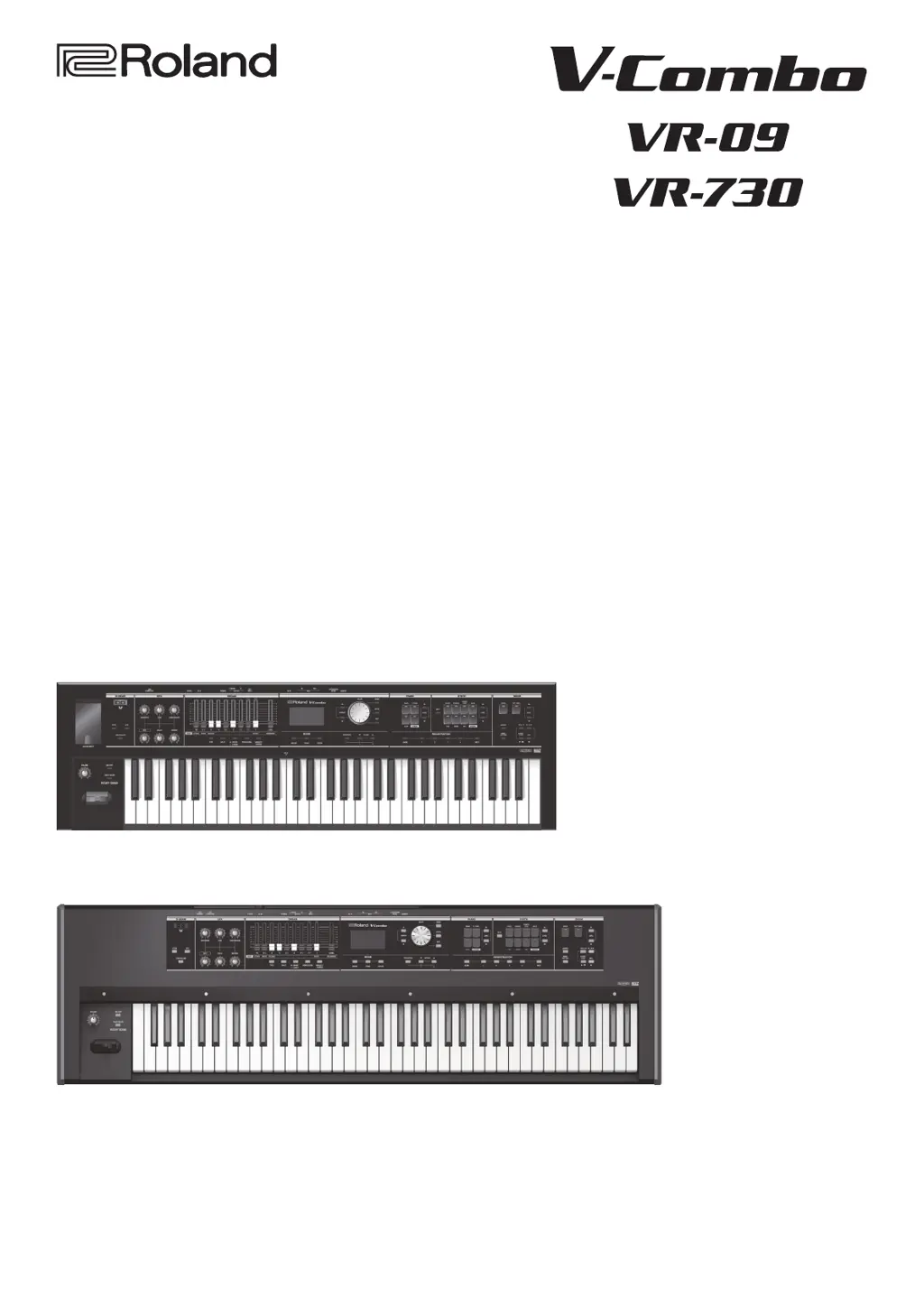
Roland V-combo VR-730 - User Manual

Roland V-combo VR-730
65 pages
Print Icon
To Next Page IconTo Next Page
Loading...
VR-09
VR-730
Copyright © 2017 ROLAND CORPORATION
Reference Manual

Table of Contents

Questions and Answers

  • D
    Danny RayAug 16, 2025
    How to turn on Roland V-combo VR-730 Electronic Keyboard if it doesn't power on?
    • T
      Tracy JordanAug 16, 2025
      If your Roland Electronic Keyboard isn't turning on, the AC adapter may not be connected correctly; ensure it is properly connected. Alternatively, the batteries might be exhausted; try recharging them.
  • K
    Kimberly BennettAug 18, 2025
    Why is there no sound coming from my Roland Electronic Keyboard?
    • J
      Joshua MoodyAug 19, 2025
      There might be several reasons why you're not hearing any sound. First, make sure the [VOLUME] knob isn't set too low; turn it towards “Max.” Also, this unit doesn't have built-in speakers, so ensure headphones or speakers are connected. Check that the [LEVEL] bar or the LEVEL [ ] [ ] button volume of each section isn't set to “0.” If you're using an expression pedal, make sure its volume isn't set too low. If all harmonic bars are raised, you won’t hear any organ sound, so adjust them. If Transistor Organ is selected, ensure that the [ ] bar and the [ ] bar at the right edge are not both raised. Finally, if you’ve assigned the keyboard to play drum sounds or sound effects, turn the drum sounds or sound effects off or play keys to which drums sounds are assigned.
  • J
    Joshua MurrayAug 22, 2025
    What to do if Roland V-combo VR-730 Electronic Keyboard sound is distorted or cracked?
    • K
      Katrina ColemanAug 22, 2025
      If the sound from your Roland Electronic Keyboard is distorted or cracked, it could be due to the volume of each part being too high; use the [LEVEL] bar or the LEVEL [ ] [ ] buttons of each section to lower the volume. Also, check if the overdrive effect is applied; if so, turn the [OVERDRIVE] knob all the way to the left.
  • D
    Devin WattsAug 25, 2025
    Why is the pitch off on my Roland V-combo VR-730?
    • J
      Joshua PatrickAug 26, 2025
      If the pitch is off on your Roland Electronic Keyboard, transpose may be in effect. Hold down the [TRANSPOSE] button and press the [?] and [+] buttons to cancel the transpose setting (the [TRANSPOSE] button will go dark). Also, the tuning might be incorrect, so adjust the MASTER TUNE to “440.0 Hz.” If you are playing keys beyond the recommended range while set for an octave, adjust the octave setting.
  • B
    bknightAug 27, 2025
    Why effect won’t apply on Roland Electronic Keyboard?
    • K
      Kevin RiosAug 27, 2025
      If an effect isn't applying to your Roland Electronic Keyboard, and you’ve switched registrations, the physical position of the effect knobs may no longer match the actual values of the settings. Operate the effect knob to make sure that the setting is not at the minimum value. When used in conjunction with the rotary effect, use the ROTARY SOUND [ON/OFF] button to turn on the rotary effect if you want to produce the sensation that two rotary speaker units are being used with the “TWIN ROTARY” multi-effect.
  • M
    Marie WeberAug 31, 2025
    What to do if there is no sound from Roland V-combo VR-730 Electronic Keyboard when external devices are connected?
    • J
      Jeffrey FrenchAug 31, 2025
      If you're not hearing any sound from your Roland Electronic Keyboard when external devices are connected, ensure that the power of the connected external devices is turned on using the correct procedure.
  • M
    martinezjessicaSep 2, 2025
    Why is modulation applied on Roland Electronic Keyboard even when the rotary effect is off?
    • K
      Karen MullinsSep 2, 2025
      If modulation is applied even when the rotary effect is off on your Roland Electronic Keyboard, “TWIN ROTARY” may be selected as the multi-effect type. Either turn the [MFX] knob to minimize the effect, or change the multi-effect type.
  • B
    Billy SmithSep 5, 2025
    Why is the device connected to the EXT INPUT jack not loud enough on my Roland V-combo VR-730?
    • D
      Dennis WilliamsSep 5, 2025
      If the device connected to the EXT INPUT jack on your Roland Electronic Keyboard isn't loud enough, you might be using a connection cable that contains a resistor. When connection cables with resistors are used, the volume level of equipment connected to the EXT INPUT jack may be low. If this happens, use connection cables that do not contain resistors.
  • M
    Mr. Robert FergusonSep 8, 2025
    Why can't I split the keyboard on my Roland V-combo VR-730 Electronic Keyboard?
    • A
      Andrew SmithSep 8, 2025
      If you can’t split the keyboard on your Roland Electronic Keyboard, the MIDI IN Mode might be set to “KEYBOARD.” Unless you’ve connected a MIDI keyboard and are using a two-manual setup, set the MIDI IN mode to either “MODE 1” or “MODE 2.”
  • J
    Jacob BrownSep 12, 2025
    Why is the pedal part sound heard on Roland V-combo VR-730 Electronic Keyboard even though I’m not playing the pedalboard?
    • F
      fdavisSep 12, 2025
      If you're hearing the pedal part sound on your Roland Electronic Keyboard even though you’re not playing the pedalboard, manual bass may be selected. If manual bass is selected, the lower part will produce the sound of the pedal part, and pressing the pedalboard will not produce sound. Turn off the manual bass setting.

Summary

An Overview of This Unit

Sound Sections

Explains the three sound sections: organ, piano, and synthesizer, and how to play them.

Panel Descriptions

Front Panel

Details the controls and functions located on the front panel of the unit.

Rear Panel (Connecting Devices)

Details various jacks and ports on the rear panel for connectivity.

Getting Ready

Turning the Power On;Off

Steps for turning the unit's power on and off.

Selecting Sounds

Selecting Sounds with One Touch

How to select organ, piano, and synthesizer sounds using mode buttons.

Selecting Your Favorite Sounds (Registration)

How to assign names to sounds and store them as registrations.

Storing a Registration

How to store sound and effect settings as a new registration.

Modifying the Organ Sound

Using the Harmonic Bars

Explains how to use harmonic bars to adjust organ sound.

Modifying the Synthesizer Sound

Changing the Volume Envelope (ATTACK, DECAY, RELEASE)

How to adjust the attack, decay, and release parameters.

Adjusting the Tonal Character (CUTOFF, RESONANCE)

How to adjust cutoff and resonance parameters using harmonic bars.

Adding Effects to the Sound

Applying Effects (EFX)

Explains how to apply various effects to sounds.

Modifying the Sound; Producing Sound Effects (D-BEAM Controller)

How to use the D-BEAM controller to modify sound or create effects.

Changing the Key Range

Transposing the Key (Transpose)

How to transpose the keyboard's pitch.

Combining Two Sounds

Layering Two Sounds (Dual)

Explains how to layer two sounds.

Playing Different Sounds in the Left and Right Hands (Split)

How to play different sounds with left and right hands.

Performing with Rhythm Pattern

Selecting;Playing Rhythm Pattern

How to select and play rhythm patterns.

Recording Your Performance

Preparations for recording

Steps to prepare for recording, including USB drive and rhythm selection.

Using the Looper

Recording with the Looper

Step-by-step guide to recording and overdubbing with the looper.

Loading an Audio File for Playback or Recording

How to load audio files for looper playback or recording.

Saving a Phrase

How to save recorded looper phrases to a USB flash drive.

Convenient Functions

Making the Power Automatically Turn Off After a Time (Auto Off)

How to configure or disable the auto power-off function.

Saving Registrations to a USB Flash Drive (Save Registration)

How to save all registrations to a USB flash drive.

Loading Saved Registrations from a USB Flash Drive (Load Registration)

How to load an entire set of saved registrations from USB.

Restoring the Factory Settings (Factory Reset)

How to restore all unit settings to their factory defaults.

Detailed Settings for All Functions (Menu)

Basic Menu Operations

General steps for navigating and using the unit's menu system.

Save Registration

Saves registration sets to a USB flash drive.

Connections with Other Equipment

Connecting a Computer

How to connect the unit to a computer via USB for MIDI data.

Connecting MIDI Devices

How to connect external MIDI devices for performance control.

About the Wireless LAN Function

Basic Connection Method (Connect by WPS)

Step-by-step guide to connect to a wireless network using WPS.

Troubleshooting

Power does not turn on

Troubleshooting steps for when the unit does not power on.

No sound is heard

Troubleshooting steps for issues with no sound output.

Problems with the sound

Troubleshooting steps for various sound-related issues.

Problems when recording

Troubleshooting steps for recording issues.

Problems when connecting to a wireless LAN

Troubleshooting steps for wireless LAN connection problems.

Error Messages

Battery Low!

Explains the 'Battery Low!' error message and actions.

Roland V-combo VR-730 Specifications

General IconGeneral
EqualizerYes
Product typeDigital synthesizer
Product colorBlack
Sound effectsCompression, Delay, Overdrive, Reverberation
Sound effects quantity268
Keyboard number of keys73
Maximum polyphony (notes)128
Reverberation effects quantity6
USB ports quantity2
6.35 mm (1⁄4-inch) input1
Battery typeAA
Operating time5 h
Power source typeAC, Battery
Number of batteries supported8
Weight and Dimensions IconWeight and Dimensions
Depth366 mm
Width1215 mm
Height124 mm
Weight9900 g

Related product manuals