EasyManua.ls Logo

Roland V-combo VR-09 - User Manual

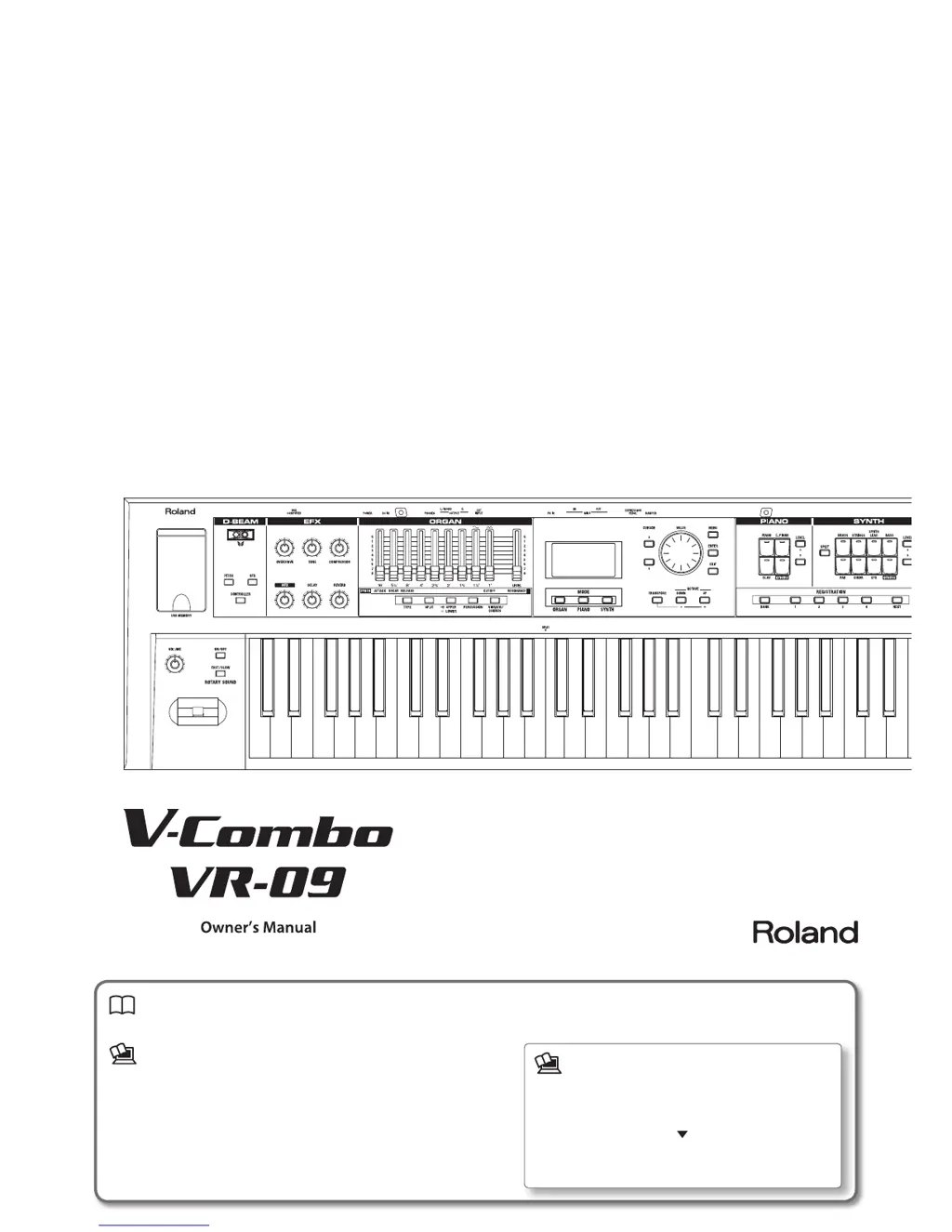
Roland V-combo VR-09
68 pages
Print Icon
To Next Page IconTo Next Page
Loading...
Owners Manual (this document)
Read this rst. It explains the basic things you need to know in order to use the VR-09.
PDF Manual (download from the Web)
Data List
This is a list of the sounds, drum kits, rhythm patterns, and sound eects
built into the VR-09.
MIDI Implementation
This is detailed information about MIDI messages.
To obtain the PDF manual
1.
Enter the following URL in your computer.
http://www.roland.com/manuals/
2. Choose “V-Combo VR-09” as the product
name.

Table of Contents

Other manuals for Roland V-combo VR-09

Questions and Answers

  • J
    Jason GrayAug 15, 2025
    How to turn on Roland Electronic Keyboard if it doesn't power on?
    • J
      joe51Aug 16, 2025
      If your Roland Electronic Keyboard isn't turning on, the AC adapter may not be connected correctly; ensure it is properly connected. Alternatively, the batteries might be exhausted; try recharging them.
  • R
    Ryan StoneAug 18, 2025
    Why is there no sound coming from my Roland Electronic Keyboard?
    • A
      Antonio MccarthyAug 18, 2025
      There might be several reasons why you're not hearing any sound. First, make sure the [VOLUME] knob isn't set too low; turn it towards “Max.” Also, this unit doesn't have built-in speakers, so ensure headphones or speakers are connected. Check that the [LEVEL] bar or the LEVEL [ ] [ ] button volume of each section isn't set to “0.” If you're using an expression pedal, make sure its volume isn't set too low. If all harmonic bars are raised, you won’t hear any organ sound, so adjust them. If Transistor Organ is selected, ensure that the [ ] bar and the [ ] bar at the right edge are not both raised. Finally, if you’ve assigned the keyboard to play drum sounds or sound effects, turn the drum sounds or sound effects off or play keys to which drums sounds are assigned.
  • T
    Teresa GreenAug 21, 2025
    What to do if Roland V-combo VR-09 sound is distorted or cracked?
    • K
      Kevin LopezAug 21, 2025
      If the sound from your Roland Electronic Keyboard is distorted or cracked, it could be due to the volume of each part being too high; use the [LEVEL] bar or the LEVEL [ ] [ ] buttons of each section to lower the volume. Also, check if the overdrive effect is applied; if so, turn the [OVERDRIVE] knob all the way to the left.
  • J
    James MooreAug 25, 2025
    Why is the pitch off on my Roland V-combo VR-09 Electronic Keyboard?
    • M
      Meghan WattsAug 25, 2025
      If the pitch is off on your Roland Electronic Keyboard, transpose may be in effect. Hold down the [TRANSPOSE] button and press the [?] and [+] buttons to cancel the transpose setting (the [TRANSPOSE] button will go dark). Also, the tuning might be incorrect, so adjust the MASTER TUNE to “440.0 Hz.” If you are playing keys beyond the recommended range while set for an octave, adjust the octave setting.
  • S
    Shelby WilliamsAug 27, 2025
    Why effect won’t apply on Roland V-combo VR-09 Electronic Keyboard?
    • A
      Antonio Evans DVMAug 27, 2025
      If an effect isn't applying to your Roland Electronic Keyboard, and you’ve switched registrations, the physical position of the effect knobs may no longer match the actual values of the settings. Operate the effect knob to make sure that the setting is not at the minimum value. When used in conjunction with the rotary effect, use the ROTARY SOUND [ON/OFF] button to turn on the rotary effect if you want to produce the sensation that two rotary speaker units are being used with the “TWIN ROTARY” multi-effect.
  • M
    Maxwell HancockAug 30, 2025
    What to do if there is no sound from Roland V-combo VR-09 when external devices are connected?
    • A
      Ashley MillerAug 30, 2025
      If you're not hearing any sound from your Roland Electronic Keyboard when external devices are connected, ensure that the power of the connected external devices is turned on using the correct procedure.
  • C
    Christopher SantiagoSep 2, 2025
    Why is modulation applied on Roland Electronic Keyboard even when the rotary effect is off?
    • D
      Deborah SteeleSep 2, 2025
      If modulation is applied even when the rotary effect is off on your Roland Electronic Keyboard, “TWIN ROTARY” may be selected as the multi-effect type. Either turn the [MFX] knob to minimize the effect, or change the multi-effect type.
  • M
    Mary McbrideSep 5, 2025
    Why is the device connected to the EXT INPUT jack not loud enough on my Roland V-combo VR-09?
    • T
      Tammy SmithSep 5, 2025
      If the device connected to the EXT INPUT jack on your Roland Electronic Keyboard isn't loud enough, you might be using a connection cable that contains a resistor. When connection cables with resistors are used, the volume level of equipment connected to the EXT INPUT jack may be low. If this happens, use connection cables that do not contain resistors.
  • B
    Bruce TylerSep 8, 2025
    Why can't I split the keyboard on my Roland Electronic Keyboard?
    • L
      Lisa JimenezSep 8, 2025
      If you can’t split the keyboard on your Roland Electronic Keyboard, the MIDI IN Mode might be set to “KEYBOARD.” Unless you’ve connected a MIDI keyboard and are using a two-manual setup, set the MIDI IN mode to either “MODE 1” or “MODE 2.”
  • K
    Karen ClarkSep 12, 2025
    Why is the pedal part sound heard on Roland V-combo VR-09 even though I’m not playing the pedalboard?
    • B
      Beverly SotoSep 12, 2025
      If you're hearing the pedal part sound on your Roland Electronic Keyboard even though you’re not playing the pedalboard, manual bass may be selected. If manual bass is selected, the lower part will produce the sound of the pedal part, and pressing the pedalboard will not produce sound. Turn off the manual bass setting.

Summary

Panel Descriptions

Front Panel

Explanation of the VR-09's front panel controls and functions.

Panel Descriptions (Continued)

Rear Panel (Connecting Devices)

Details on rear panel connectors for pedals, MIDI, audio, power, and USB.

Getting Ready

Installing Batteries

How to install rechargeable Ni-MH batteries for portable use.

Types of batteries that can be used

Specifies rechargeable Ni-MH batteries are required.

Getting Ready (Continued)

Placing the VR-09 on a Stand

How to safely place the VR-09 on compatible stands.

Turning the Power On;Off

Step-by-step guide to safely powering the unit on and off.

Selecting Sounds

Selecting Sounds with One Touch

Use mode buttons to select organ, piano, or synth sounds.

Selecting Organ Sounds

How to select and audition organ sounds.

Selecting Sounds (Continued)

Selecting Your Favorite Sounds (Registration)

How to assign and store favorite sounds as registrations.

Modifying the Organ Sound

Using the Harmonic Bars

How to shape organ sound using harmonic bars.

Modifying the Organ Sound (Continued)

Using the Rotary Effect

How to add and control the rotary speaker effect.

Modifying the Synthesizer Sound

Changing the Volume Envelope (ATTACK, DECAY, RELEASE)

Adjusting the volume change over time for synth sounds.

Adjusting the Tonal Character (CUTOFF, RESONANCE)

Modifying the synth sound's tone using filter controls.

Adding Effects to the Sound

Applying Effects (EFX)

How to apply and control various built-in effects.

Adding Effects to the Sound (Continued)

Modifying the Sound; Producing Sound Effects (D-BEAM controller)

Using the D-BEAM controller to modify sound or create effects.

Changing the Pitch;Applying Vibrato (Pitch Bend;Modulation Lever)

Using the lever for pitch bend and modulation effects.

Combining Two Sounds

Layering Two Sounds (Dual)

Layering two different sounds simultaneously.

Combining Two Sounds (Continued)

Playing Different Sounds in the Left and Right Hands (Split)

Dividing the keyboard to play different sounds with each hand.

Playing the pedal sound with your left hand (manual bass)

Using the left hand to play organ pedal sounds.

Performing with Rhythm Pattern

Selecting;Playing Rhythm Pattern

How to select and start rhythm patterns.

Recording Your Performance

Starting;stopping recording

How to start and stop the recording process.

Preparations for recording

Steps needed before starting recording (USB drive, rhythm).

Recording Your Performance (Continued)

Playing a Song

How to play back saved songs from a USB flash drive.

Using the Looper

Recording with the Looper

Steps for recording and overdubbing phrases with the looper.

Using the Looper (Continued)

Saving a Phrase

How to save recorded looper phrases to a USB flash drive.

Convenient Functions

Saving Registrations to a USB Flash Drive (Save Registration)

Saving all registrations to a USB flash drive.

Convenient Functions (Continued)

Restoring the Factory Settings (Factory Reset)

Resetting all settings to their factory defaults.

Detailed Settings for All Functions (Menu)

Basic Menu Operations

How to navigate and use the unit's menu system.

Detailed Settings for All Functions (Menu) (Continued)

Connections with Other Equipment

Connecting a Computer

Connecting the VR-09 to a computer via USB.

Connecting MIDI Devices

Connecting external MIDI devices for performance control.

About the Wireless LAN Function

Basic Connection Method (Connect by WPS)

Step-by-step guide to connecting via WPS for the first time.

About the Wireless LAN Function (Continued)

Connecting in Ad-Hoc mode (Ad-Hoc Mode)

How to connect directly to a wireless device without an access point.

Troubleshooting

Power does not turn on

Solutions for when the unit does not power on.

No sound is heard

Steps to diagnose and fix issues with no sound output.

Problems with the sound

Solutions for sound-related issues like dynamics or split problems.

Troubleshooting (Continued)

Problems when connecting to a wireless LAN

Solutions for issues connecting to a wireless LAN.

Error Messages

Battery Low!

Action for battery power running low.

Cant Read

Action for failure to load data from USB flash drive.

Charge Battery

Action when battery has run low.

Communication Error

Action for broken MIDI IN connection.

Damaged Media

Action when USB flash drive is damaged.

Media Full

Action when USB flash drive has no free space.

Memory Error

Action when system memory contents are damaged.

MIDI Buffer Full!

Action for receiving too much MIDI data.

No storage media is inserted.

Action when USB flash drive is not inserted.

Unsupported Media!

Action when an unsupported USB flash drive is connected.

Write Error!

Action for failure to write data to USB flash drive.

Write-Protected.

Action when a file is write-protected.

Stored Settings

Settings That Are Stored After the Power Is Turned Off

Lists settings retained after power off.

Settings That Are Stored in the Registrations

Lists settings that can be stored in registrations.

USING THE UNIT SAFELY

ALWAYS OBSERVE THE FOLLOWING

Crucial rules to follow for safe operation.

Do not disassemble or modify by yourself

Prohibition against self-service or modification.

Do not repair or replace parts by yourself

Instruction to refer servicing to authorized personnel.

Do not drop or subject to strong impact

Warning against dropping or impacting the unit.

Do not share an outlet with an unreasonable number of other devices

Caution regarding power outlet usage and extension cords.

USING THE UNIT SAFELY (Continued)

WARNING

Warnings about foreign objects, liquids, and operating conditions.

Turn off the unit if an abnormality or malfunction occurs

Steps to take if the unit malfunctions.

Handle batteries carefully

Important precautions for handling rechargeable batteries.

Place in a well ventilated location

Advice on proper placement for ventilation.

Use only the specified stand(s)

Warning to use only Roland-specified stands.

Evaluate safety issues before using stands

Reminds users to check stand stability.

When disconnecting an AC adaptor, grasp it by the plug

Proper method for disconnecting the AC adaptor.

Periodically clean the AC adaptors plug

Guidance on cleaning the AC adaptor plug.

Manage cables for safety

Advice on managing cables to prevent entanglement.

Avoid climbing on top of the unit, or placing heavy objects on it

Warning against climbing or placing items on the unit.

Do not connect or disconnect the AC adaptor with wet hands

Strict warning against handling with wet hands.

Disconnect everything before moving the unit

Instruction to disconnect all cables before moving.

IMPORTANT NOTES

Handle batteries carefully

Reinforces battery handling precautions.

CAUTION

Cautions about keeping small items from children and battery temperatures.

Power Supply

Notes on connecting to power outlets and AC adaptor heat.

Power Supply: Use of Batteries

Notes on battery replacement and rechargeable battery types.

Roland V-combo VR-09 Specifications

General IconGeneral
EqualizerYes
Product typeDigital synthesizer
Product colorBlack
Sound effectsCompression, Delay, Overdrive, Reverberation
Sound effects quantity223
Keyboard number of keys61
Maximum polyphony (notes)128
Reverberation effects quantity6
Headphone outputs1
6.35 mm (1⁄4-inch) output2
Battery typeAA
Operating time5 h
Power source typeAC, Battery
Number of batteries supported8
Weight and Dimensions IconWeight and Dimensions
Depth300 mm
Width1008 mm
Height106 mm
Weight5500 g

Related product manuals