EasyManua.ls Logo

Roland V-Synth - User Manual

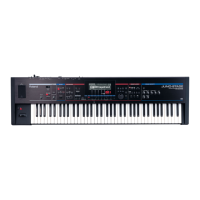
Roland V-Synth
213 pages
Print Icon
To Next Page IconTo Next Page
Loading...
V-Synth Version 2
LEAFLET
40670934 1PD
Errata
We apologize for the following errors in the V-Synth XT Owner’s Manual.
Please make the corrections listed below.
P.39 Step
6
(Incorrect)
To save your patch, use the procedure described in “Saving Patches
(PATCH Write)” (p. 51).
(Correct)
To save your patch, use the procedure described in “Saving Patches
(PATCH Write)” (p. 53) and
“Saving Project on Disk (Save
Project)” (p. 132)
.
*
If you want to save a patch you created in the Sound Shaper,
you must also execute “Save Project” (p.53) in addition to
“PATCH Write” (p.132). If you don’t execute “Save Project,”
the PCM oscillator of the patch you created in Sound Shaper
will no longer sound the next time you turn on the power.
P.54 right column
“About Multitimbral Performance”
(Add)
The effect settings of Part 1 are used by all parts.
The arpeggiator works only on Part 1.
P.57 right column “Demo Mode”
(Incorrect)
Demo Mode
(Correct)
Features Mode
P.77 right column Step
6
(Incorrect)
Save your patch as described in “Saving Patches (PATCH Write)” (p. 74).
(Correct)
Save your patch as described in “Saving Patches (PATCH Write)” (p. 74)
and
“Saving Project on Disk (Save Project)” (p. 132)
.
*
If you want to save a patch you created in the Sound Shaper,
you must also execute “Save Project” (p.74) in addition to
“PATCH Write” (p.132). If you don’t execute “Save Project,”
the PCM oscillator of the patch you created in Sound Shaper
will no longer sound the next time you turn on the power.
P.98 right column “Zone Settings (Zone)”
(Add)
By holding down [SHIFT] and playing the keyboard, you can switch to
the zone that includes that note-on.
* You can’t switch zones by playing more than one key while you hold
down [SHIFT]. You’ll need to release [SHIFT] and press it again each
time you play the keyboard.
* This function will not operate if the arpeggiator is on.
P.99 right column Step
10
(Add)
Each zone works just like a single patch. You can create the sound for a
zone from scratch in the same way as for a patch, as described in the
procedure “Creating a patch” (p.72). If you want to assign a different
patch sound to a zone, use Patch Copy (p.73) to copy the patch settings to
the desired zone.
P.101 left column “The concept of a Rhythm Kit”
(Add)
When you’re using Rhythm mode, the effect you specify for the Rhythm
part will also apply to the other parts (non-rhythm parts) you’re using.
P.102 right column Step
3
(Add)
You can also switch notes by holding down [SHIFT] and playing the
keyboard.
* You can’t switch notes by playing more than one key while you hold
down [SHIFT]. You’ll need to release [SHIFT] and press it again each
time you play the keyboard.
* This function will not operate if the arpeggiator is on.
P.110 right column “Beat”
(Incorrect)
Value
Numerator:
1–31
(Correct)
Value
Numerator:
0–31
* If you set this to 0, no time signature accent note will be sounded.
P.122 left column
“Patch Remain (Patch Remain Switch)”
(Incorrect)
Specifies whether currently sounding notes will continue sounding when
another patch is selected (ON), or not (OFF).
(Correct)
Specifies whether currently sounding notes will continue sounding when
another patch is selected (ON), or not (OFF).
* This function is valid only when the effect is turned off.
For the latest information about MIDI Implementation, please visit
http://www.roland.com/

Table of Contents

Other manuals for Roland V-Synth

Questions and Answers

  • V
    vargasjenniferSep 10, 2025
    Why is there no sound coming from my Roland Synthesizer?
    • D
      Dr. Janice HughesSep 10, 2025
      Several factors could cause a lack of sound or low volume. First, ensure your amplifier or mixer is powered on. Then, check the volume levels on both the V-Synth and any connected equipment. If sound is present in the headphones, examine the connection cables for damage or potential malfunctions in the amp or mixer. Also, verify that the Local Switch is turned ON, the Patch level isn't too low, the Effect settings are properly configured, the output destination settings are correct, no external MIDI devices are sending volume-reducing messages, the oscillator is on, and the V-Synth isn't in USB Storage mode.
  • D
    dmirandaAug 25, 2025
    How to fix V-Synth driver not mounted in Windows XP?
    • E
      Elizabeth PenaAug 25, 2025
      If the V-Synth driver is not mounted in Windows XP, and a network drive is mounted, change the assignment of the network drive.
  • C
    cooperandrewAug 25, 2025
    Why does Roland Synthesizer “Found unknown device” appears even though you installed the driver?
    • M
      Marcus JamesAug 26, 2025
      If the “Found unknown device” dialog box appears even though you've installed the driver for your Roland Synthesizer, and your computer or USB hub has multiple USB connectors, it could be because you connected the V-Synth to a USB connector to which it hasn't been connected before. Reinstall the driver, referring to the Readme file on the included CD-ROM. If the issue persists with the same USB connector, the computer may have detected the V-Synth incorrectly. Delete the incorrect device information and reinstall the driver.
  • B
    Brandy HeathSep 23, 2025
    Why does my Roland Synthesizer computer does not turn off when I attempt to exit Windows?
    • N
      nwilkersonSep 23, 2025
      If your computer doesn't turn off when you exit Windows while the V-Synth is powered up, it might be because you need to cancel the USB connection before turning off the power of the V-Synth and exiting Windows.
  • C
    Christine SimonSep 12, 2025
    What to do if my Roland Synthesizer sound is distorted?
    • S
      Sean WardSep 12, 2025
      If the sound from your Roland Synthesizer is distorted, it could be due to an effect that distorts the sound. Check your effect settings. It could also be that the Patch level has been turned up too high, so check the Level parameter setting.
  • K
    Kimberly LinSep 15, 2025
    How to troubleshoot a Roland Synthesizer when the volume level of the instrument connected to INPUT Jacks is too low?
    • H
      Holly GuzmanSep 15, 2025
      If the volume level of an instrument connected to the INPUT Jacks of your Roland Synthesizer is too low, you might be using a connection cable that contains a resistor. Use a connection cable that does not contain a resistor.
  • D
    Daniel WeberSep 4, 2025
    What to do if Roland V-Synth Electronic Keyboard freezes computer on startup?
    • J
      James Lowery MDSep 4, 2025
      If your computer freezes at the startup screen when starting (or restarting) with the Roland Electronic Keyboard connected via USB, switch off the V-Synth and then restart your computer.
  • E
    Edward StoutSep 5, 2025
    What to do if error occurred in Windows when turning off Roland Electronic Keyboard?
    • J
      Jason WilsonSep 5, 2025
      If, when using Windows Me, an error occurs when powering down the Roland Electronic Keyboard, you must cancel the USB connection before you turn off the power of the V-Synth.
  • Y
    Yolanda EspinozaSep 23, 2025
    Why does my Roland Synthesizer stop functioning when waking up my computer from Suspend?
    • J
      Joshua WilliamsSep 23, 2025
      If your Roland Synthesizer stops functioning when waking your computer from Suspend, it's possible that waking up the computer from the Suspend state while a powered-up V-Synth is connected via USB can cause the computer to freeze. Power down the V-Synth before you Suspend your computer.
  • J
    josephdavisAug 30, 2025
    How to fix low volume from instrument connected to input jacks on Roland V-Synth?
    • J
      John ShawAug 30, 2025
      If the volume level of an instrument connected to the INPUT Jacks of your Roland Electronic Keyboard is too low, the issue might be the connection cable. Be sure to use a connection cable that does not contain a resistor.

Roland V-Synth Specifications

General IconGeneral
ArpeggiatorYes
Velocity SensitivityYes
AftertouchYes
VocoderYes
USBNo
Keyboard61 keys (velocity and aftertouch sensitive)
EffectsChorus, Delay, Reverb, Distortion, Flanger, Phaser
SamplingYes
Display320x240 pixel color LCD
MIDIIn/Out/Thru
TypeSynthesizer
LFOYes
StorageSmartMedia card
OutputsStereo
HeadphonesYes
Power SupplyAC
InputsStereo Line, Microphone
Audio InputsStereo Line, Mic

Related product manuals