Ruckus Wireless, Inc. | P/N: QS_vf2811_03152007vABC]
QUICK SETUP GUIDE
Ruckus Wireless VF2811
Multimedia Wireless
Access Point
This Quick Setup Guide describes in step-by-step detail how to
set up a Ruckus Wireless VF2811 multimedia wireless access
point (AP), providing users with a wireless LAN. The process
includes reconfiguring your PC/laptop to connect to the AP
through the Ruckus Wireless Web Admin Interface. At the conclu-
sion of setup, you can connect your Ruckus Wireless AP at your
site and put it in use.
Package Contents
• One VF2811 access point
• One 1-meter/3-foot Cat5 Ethernet cable
• One AC power adapter
•One Quick Setup Guide (this publication)
Required Equipment
• A PC or laptop running Windows 2000 or Windows XP
• A modem (DSL or cable), E1/T1 router, or other device pro-
vided by your Internet Service Provider, that brings Internet
access to your site.
1 After unpacking your Ruckus Wireless AP from the package,
place it next to your PC/laptop.
2 Temporarily disconnect your PC/laptop from any local net-
work (if connected).
3 Using the Ethernet cable provided in the Ruckus package,
connect your PC/laptop network port to the single Ether-
net port (labelled “WAN”) on the AP.
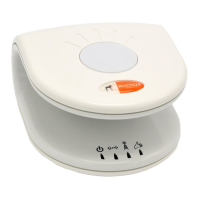
4 Using the AC adapter included in the package, con-
nect the AP to a convenient (and protected) power
source. After a minute, verify that the AP’s Power
LED (shown right) is a steady green.
You can now prepare your PC for a direct-to-AP network
connection.
1 On your Windows 2000 or XP PC, open the Network Connec-
tions (or Network and Dial-up Connections) control panel
according to how the Start menu is set up:
Start-> Settings-> Network Connections
Start-> Control Panel-> Network Connections
2 When the Network Connections window appears (XP or
2000), right-click the icon for “Local Area Connection” and
choose Properties.
ALERT!—Make sure you don’t open the Properties dialog
box for the wireless network.
3 When the Local Area Connection Properties dialog box
appears, select Internet Protocol (TCP/IP) from the scroll-
ing list, and click Properties.
The TCP/IP Properties dialog box appears.
4 IMPORTANT— Write down all of the currently active set-
tings so you can restore your computer to its current con-
figuration later (when this process is complete).
5 Select Use the following IP address (if it’s not already
active) and make the following entries:
IP Address 192.168.0.22 (or any address in
the 192.168.0.x network)
Subnet mask 255.255.255.0
Default gateway 192.168.0.1
Preferred DNS server 192.168.0.1
•You can leave the Alternate DNS server field empty.
6 Click OK to save your changes and exit first the TCP/IP
Properties dialog box, then the Local Area Connection
Properties dialog box.
Your changes are put into effect immediately. You can now
use a Web browser to log into the AP.
As specified earlier, the AP should be directly connected to
your PC/laptop (through the WAN port), and have been powered
up, ready for setup.
1 On the PC, open a Web browser window.
2 In the browser, use the IP address printed on the bottom of
the AP as a URL to connect to the AP.
Your URL should resemble this example:
http://192.168.0.0
3 Press Enter to initiate the connection.
4 When the Ruckus Wireless Admin login page appears, enter
the Username and Password
that are printed on the
sticker on the bottom of the AP.
5 Click Login.
When the Ruckus 2811 Multimedia Wireless AP manage-
ment application appears in the browser, you can proceed.
[This application will be referred to as the “Web Admin
interface” hereafter.]
1 Connecting the Ruckus AP to your PC
2 Preparing your PC for AP Connection
3 Logging into the AP
Default AP Settings (for your reference)
Network Name (SSID) V54-HOME001
Security (Encryption method) Disabled
Default Management IP Address 192.168.0.1

 Need help?
 General






 To Next Page