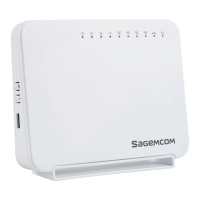
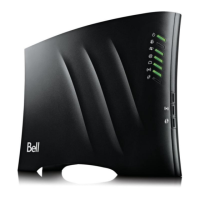
Sagemcom F@st 5260
Chapter 2:
Getting Started
6.
Connect the power adapter to the power input of your router, then plug it into an outlet.
If no LEDs are lit, press the power On/Off button on the rear panel of the router.
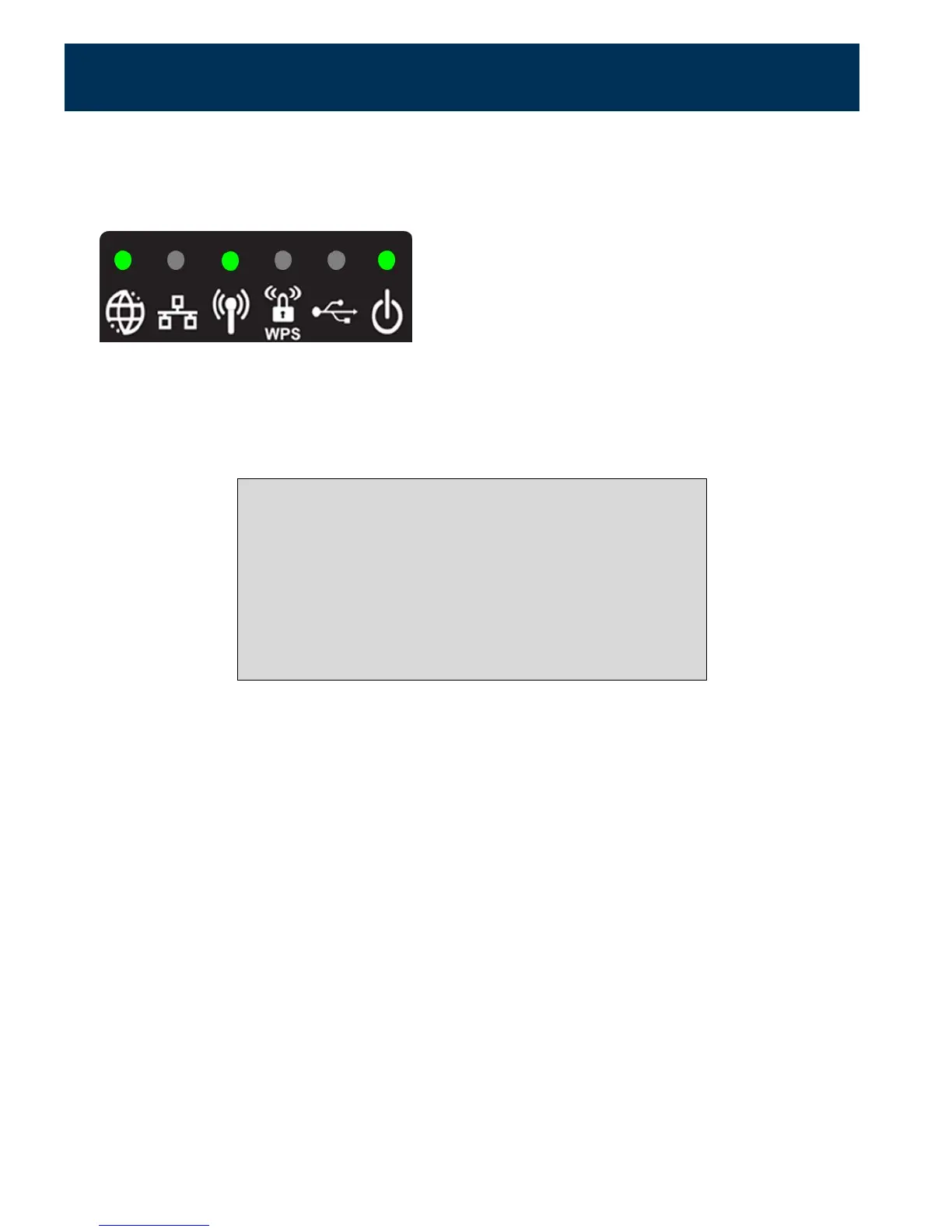
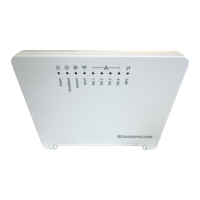
The router is ready to use when the following indicator lights are solid green:
7.
After installing the hardware, you can now connect to the Internet. On your device (PC,
laptop, phone, tablet, etc.) open the software utility that manages Wi-Fi connections.
8.
Find the Network Name (SSID) as listed on the label of your router.
When searching on your device, there are 2 network names that
may appear:
•
MySpectrumWiFiXX-2G
•
MySpectrumWiFiXX-5G
(where XX is specific to your router)
If you see the name ending in ‘5G’, your device is 5 GHz-capable.
Connecting to the ‘5G’ network may provide a better experience.
9.
Enter the network password listed on the router label. You should now be connected to
the Internet.
10.
If you wish to customize your router settings further, see the instructions below.
10


 To Next Page