1
ENGLISH
TABLE OF CONTENTS
QUICK START
KEYS AND FEATURES
INTRODUCTION
1. GETTING STARTED: THE BASICS
1.1 Power On
1.2 Ready to Play? Here’s How!
1.3 The Computer Makes Its Move
1.4 Change Your Mind? Take Back!
1.5 Game Over? Start a New Game
1.6 Too Easy/Hard? Change Levels!
1.7 Voice On/Off? It’s Your Choice!
2. ADDITIONAL FEATURES
2.1 Whose Turn? Check the Display!
2.2 Captures and Special Moves
2.3 Illegal Moves
2.4 Check, Mate, and Draw
2.5 Need a Hint? Just Ask!
2.6 Interrupting the Search
2.7 Changing Sides
2.8 Book Openings
2.9 Thinking on the Opponent’s Time
2.10 Game Memory
2.11 Auto Power Down
3. PLAYING LEVELS
Setting a Playing Level
3.1 Fun Levels (1-60)
3.2 Casual Play Levels (61-70)
3.3 Tournament Levels (71-80)
3.4 Speed Chess Levels (81-90)
3.5 Problem Solving Levels (91-98)
3.6 Tactical Level (99)
3.7 Infinite Level (100)
4. TUTORIAL LESSONS
About the Tutorials
4.1 Selecting a Tutorial Lesson
4.2 Tips on Taking Tutorials
5. GAME OPTIONS
Selecting Game Options
5.1 Operation Mode Options
Auto Response
Sound Levels
Coach Levels
Clock Ticking
Countdown Clock
Play White from the Top
5.2 Playing Mode Options
Selective Search
All Opening Books
Individual Opening Books
5.3 Opening Rules Options
All Opening Rules
Individual Opening Rules
5.4 Rotating Display Options
6. GAME INFORMATION
Using Info Mode
6.1 Principal Variation
6.2 Search Information
6.3 Chess Clocks
6.4 Move Count/Game Moves
7. VERIFYING/SETTING UP
POSITIONS
7.1 Verifying Positions
7.2 Changing Positions
8. TECHNICAL DETAILS
8.1 The ACL Function
8.2 Care and Maintenance
8.3 Technical Specifications
TROUBLESHOOTING GUIDE
INTRODUCTION
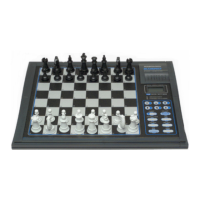
Congratulations! You are now the proud owner of one of
the most unique and exciting chess computers ever! This
talking computer, with its vast array of special features and
interesting game options, is a real breakthrough in the field
of computer chess. The human-like interaction is guaranteed
to amaze you—this machine is unlike any other! Over three
hours of human voice will guide you, train you, and keep you
company while you learn more than you ever imagined you
could about the exciting game of chess. From the friendly
advice on what to do in a certain position, to the warnings
when you’re about to make a mistake, to the in-depth tutori-
als which take you by the hand and teach you as never
before—with this computer by your side, chess will never be
the same again!
See the “KEYS AND FEATURES” diagram for an
itemized overview of the computer’s main points!
Your computer knows and follows all the rules of chess.
For those who are new to the game, we have enclosed an
overview of the rules. We hope this will help you understand
the game better and get a feel for the strategies involved.
For more detailed information, we suggest a visit to your
local library, where you are sure to find a wealth of interest-
ing chess books!
1. GETTING STARTED: THE BASICS
1.1 Power on
Your chess computer runs on six “C” (AM2/R14) batteries.
Insert the batteries as indicated in the
Quick Start
at the front
of the manual, making sure to observe the correct polarity.
Use fresh alkaline batteries for longer battery life!
If you would rather not power your computer with batter-
ies, you may purchase an optional AC-DC adapter. Please
use only the adapter specified in Section 8.3, as using any
other adapter could damage the computer and will invalidate
your warranty. Please also read the precautionary informa-
tion regarding adapter use in Section 8.2. When using an
adapter, first plug it into a wall outlet, and then into your
computer.
Important: To ensure that the computer’s memory
contents are not lost, keep good batteries installed in the unit
even when you are using an AC-DC adapter.
To turn the computer on, press GO/STOP. After a brief
start-up procedure, a welcome message will greet you,
signalling that the computer is ready to play! If the unit does
not respond, use a paper clip or another sharp object to
press down into the hole marked ACL in the base of the unit
for at least one second. This will reset the computer.
To conserve energy and extend battery life, an Auto
Power Down feature will cause the computer to turn
itself off automatically if left idle for about 15 minutes.
1.2 Ready to Play? Here’s How!
Follow these steps to start a game:
a. Press GO/STOP to turn the computer on, if you haven’t
already done so.
b. Press YES/
??
??
? and NO/X simultaneously to reset the
computer for a new game of chess. You’ll hear
New
Game
as a confirmation! Set up the pieces in their
starting positions, with the White pieces nearest to you,
as shown in the
Quick Start.
c. To make a move, lightly press down on the piece you
want to move until you hear the voice identify that
square. The sensory board registers your move, and
the light in that square turns on. The display also shows
the color, the piece, and the square that was pressed.
d. Take the piece and press it down on the square to
which you are moving. That square will be announced,
and the computer will start thinking about its move.
At the beginning of a game, the computer’s reply is often
instantaneous on many levels, because it is playing moves
which are stored in its openings library (for details, see
Section 2.8).
1.3 The Computer Makes Its Move
When the computer moves, it says
Move ready
and
shows its move in the display. It also turns on the light in the
square it is moving from. Press the indicated piece down
gently on the from square until the square is announced and
the light in the to square comes on. Move that piece to the
to square and press the piece down to complete the
computer’s move.
Depending on the sound and coaching options currently
in effect, you may also hear other game information during
these early moves. The computer might identify the opening
line and refer you to a tutorial for that specific opening! Or, if
it thinks you need help with rules or strategies, it may offer
advice, referencing related tutorials. You simply couldn’t ask
for a more helpful, patient, and knowledgeable chess tutor!
1.4 Change Your Mind? Take Back!
To take a move back for either side, simply retract the
move on the board by moving the piece back to the square
from which it came, pressing down on the squares as you
go. The take-back is announced, the display shows you the
move, and the board lights alternately turn on the to and
from squares to guide you through the take-back. After you
take back one move, the computer will indicate the next
move that can be taken back. You can take back up to 64
Learn about
opening lines,
opening rules,
and so much
more…
Be sure to check out
Section 4 for all the
Tutorial Lessons!

 Need help?
 General

 To Next Page