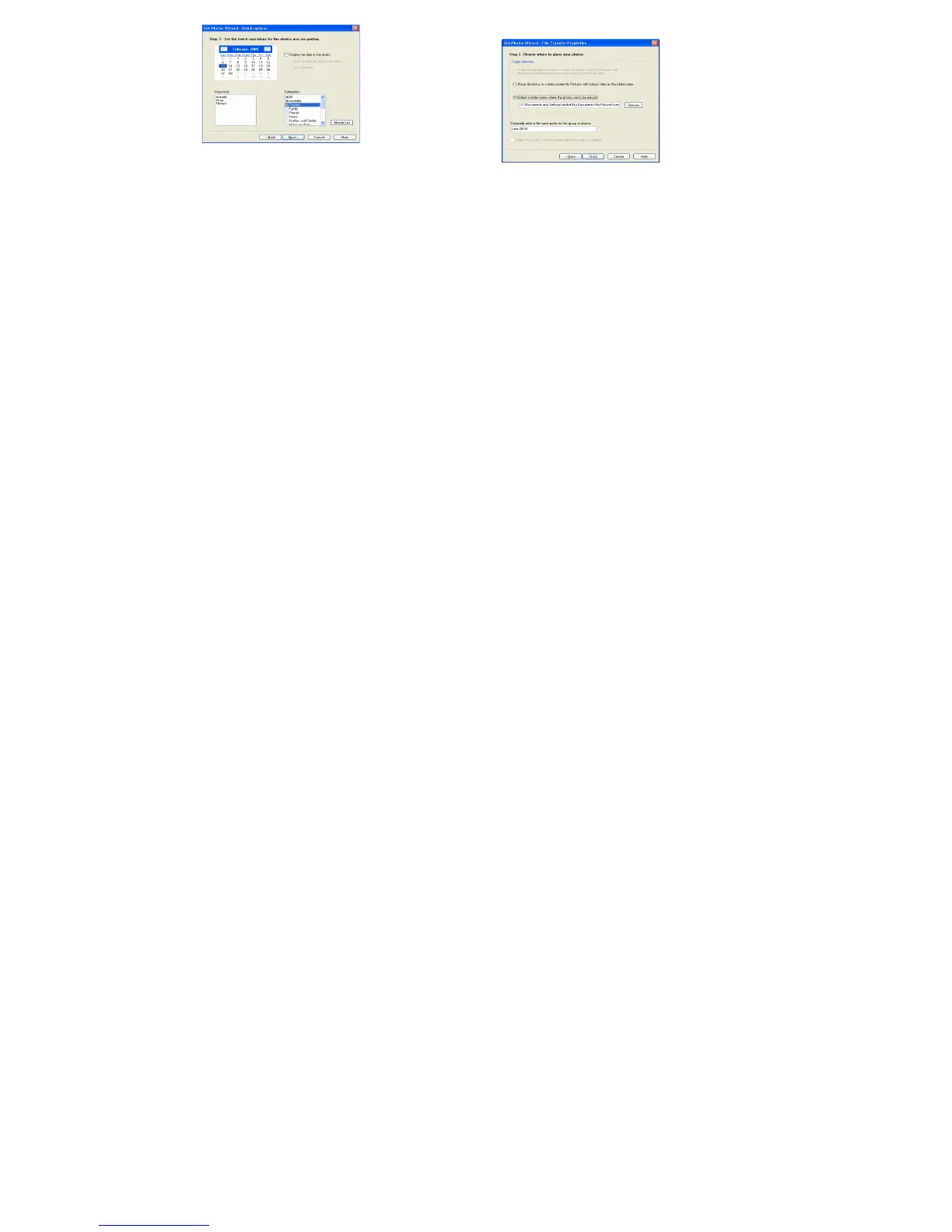
Add Active Captions to your pictures. With this feature, you can
add a date, keywords and categories. Click “Next” to continue.
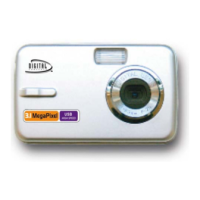
On the next screen, choose where you wish to place your photos
on your computer. Click on “Finish” to copy the photos to the
location you selected.
All of the pictures you imported will appear in the “Select photos”
main window.
Express Copy Method:
Select this option if you wish to have all the images transferred to the PC without the option of selecting photos. In this mode you will not see a
preview of the images transferred. For more information please refer to the Quick Start guide in PhoTags Express.
Transfer Images Directly From Windows
1. Plug one end of the USB cable into the USB slot on your camera.
2. Plug the other end of the USB cable into a USB port on your computer.
3. Make sure that your camera is connected and is turned ON.
4. Click on the START button in Windows.
5. Click on the MY COMPUTER Icon
6. Your memory card will appear as a REMOVABLE STORAGE DEVICE.
7. Click on the REMOVABLE STORAGE DEVICE to view the images. The images are stored in the subfolder called DCM100.
8. You can now copy and paste the images to any directory you choose.


 To Next Page