English - 52 -
Media Playback Using Media
Browser
If the USB stick is not recognized after power off/on
or First Time Installation, rst, plug the USB device
out and power off/on the TV set. Plug the USB device
in again.
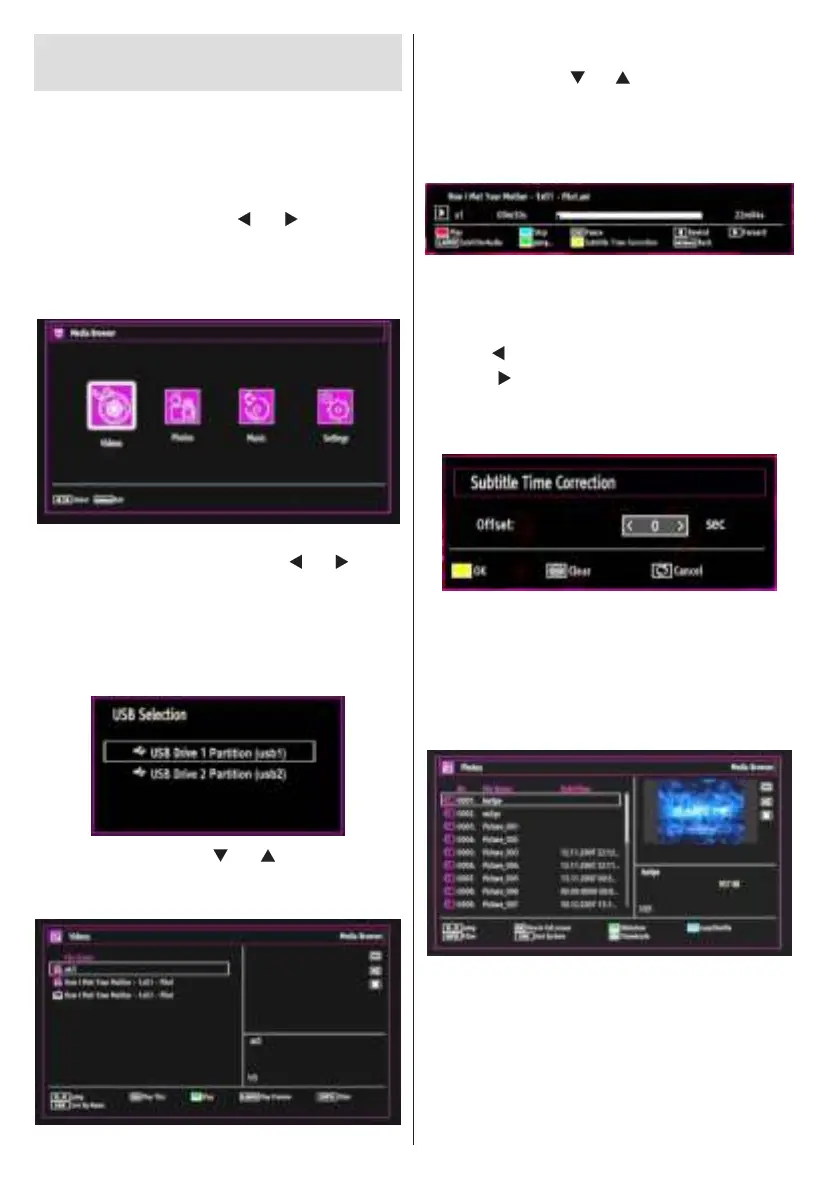
To display Media Browser window, press either
“MENU” button on the remote control and then select
Media Browser by pressing “
” or “ ” button. Press
OK button to continue. Media Browser menu options
will be displayed.
Also, when you plug USB devices, media browser
screen will be displayed automatically:
You can play music, picture and video les from the
connected USB memory stick. Use “
” or “ ” button
to select Videos, Photos, Music or Settings.
You can connect two USB devices to your TV. If both
USB devices include music, picture or video les, USB
selection osd will be displayed on the screen. The
rst USB device connected to the TV will be named
as USB Drive1.
Select a device by using “ ” or “ ” button and press
OK.
Viewing Videos via USB
When you select Videos from the main options,
available video les will be ltered and listed on this
screen. You can use “
” or “ ” button to select a video
le and press OK button to play a video. If you select
a subtitle le and press OK button, you can select or
deselect that subtitle le. The following menu will be
displayed while playing a video le:
Play (RED button): Starts the video playback.
Stop (BLUE button): Stops the video playback.
Pause (OK button): Pause the video playback.
Rewind (
button): Goes backward.
Forward (
button): Goes forward.
Subtitle/Audio (LANG. button): Sets subtitle/Audio.
Yellow: Opens subtitle time correction menu
Press RETURN (Exit) button to switch back to
previous menu.
Viewing Photos via USB
When you select Photos from the main options,
available image les will be ltered and listed on this
screen.
Jump (Numeric buttons): Jump to selected le using
the numeric buttons.
OK: Views the selected picture in full screen.
Slideshow (GREEN button): Starts the slideshow
using all images.
Loop/Shufe (BLUE button): Press once to enable
Loop. Press again to enable both Loop and Shufe.
Press once more to enable only Shufe. Press again


 To Next Page