7. System
Menu Configuration
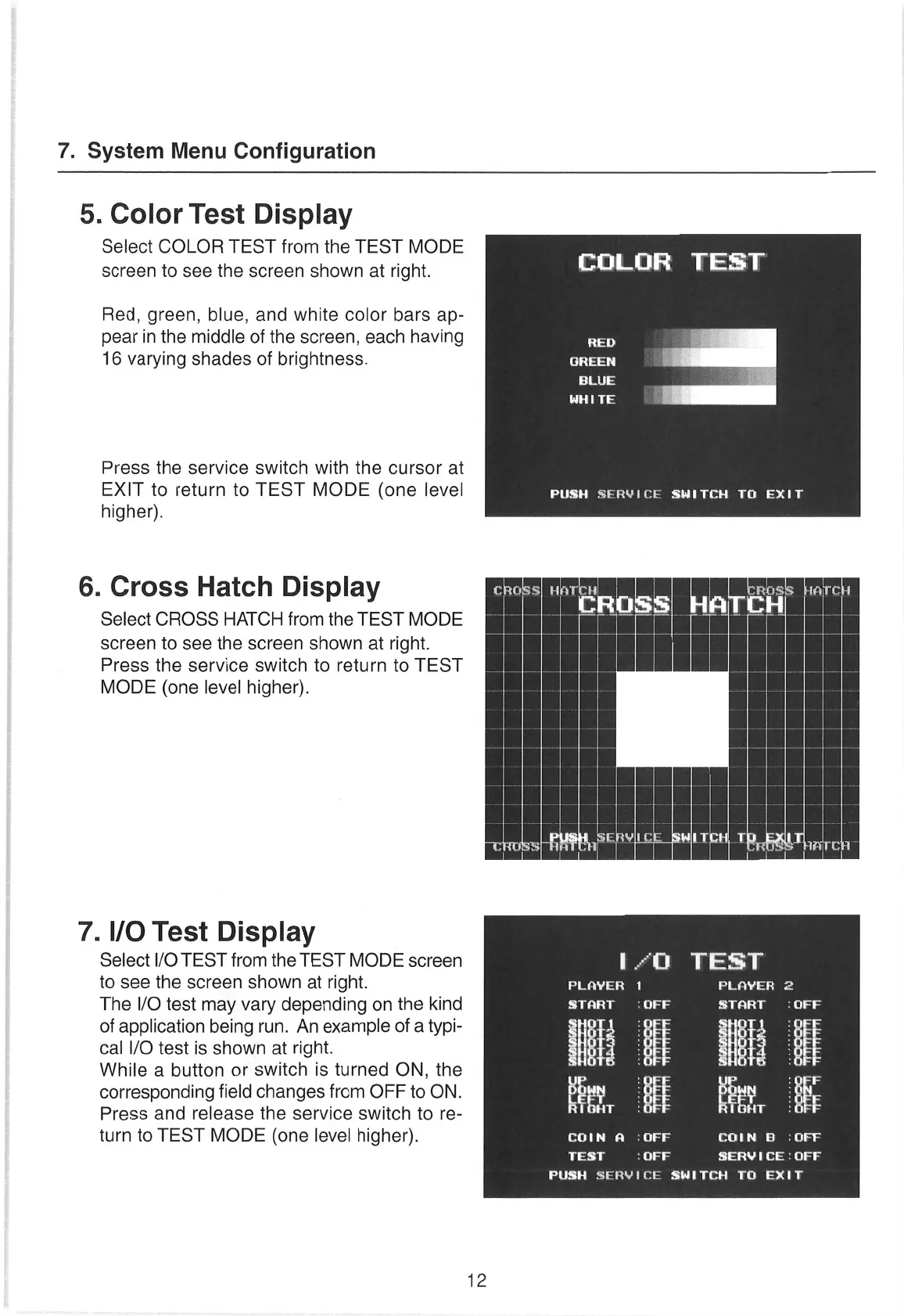
5. Color Test Display
Select COLOR
TEST from the TEST MODE
screen
to
see
the
screen
shown at right.
COLOR
TEST
Red, green, blue, and white color bars ap-
pear in the middle of the screen, each having
16 varying shades
of brightness.
Press the service switch with the
cursor
at
EXIT
to return to
TEST MODE (one level
PUSH
SERVICE
SWITCH
TO
EXIT
higher).
6. Cross Hatch Display
Select CROSS HATCH from the TEST MODE
screen
to
see
the
screen
shown at right.
Press the service switch to return to TEST
MODE (one level higher).
7. I/O Test Display
Select I/O TEST from the TEST MODE
screen
ee
oo
oe
to
see
the
screen
shown at right.
PLAYER
1
ba tS
The I/O test may vary
depending
on
the kind
Pag)
START
‘OFF
of application being
run.
An example
of
a
typi-
cal I/O test is shown at right.
He be He he
While
a
button
or
switch is turned ON, the
corresponding field changes from OFF to ON.
Press and release the service switch to
re-
an
turn to TEST MODE (one level higher).
a
a
aS
COIN
B :
OFF
TEST
:OFF
SERVICE
:
OFF
CT
esis
ee
eS
dg
12


 To Next Page