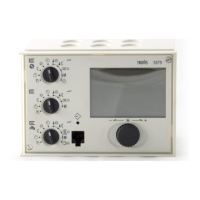
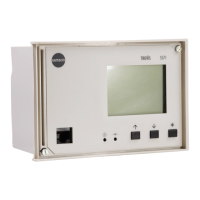
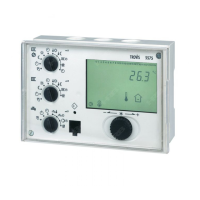
7.2 Parameterization
Only the system-specific parameters are displayed in the parameter level depending on the
configuration carried out beforehand.
You automatically enter the parameter level when you exit the configuration level.
A blinking triangle in the top left-hand section of the display indicates that you are in the par-
ameter level.
If you are still in the operating level:
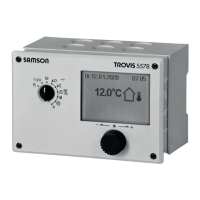
Press the changeover key to access the parameter level.
Press the arrow key, the first parameter (time) appears in the display.
In the following summary (chapter 7.2.2), all the parameters are listed in the same sequence as
they appear when you enter user data.
Only the parameters that correspond to the preset system configuration in chapter 5.3 are taken
into account when you enter new data.
How to enter data in the parameter level:
Use the arrow keys to access the parameter you want to change.
Press the enter key to acknowledge the parameter,
the corresponding symbol starts to blink in the display when the parameter value
can be changed.
Use the arrow keys to set the value as required.
Press the enter key to acknowledge the set value,
the next parameter appears in the display.
Proceed as described above.
Note:
If you do not press any keys for five minutes, the controller automatically leaves the parameter
level.
Press the changeover key again to enter the parameter level.
7.2.1 Resetting to default values
If you are in the parameter level, you can reset all parameters you have entered to return to the
default settings by pressing the reset key.
The protected parameter values are only affected by this if the code number you entered before-
hand is still valid. (The code number becomes invalid five minutes after the last entry!) The func-
tion block settings are still stored.
The controller is basically ready for operation with default values (factory setting). However,
you are still required to enter the current time and date as the first parameters.
The default values are listed in the following summary.
47



 To Next Page