100
Screen Adjustment
4
4 Screen Adjustment
4.4 Color Control
Change the color settings for the picture by adjusting the Red, Green and Blue values. (Range: 0~100)
A higher value will increase the intensity of the selected color.
z This option is available when the input source is PC or DVI.
z This function is not available when Color Tone is set to Off. To enable the function, Dynamic
Contrast must be set to Off.
(Refer to page 99 and page 111 for details about Color Tone and Dynamic Contrast.)
4.4.1 Configuring the Color Control Settings
This product can only be controlled by using the remote control.
1 Press MENU on the remote control.
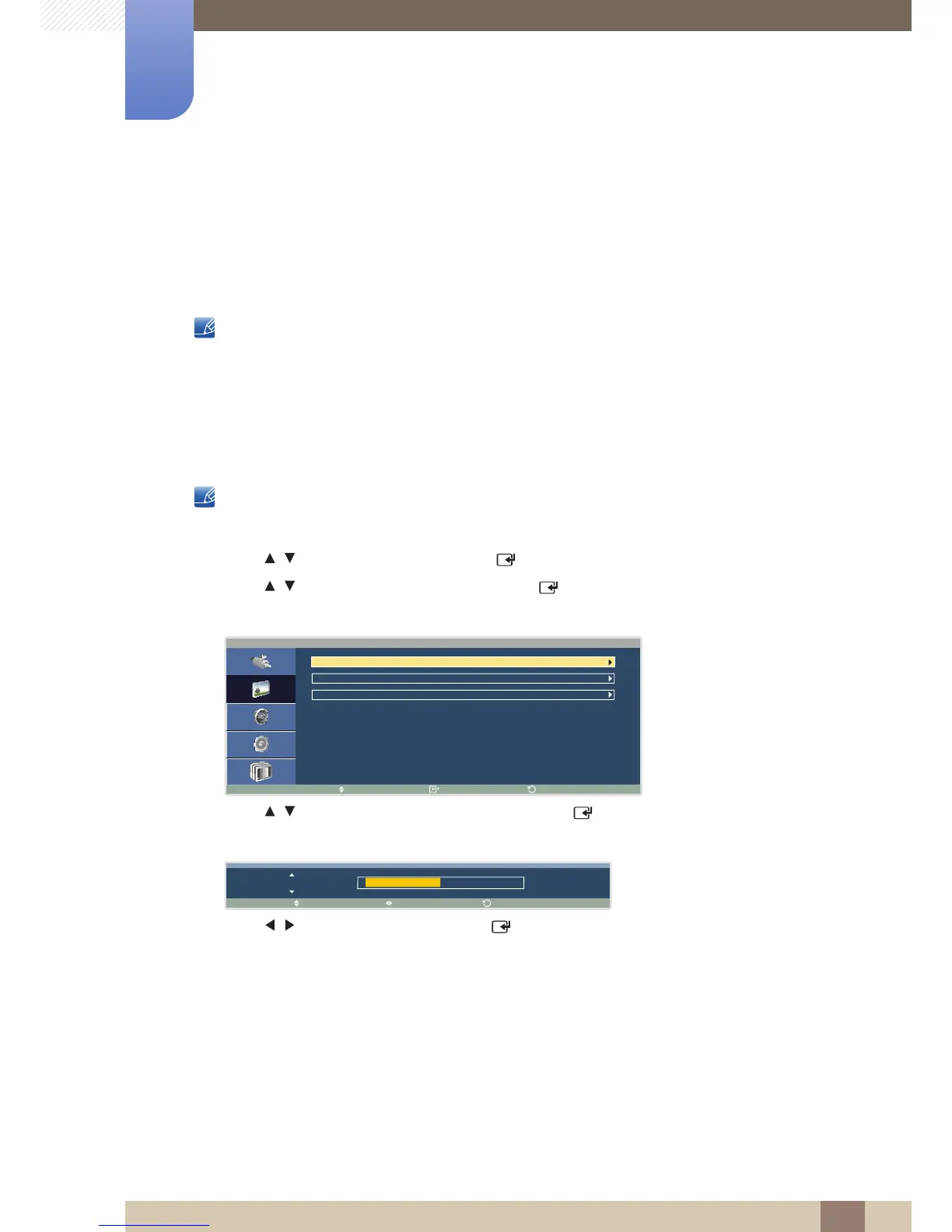
2 Press / to move to Picture and press [ ].
3 Press / to move to Color Control and press [ ].
The following screen will appear.
4 Press / to move to the option you want and press [ ].
A window will appear where you can adjust the value for the selected option.
5 Press / to adjust the value and press [ ].
The change will be applied.





 To Next Page