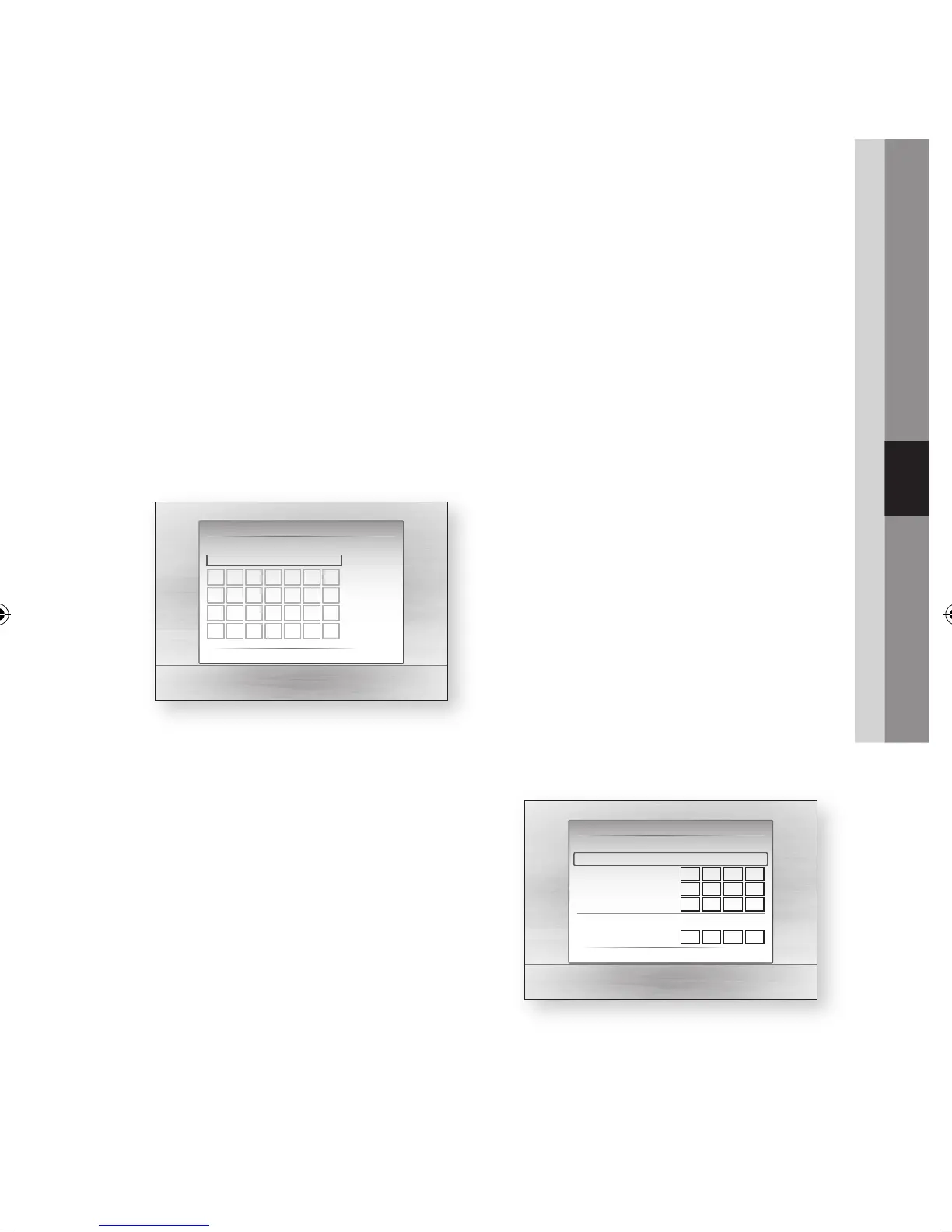
In the list of networks, press the ▲▼ buttons
to select a network, and then press the
确认
button.
If the PIN/Security pop-up appears, go to
Step 7. If the Network Connecting Screen
appears, go to Step 11.
Press the ▲▼ buttons to select PIN or
Security.
For most home networks, you would select
Security (for Security Key).
On the Security screen, enter your network’s
Pass Phrase.
NOTE
You should be able to find the Pass Phrase on one of
the set up screens you used to set up your router or
modem.
To enter the Pass Phrase, follow these
general directions:
Press the number keys on your remote to
enter numbers.
Use the arrow keys on your remote to move
from button to button on the Security Key
screen.
Pressing the
红色
(A) button on the remote
lets you change the text displayed on
the buttons to lower case, upper case,
numbers, or icons.
To enter a letter or symbol, move the cursor
to the letter or symbol, and then press the
确认
button.
To delete the last letter or number you
entered, press the
绿色
(B) button.
When done, press the
蓝色
(D) button on
your remote, and then press the
确认
button.
5.
6.
7.
8.
✎
▪
9.
•
•
•
•
10.
Wait until the connection confirmation
message is displayed, and then press the
确认
button. The Network Settings screen
reappears.
To test the connection, press the ▼ button
to select Network Test, and then press the
确认
button.
Setting Up the Wireless Network Connection
- Manual
If the Auto Setting does not work, you need to
enter the Network settng values manually.
To get the Network setting values from most
Windows computers, follow these steps:
Right click the Network icon on the bottom
right of the screen.
In the pop-up menu, click Status.
On the dialog that appears, click the Support
tab.
On the Support tab, click the Details button.
The Network settings are displayed.
To Enter the Network settings into your product,
follow these steps:
On the Internet Protocol Setup screen, press
the
确认
button.
Press the ▲▼ buttons to select Manual, and
then press the
确认
button.
Press the ▼ button to go to the first entry field
(IP Address).
Use the number buttons to enter numbers.
When done with each field, use the ► button
to move successively to the next field.
You can also use the other arrow buttons to
move up, down, and back.
11.
12.
1.
2.
3.
4.
1.
2.
3.
4.
5.
Network Setting
Select a network : Not Selected
Internet Protocol Setup : Manual
\
IP Address :
0
0
0
0
Subnet Mask :
255
255
255
0
Gateway :
0
0
0
0
DNS : Manual
DNS Server :
0
0
0
0
@
PBC(WPS)
>
Move
"
Enter
'
Return
Network Setting
Security Key
–
m
Move
"
Enter
'
Return
A B C D E F G
H I J K L M N
O P Q R S T U
V W X Y Z
0 entered
= Number
a Lower case
b Delete
Space




 To Next Page