24 - English
Easy-to-follow Uses of Recommended
Apps
❙
Web Browser
●
Press the [SMART HUB] button on the remote control to run Smart Hub.
●
Move to the <Web Browser> icon which is installed in the Smart Hub by default, and then press the
e
button.
●
Control Panel toolbar appears - Use the
b
button on the remote control while the web browser is
running.
Configuring the Start Page of the Web Browser
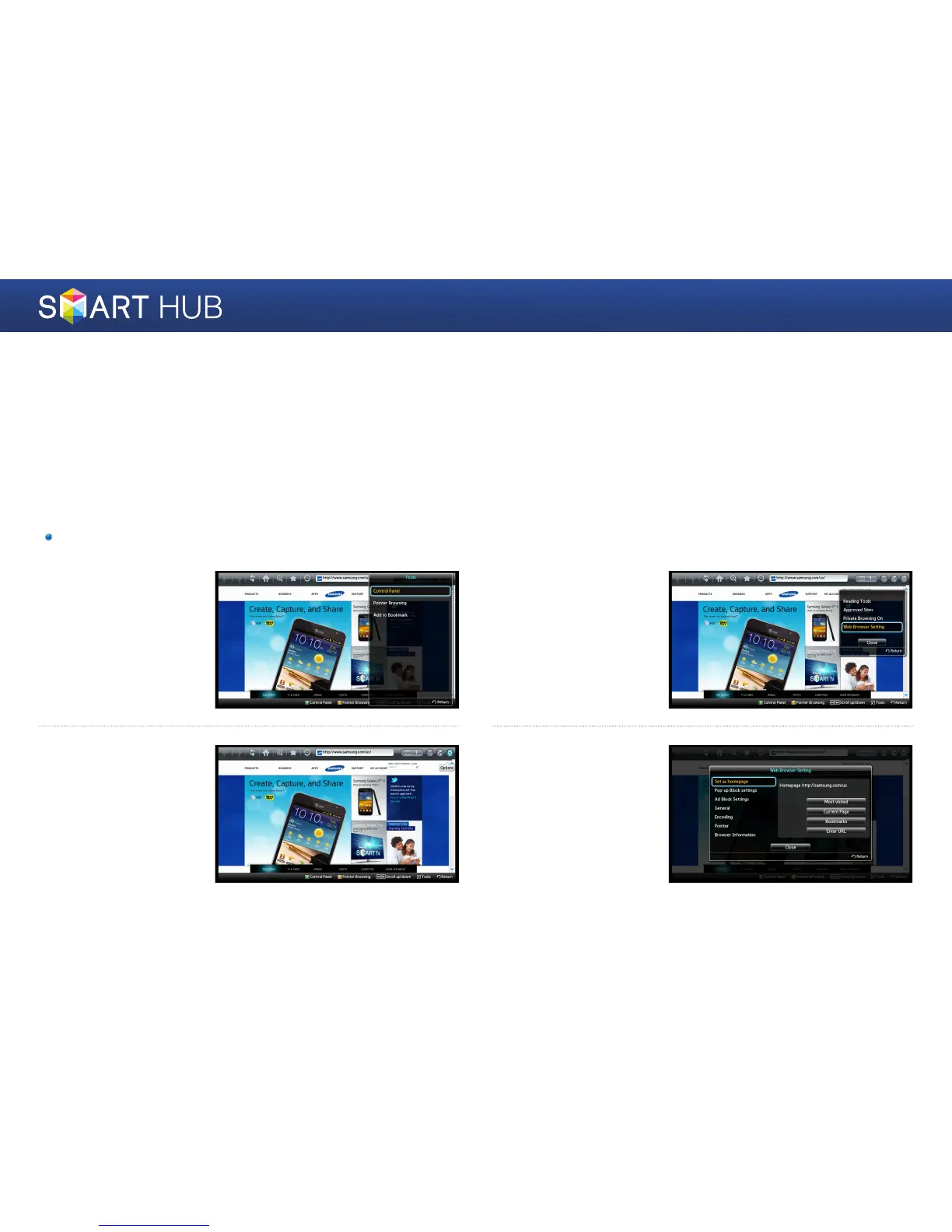
1
While the web browser
is running, press the
[TOOLS] button on the
remote control, and
select <Control Panel>.
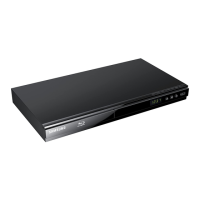
2
When the toolbar is
displayed, move to the
<Options> item at the
right end of the toolbar,
and then press the
e
button.
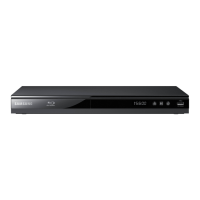
3
Move to the <Web
Browser Setting> item,
and then press the
e
button.
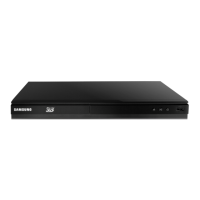
4
When the Web Browser
Setting window is
displayed, move to the
<Set as homepage>
item, and move to the
tab you want to activate
using the arrows keys,
and then press the
e
button.


 To Next Page