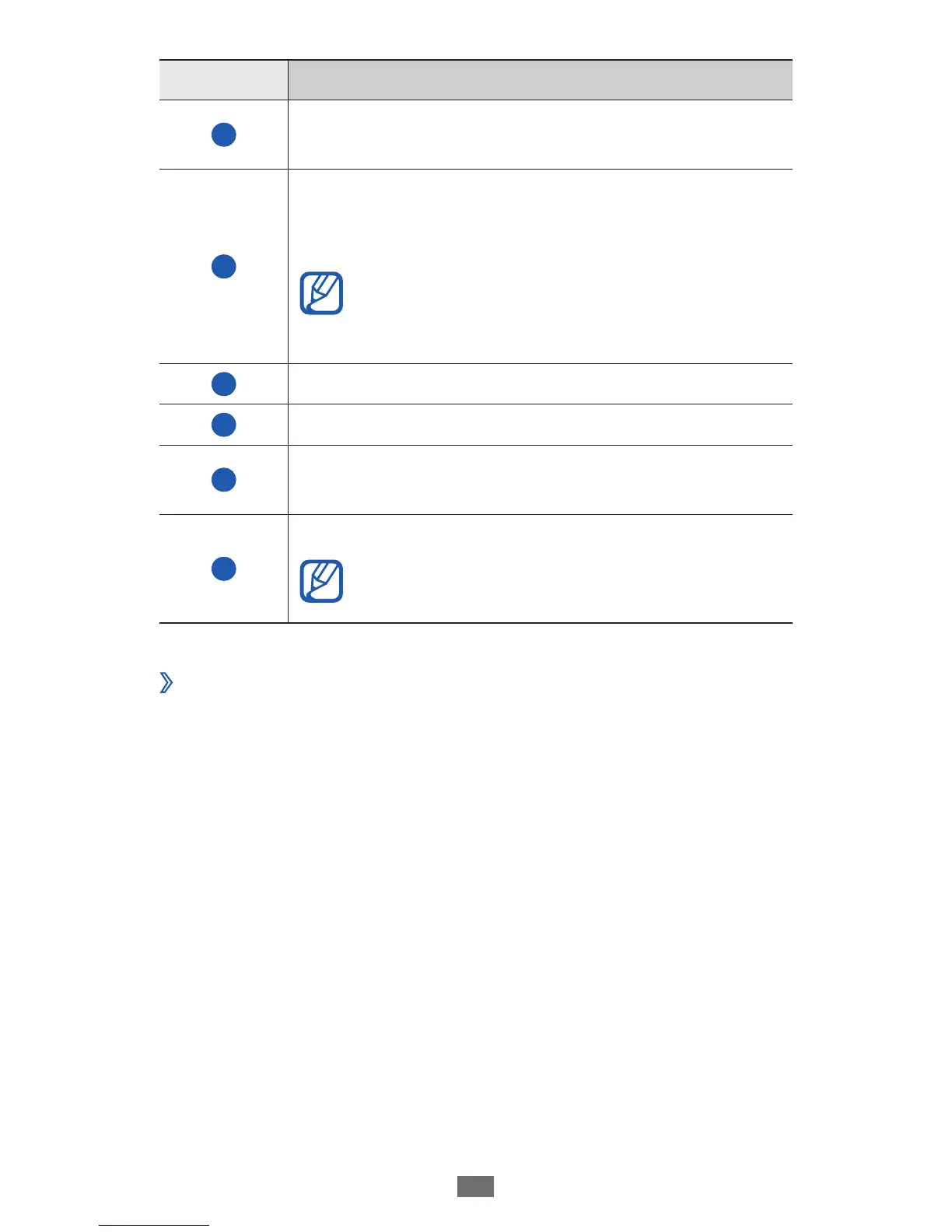
Number Function
3
Access the keypad settings; Change the
keypad type (tap and hold).
4
Enter text by voice; This icon is available only
when you activate the voice input feature for
the Samsung keypad.
This feature may be unavailable
depending on the selected input
language.
5
Clear your input.
6
Start a new line.
7
Insert a full-stop; Open the symbol panel (press
and hold).
8
Insert a space.
Functions of this key may vary
depending on your service provider.
Enter text using the Swype keypad
›
Select the first character of a word and drag your finger
1
to the second character without releasing the finger from
the screen.










 To Next Page