English 33
|
04 Settings
Wireless (General) - Automatic
After following Steps 1 to 3 in "Configuring Your
Network Connection" on page 31:
1 . Select Start in the Network Settings screen,
and then press the
E
button.
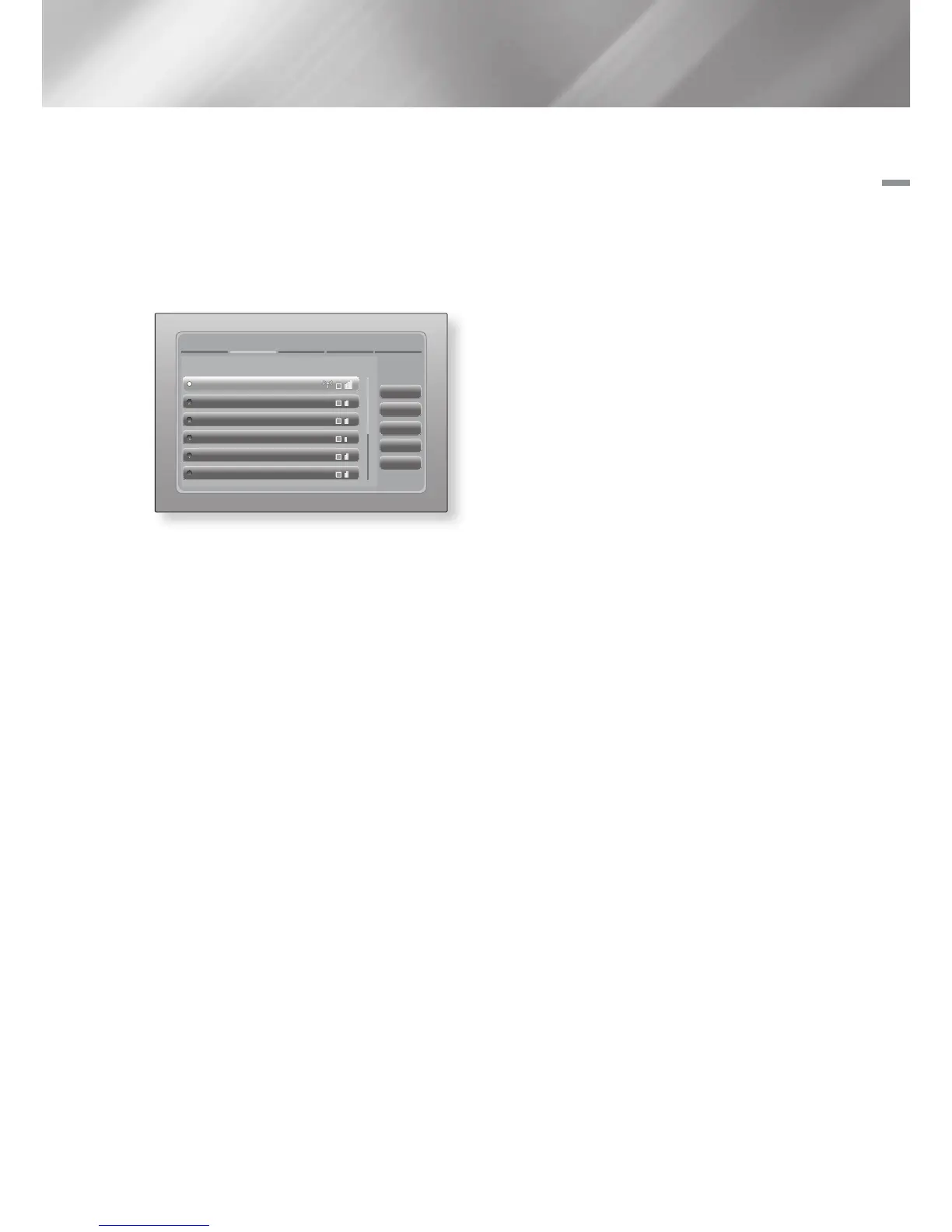
The product searches for and then displays a
list of the available networks.
Network Settings
Refresh
WPS(PBC)
Previous
Next
Cancel
Select your wireless router from the list:
1/10
ELT
JSY
KT_WLAN_C361
Mirhenge_edu
SO070VOIP
iptime23
2 . Select the desired network, and then press
the
E
button.
3 . Select Next, and then press the
E
button
again.
4 . On the Security screen, enter your network's
Security Code or Pass Phrase.
Enter numbers directly using the number
buttons on your remote control. Enter letters
by selecting a letter with an arrow button, and
then pressing
E
button.
5 . When done, select Next at the right of the
screen. The product verifies the network
connection and then connects to the
network.
|
NOTE
|
You should be able to find the Security Code or Pass
Phrase on one of the set up screens you used to set up
your router or modem.
Wireless (General) - Manual
If you have a static IP address or the Automatic
procedure does not work, you'll need to set the
Network Settings values manually.
After folloiwng Steps 1 to 3 in "Configuring Your
Network Connection" on page 31:
1 . Select Start in the Network Settings screen,
and then press the
E
button. The product
searches for and then displays a list of the
available networks.
2 . Select the desired network or Add Network,
and then press the
E
button.
3 . Select Next, and then press the
E
button
again.
4 . If you selected a network in Step 2, go to
Step 7. If you selected Add Network, go to
Step 5.
5 . Enter your wireless network or wireless
router's name.
• Enter numbers directly using the number
buttons on your remote control.
• Enter letters by selecting a letter with the
▲▼◄► buttons, and then pressing the
E
button.
• To display capital letters (or redisplay small
letters if capital letters are displayed), select
A/a, and then press the
E
button.
• To display symbols and punctuation, select
, and then press the
E
button. To
redisplay letters, select
, and then press
the
E
button.
When done, select Next, and then press the
E
button.
6 . Select the Security Type, select Next, and
then press the
E
button.
7 . On the Security screen, enter your network's
Security Code or Pass Phrase.
• Enter numbers directly using the number
buttons on your remote control.
• Enter letters by selecting a letter with the
▲▼◄► buttons, and then pressing the
E
button.
8 . When done, select Next at the right of the
screen, and then press the
E
button.
9 . The Network Status screen appears.
The product attempts to verify the network
connection and fails.
10 . Select IP Settings on the right of the screen,
and press the
E
button. The IP Settings
screen appears.
HT-E6500W_ZA_0417-1(D2D).indd 33 2012-04-17 오후 7:02:29



 To Next Page