C. Connect with mouse [Connector]
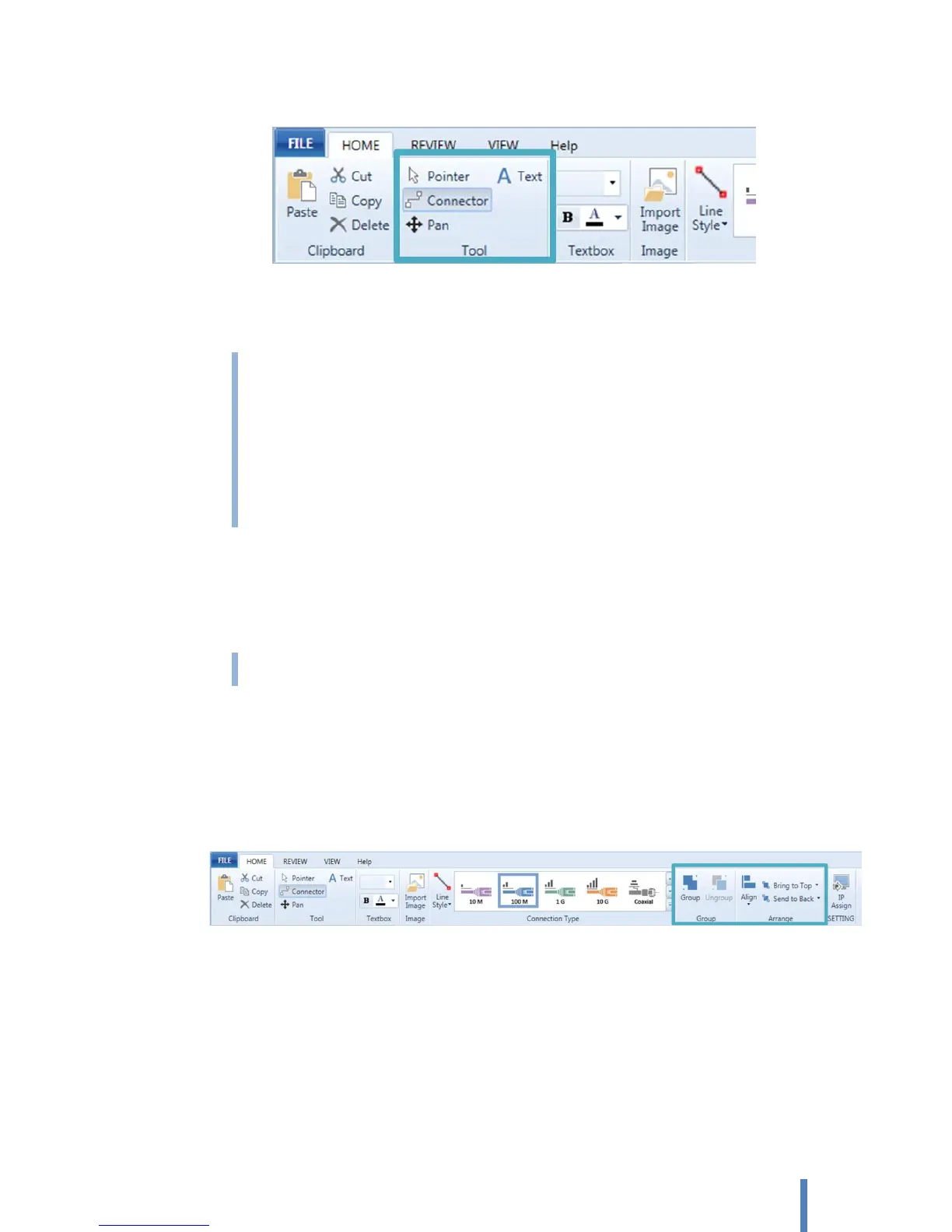
Select [HOME] > [Tool] > [Connector]. Position the [Connector] over the center of the first object
until you see a red border around the entire object. Drag to the center of the second object.
When you release the mouse, it displays red handles to show that the objects are connected.
Connecting between two objects means physical connection between two devices. To make the
network configuration for communication, use [IP configuration], [Video setup], and [Channel
configuration] on [Properties] pane.
If it is not possible to make a physical connection, an error dialog appears.
When all network port are in use (already made all the physical connections), an error dialog
appears.
D. Change your connection style
You can change your connection style choosing other connection style after selecting particular
connection,
You can change style of multiple lines at once
Arrange objects
iPOLiS NW Design Tool has manual guides to help ensure the objects in your diagram are arranged well.
That helps make your drawing as clear as possible and give it a professional look.
Select the objects you want to arrange, and click the arrangement option you want from [HOME] >
[Arrange].
A. Group: To make a group from selected several devices.
B. Ungroup: To separate a group to each device.
C. Align > Align Left: To align the edges of the objects to the left
D. Align > Align Center: To align the objects vertically through their centers.
E. Align > Align Right: To align the edges of the objects to the right.
F. Align > Align Top: To align the top edges of the objects.
G. Align > Align Middle: To align the objects horizontally through their middles.



 To Next Page