EasyManua.ls Logo

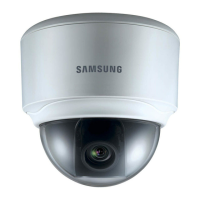
Samsung SDC-7340BC - User Manual

Samsung SDC-7340BC
11 pages
Print Icon
To Next Page IconTo Next Page
Loading...
-
--
·-----
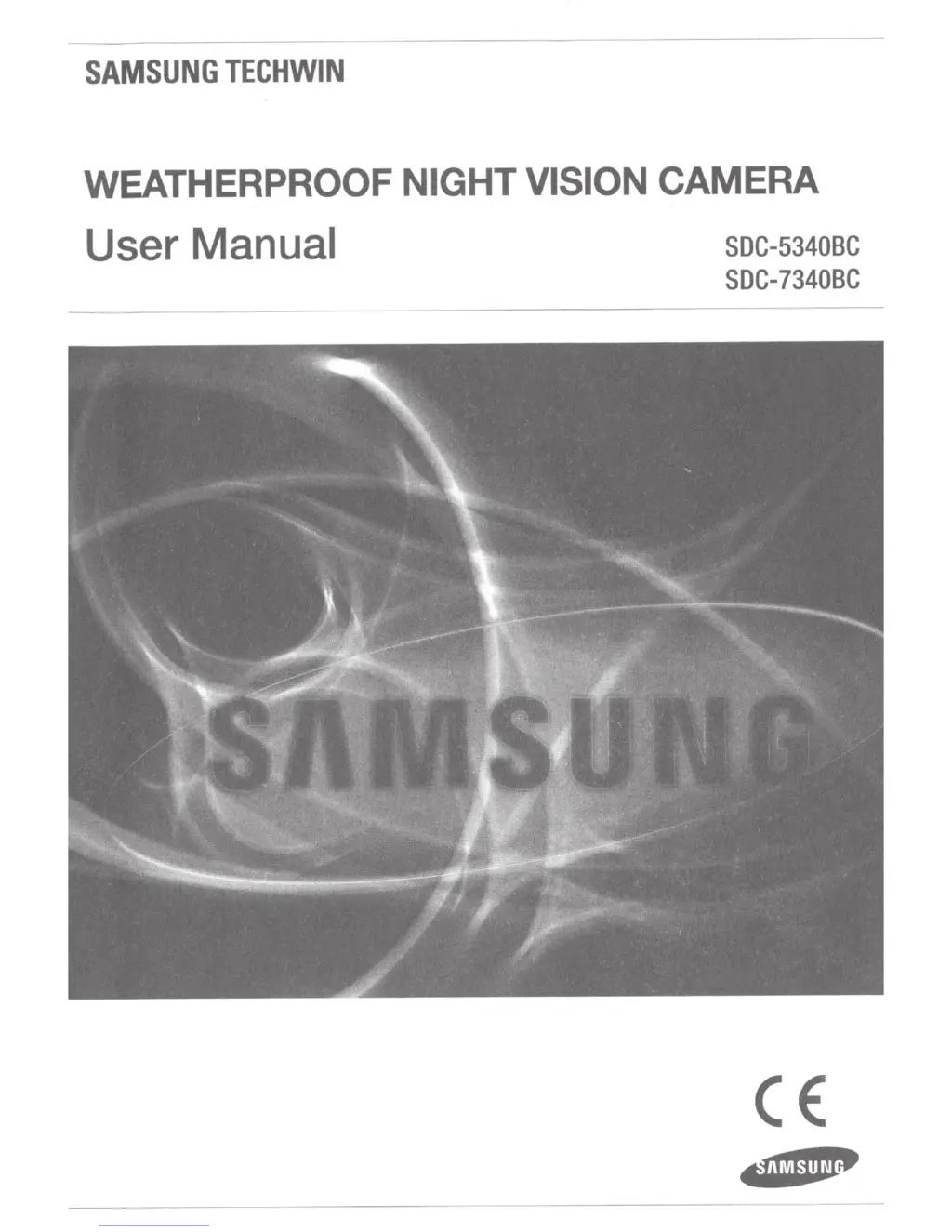
SAMSUNG
TECHWIN
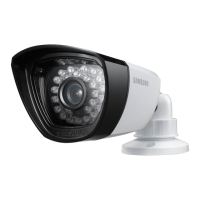
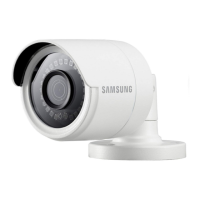
WEATHERPROOF NIGHT VISION
CAMERA
User
Manual
SDC-5340BC
SDC-7340BC
CE:

Other manuals for Samsung SDC-7340BC

Questions and Answers

  • J
    John PetersenSep 10, 2025
    Why can't backup data be played on my PC or DVR from my Samsung Security System?
    • S
      Shawn ChandlerSep 10, 2025
      When backing up data, choose the correct player option: either PC or DVR. If using a PC, the backup file format should be SEC. If using the DVR, formatting backup files should be done by the DVR.
  • J
    Joseph Bolton DDSAug 22, 2025
    What to do if the alarm button doesn't work on my Samsung Security System?
    • J
      Julie RiveraAug 22, 2025
      Press the [MENU] button to release the alarm. To release the event monitoring mode: Monitoring Mode – set the duration of the event monitoring to Off. To release the alarm sound: Event Record Mode - Alarm (Motion Detection/Video Loss/Tampering Detection) – deactivate the alarm sound. To release the event: Event Record Mode - Alarm (Motion Detection/ Video Loss/Tampering Detection) – set the mode to Off.
  • Y
    yjenkinsAug 25, 2025
    How to fix a Samsung Security System that does not turn on?
    • R
      Ricky MartinezAug 25, 2025
      First, check if the power supply system is properly connected. Then, check the system for the correct input voltage from the power source. If the problem persists, replace the power supplier with a new one.
  • H
    Heather JonesAug 26, 2025
    What to do if my Samsung Security System shows a ‘NO HDD’ error?
    • E
      eric53Aug 27, 2025
      Check the HDD connection. If the problem persists, contact the nearest service center to have the HDD checked by service personnel.
  • S
    Samuel BarreraAug 27, 2025
    Why is the recording not working on my Samsung Security System?
    • N
      Natasha WiseAug 28, 2025
      If your player does not display a live image, recording will not work, so first ensure there is an image on the screen. Recording also won't work if the recording settings are not properly configured. To start recording manually, press the [REC] button on the remote control. To schedule recording, specify a desired time in Menu – Record – Recording Schedule. Continuous recording will proceed in any conditions at the specified time. Event recording will only occur if the event is of alarm, motion detection, video loss or tampering detection. If there is no event found, continuous recording will perform.
  • C
    Candace MelendezAug 29, 2025
    What to do if some channels on my Samsung Security System display a black screen?
    • U
      uperryAug 29, 2025
      Check if the camera connected to the system properly displays the image and is properly supplied with power. If there is a weak video signal from a video distributor connected to multiple systems, input the video source of the camera directly into the DVR.
  • W
    wreynoldsSep 18, 2025
    What to do if the ESC key doesn't exit full screen on my Samsung Security System WebViewer?
    • M
      Michael JonesSep 18, 2025
      Press the ALT+TAB keys to select ‘ACTIVE MOVIE’ and press the ESC key again.
  • A
    Adriana HillSep 12, 2025
    Why doesn't the channel button work on the live screen of my Samsung Security System?
    • M
      Margaret WellsSep 12, 2025
      The Channel button does not work if the current screen is in the event monitoring mode. Press the [ALARM] button to exit the screen and select a channel.
  • M
    Michael GoodmanSep 8, 2025
    Why doesn't my Samsung Security System recognize the external SATA HDD?
    • K
      karen06Sep 8, 2025
      See the compatibility list of external storage devices to check if the connected device is supported by the DVR.
  • D
    David YoungSep 5, 2025
    Why doesn't my Samsung Security System recognize the additional HDD I installed?
    • R
      Ryan MurphySep 5, 2025
      See the compatibility list to check if the additional HDD is supported by the DVR.

Samsung SDC-7340BC Specifications

General IconGeneral
Camera TypeDome
Lens TypeFixed
Field of View90°
Night VisionYes
ConnectivityWired
IR Range20 m
WeatherproofIP66
Signal SystemPAL/NTSC
SynchronizationInternal
Lens3.6mm
S/N RatioMore than 50dB
Power SupplyDC 12V
Power Consumption3.5W
Minimum Illumination0.01 Lux
Electronic Shutter Speed1/50 (1/60) to 1/100, 000 sec

Related product manuals