EasyManua.ls Logo

Samsung SNV-5010 - User Manual

Samsung SNV-5010
94 pages
Print Icon
To Next Page IconTo Next Page
Loading...
NETWORK CAMERA
User Manual
SNV-5010

Other manuals for Samsung SNV-5010

Questions and Answers

  • M
    Michael LarsonJul 31, 2025
    Why does my Samsung SNV-5010 viewer disconnect during monitoring?
    • B
      brianlopezJul 31, 2025
      If your Samsung Security Camera viewer gets disconnected during monitoring, it might be due to changes in camera or network configurations. Ensure you check all network connections. If the camera is connected over a PPPoE network, disconnections can occur under poor network conditions.
  • B
    Brent Robbins Jr.Aug 5, 2025
    What to do if Samsung SNV-5010 is not detected in IP installer program?
    • M
      Marie HayesAug 5, 2025
      If the Samsung Security Camera connected to the network is not detected in the IP installer program, turn off the firewall settings on your PC and then search the camera again.
  • C
    cruzericAug 10, 2025
    Why I cannot connect to Samsung SNV-5010 using a tab browser?
    • J
      Joshua EricksonAug 10, 2025
      If you cannot connect to the Samsung Security Camera system using a tab browser of Internet Explorer 7.0, open a new browser window instead of using a tab browser. This is because when you try to connect to the system using a tab browser, the same cookie information is shared, resulting in errors when connected.
  • B
    Bryan QuinnAug 15, 2025
    What to do if no JPEG file is transferred via e-mail from Samsung SNV-5010?
    • C
      Cindy WeaverAug 15, 2025
      If no JPEG file is transferred via e-mail on occurrence of intelligent video analysis event of Samsung Security Camera even when the is set to , verify the settings in the following sequence: 1. Check settings. 2. The should be set to . 3. Alarm Video Transmission must be enabled.
  • J
    Joanna BarberAug 20, 2025
    Why do Samsung Security Camera images overlap?
    • J
      john11Aug 20, 2025
      If the images from your Samsung Security Camera overlap, check whether two or more cameras are set to a single multicast address instead of different addresses. If a single address is used for multiple cameras, the images may overlap.
  • C
    Courtney CantuAug 25, 2025
    What to do if no image appears on Samsung Security Camera?
    • L
      lunashannonAug 26, 2025
      If no image appears on your Samsung Security Camera, and the transmission method is set to multicast, check whether there is a router that supports multicast in the LAN the camera is connected to.

Summary

IMPORTANT SAFETY INSTRUCTIONS

GENERAL SAFETY WARNINGS AND PRECAUTIONS

Key safety warnings, cautions, and precautions for product use and handling.

PRODUCT OVERVIEW AND FEATURES

PRODUCT FEATURES

Highlights the key features and capabilities of the network camera.

AT A GLANCE

CAMERA EXTERNAL COMPONENTS

Identifies external components and connection ports of the camera.

INSTALLATION & CONNECTION

PRECAUTIONS AND DISASSEMBLY

Important precautions before installation and steps for disassembling the camera cover.

CONNECTING EXTERNAL DEVICES

Instructions for connecting the camera to monitors, Ethernet, and power.

NETWORK CONNECTION AND SETUP

CONNECTING TO LOCAL AREA NETWORK

Steps for connecting the camera directly to a local network via PC.

CONNECTING TO DSL;CABLE MODEM

How to connect the camera to DHCP-based DSL/Cable modems.

CONNECTING TO PPPOE MODEM

Steps for connecting the camera to a PPPoE modem.

CONNECTING VIA IP ROUTER

Configuring network settings when connecting through an IP router.

STATIC IP SETUP

Manual configuration of static IP addresses for the camera.

PORT RANGE FORWARDING

Configuring port forwarding on an IP router for remote access.

ACCESSING CAMERA REMOTELY

How to access the camera from a shared local PC or remotely via the internet.

WEB VIEWER

CONNECTING TO THE CAMERA

Steps to access the camera's live view via a web browser.

LOGIN PROCEDURE

Details on how to log in to the camera system using user credentials.

SETUP SCREEN

NETWORK SETUP

Configuring network interface (IP type) and port settings.

APPENDIX

TROUBLESHOOTING COMMON ISSUES

Solutions for common problems encountered during setup and operation.

Samsung SNV-5010 Specifications

General IconGeneral
Total megapixels1.3 MP
Maximum resolution1280 x 1024 pixels
Supported video modes720p
Video formats supportedH.264, MPEG, MPEG4
Supported graphics resolutions320 x 240, 1280 x 1024 (SXGA), 1280 x 720 (HD 720), 640 x 480 (VGA), 800 x 600 (SVGA)
White balanceManual
Camera shutter speed1/30 s
Minimum illumination0.016 lx
Sensor typeCMOS
Progressive scanYes
Optical sensor size1/3 \
Optical zoom- x
Focal length range0 - 3 mm
Security algorithmsHTTPS
Built-in HDDNo
LED typeIR
TypeIP security camera
Placement supportedIndoor & outdoor
Connectivity technologyWired
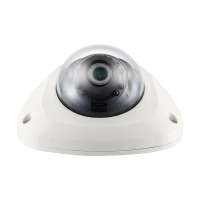
Form factorDome
Mounting typeCeiling/wall
Product colorIvory
Housing materialAluminum
International Protection (IP) codeIP66
Ethernet LAN (RJ-45) ports1
Signal-to-Noise Ratio (SNR)50 dB
Cabling technology10/100Base-T(X)
Supported network protocolsTCP/IP, UDP/IP, RTP(UDP), RTP(TCP), RTSP, NTP, HTTP, HTTPS, SSL, DHCP, PPPoE FTP, SMTP, ICMP, IGMP, SNMPv1/v2c/v3(MIB-2), ARP, DNS, DDNS
F-number (relative aperture)1.8
Number of simultaneous users10 user(s)
Compliance industry standardsIEEE 802.1x, 802.3af
AC input voltage12 V
Power source typePoE
Power consumption (typical)6 W
Operating temperature (T-T)-10 - 50 °C
Operating relative humidity (H-H)-20 - 80 %
Harmonized System (HS) code85258900
Weight and Dimensions IconWeight and Dimensions
Depth115.2 mm
Width125.2 mm
Height52 mm
Weight435 g

Related product manuals