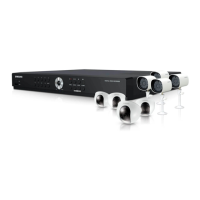
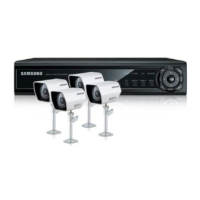
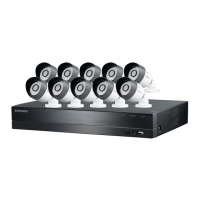
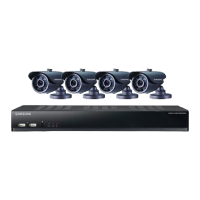
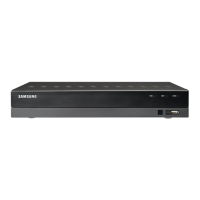
This document is a Quick Start Guide for the Samsung SDE-3004 EZ View Kit, a digital video recorder (DVR) system designed for surveillance and monitoring. The guide covers essential steps for setting up, operating, and maintaining the device, focusing on ease of use for quick deployment.
Function Description
The Samsung SDE-3004 EZ View Kit functions primarily as a surveillance system, allowing users to connect multiple cameras, record video, play back footage, and monitor live feeds locally or remotely. It is designed for both home and small business security applications. The system supports various recording modes, including continuous, event-triggered, and scheduled recording, providing flexibility in how surveillance data is captured. Remote access capabilities enable users to view live and recorded video via web browsers or smartphone applications, enhancing its utility for off-site monitoring. The DVR acts as the central hub, processing video input from cameras, storing it on connected storage devices (such as a USB HDD), and providing output to monitors.
Important Technical Specifications
While specific detailed technical specifications like processor type, RAM, or exact storage capacity are not explicitly listed in this quick start guide, several key technical aspects can be inferred:
- Video Input/Output: The DVR supports multiple camera inputs (implied by the "CAM 01" to "CAM 04" labels in screenshots) and offers various video output options including VGA for PC monitors and potentially composite video (VIDEO OUT).
- Audio Input/Output: It includes AUDIO IN and AUDIO OUT ports, indicating support for audio recording and playback alongside video.
- Network Connectivity: The device features a NETWORK port (LAN) for connecting to a local network, a broadband router, or a modem. It supports both static IP and dynamic IP (DHCP) connection modes. The guide mentions port forwarding settings (TCP ports 4520-4524 and port 80) for remote access, suggesting standard network protocols.
- USB Ports: USB ports are available for connecting peripherals such as a mouse and potentially external storage devices (USB HDD).
- Power Input: The system requires a DC 12V power input.
- Recording Resolutions and Frame Rates: The guide provides a table detailing supported recording resolutions and possible frames per second (FPS) for both NTSC and PAL video standards:
- NTSC:
- CIF (352 x 240): OFF, 1~30 FPS
- 2CIF (704 x 240): OFF, 1~30 FPS
- 4CIF (704 x 480): OFF, 1~30 FPS
- PAL:
- CIF (352 x 288): OFF, 1~25 FPS
- 2CIF (704 x 288): OFF, 1~25 FPS
- 4CIF (704 x 576): OFF, 1~25 FPS
This indicates support for standard definition and higher resolution recording, with adjustable frame rates to balance quality and storage usage.
- Camera IP Rating: The connected cameras (not the DVR itself) are mentioned to satisfy the IP65 standard, meaning they are protected against dust ingress and low-pressure water jets from any direction. This suggests outdoor suitability for the cameras, though the guide advises installing them under a shelter to avoid excessive rain or moisture to prevent condensation issues.
- DDNS Support: The system supports Dynamic Domain Name System (DDNS) services, specifically mentioning "iPOLIS" (www.samsungipolis.com), which facilitates remote access even with dynamic IP addresses.
Usage Features
The SDE-3004 EZ View Kit offers a range of user-friendly features for operation and management:
- Easy Setup: The guide emphasizes a straightforward installation process, starting with connecting cameras and monitors, then network setup.
- Intuitive Interface: Operations are primarily controlled via a remote control and a mouse, navigating through an on-screen menu system. A virtual keyboard is provided for text input, such as passwords.
- Password Protection: The system has a default password (4321) for initial login, which users are encouraged to change for security.
- Date/Time/Language Settings: Users can easily adjust system date, time, time zone, and language settings. Time synchronization with a time server is also available.
- Network Configuration: It supports various network connection modes, including static IP and DHCP, with clear instructions for router and port forwarding setup for remote access.
- Recording Management:
- Recording Schedule: Users can set up detailed recording schedules for each camera, choosing between "No Recording," "Continuous," "Event," or "Both (Continuous & Event)."
- Recording Quality & Resolution: Adjustable settings for resolution (CIF, 2CIF, 4CIF) and record rate (FPS) allow users to optimize video quality and storage efficiency.
- Playback Features:
- Time Search: Allows users to search for recorded footage by date and time using a timeline interface.
- Event Search: If event recording is configured, users can search specifically for event-triggered footage.
- Playback Controls: On-screen controls enable changing play speed, switching channels, and stopping playback.
- Remote Monitoring:
- Web Browsing: Users can access the DVR's web viewer via a web browser (Internet Explorer is shown) by entering the device's IP address or DDNS host address. This requires installing an ActiveX control.
- Smartphone Monitoring: The system supports monitoring via a smartphone application ("iPOLIS mobile"). Users need to download the app, register the DVR, and then they can view live feeds and potentially recorded footage.
- Screen Transition Interval: Users can customize the interval for screen transitions in the monitoring view.
Maintenance Features
While the guide is primarily for quick setup, it touches upon several aspects related to system maintenance and security:
- Password Security: A strong recommendation is made to change the default password (4321) immediately after installation to prevent hacking threats. The guide explicitly states that the user is responsible for security issues arising from an unchanged password.
- Camera Installation Advice: For cameras, it advises installation under a shelter to protect against excessive rain/moisture and prevent condensation, despite their IP65 rating. This highlights a practical maintenance consideration for camera longevity.
- Time Synchronization: The ability to synchronize the DVR's time with a time server regularly helps maintain accurate timestamps on recorded footage, which is crucial for forensic purposes and general record-keeping.
- Firmware/Software Updates: Although not explicitly detailed, the mention of ActiveX control installation for web viewing implies that maintaining updated browser components and potentially DVR firmware might be necessary for optimal performance and security.
- Router and Port Forwarding Setup: The guide provides detailed steps for configuring network settings, including port forwarding, which is essential for reliable remote access. Proper network configuration is a key maintenance task for any networked surveillance system.
- User Manual Reference: The guide frequently refers to a more comprehensive user manual for detailed information on various features (e.g., "For more information, refer to the user manual. (Page 66)"), indicating that in-depth troubleshooting and maintenance procedures would be found there.



 To Next Page
 General