EasyManua.ls Logo

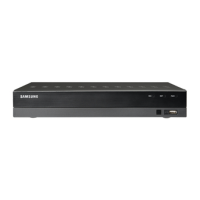
Samsung SDE-4001 - User Manual

Samsung SDE-4001
120 pages
Print Icon
To Next Page IconTo Next Page
Loading...
8 CHANNEL/
16 CHANNEL DVR
User Manual
SDE-4001/5001

Table of Contents

Questions and Answers

  • R
    Ricky SmithSep 18, 2025
    How to turn off persistent alarm on Samsung SDE-4001?
    • K
      Karen WalkerSep 18, 2025
      If you press the [ALARM] button on the front panel of your Samsung DVR to stop an alarm but it persists, press the [MENU] button to release it. First, to release the event monitoring mode, set the duration of the event monitoring to Off under Monitoring Mode. Second, to stop the alarm sound, deactivate the alarm sound under Event Record Mode - Alarm (Motion Detection/Video Loss). Finally, to release the event, set the mode to Off under Event Record Mode - Alarm (Motion Detection/ Video Loss).
  • T
    Timothy PerkinsAug 25, 2025
    What to do if the Samsung SDE-4001 does not turn on?
    • J
      Jeremy PetersonAug 25, 2025
      First, check if the power supply is properly connected. Next, verify the input voltage from the power source to the system. If the problem continues, inspect the power supplier and replace it if necessary.
  • B
    blackwellandrewAug 25, 2025
    Why does my Samsung SDE-4001 DVR recording not work?
    • D
      destesAug 26, 2025
      If you do not see a Live image, it indicates that recording is not working, so first ensure there is an image on the screen. Also, recording may not work if the recording settings are misconfigured. To resolve this: 1) For Manual Recording: press the [REC] button on the DVR's front panel or the remote control. 2) For Scheduled Recording: set a specific time in Menu – Record - Recording Schedule. Recording will then start at the set time. - Record: Recording proceeds under all conditions at the specified time. - Record: Recording occurs only when an alarm, motion detection, or video loss event is triggered. - Record: Continuous recording happens if no event is found, but event recording will occur if an event is triggered.
  • L
    Laura WilliamsAug 27, 2025
    What to do if backup data is not played by the PC or Samsung SDE-4001?
    • A
      acostakevinAug 27, 2025
      When backing up data, select either PC or DVR as the player. If using a PC, the backup file format should be AVI or SEC. If using the DVR, formatting of backup files should be done by the DVR.
  • S
    Steven JohnsonSep 18, 2025
    Why doesn't my Samsung SDE-4001 DVR recognize the external storage device?
    • T
      Tracy ColeSep 18, 2025
      If your Samsung DVR doesn't recognize an external storage device, consult the compatibility list to verify if the connected device is supported by the DVR.
  • C
    Caroline CortezSep 23, 2025
    Why can't I play backup data from my Samsung DVR?
    • K
      Kristin GonzalezSep 23, 2025
      When backing up data on your Samsung DVR, ensure you select the correct player option, either PC or DVR, before proceeding. If using a PC to play the data, the backup file format should be either AVI or SEC. If using the DVR, formatting backup files should be done by the DVR.
  • C
    Corey EvansSep 9, 2025
    How to improve the recording quality on my Samsung SDE-4001 DVR?
    • B
      Bobby BurnettSep 9, 2025
      If the image quality of your recorded data on the Samsung DVR is unsatisfactory, you can improve it by increasing the resolution and quality level in Menu – Record – Quality / Resolution. Select a bigger size when specifying the recording size and specify a bigger level for the recording quality. Keep in mind that increasing these settings will increase the data size, potentially leading to overwriting existing data more quickly.
  • T
    Terri JenkinsSep 10, 2025
    How to fix a Samsung SDE-4001 DVR that won't turn on?
    • G
      gonzalezjoelSep 10, 2025
      If your Samsung DVR system doesn't turn on and the front panel indicator is off, ensure the power supply is properly connected. Also, verify the system is receiving the correct input voltage from the power source. If the problem continues, consider checking and replacing the power supplier.
  • A
    Allen HarrisSep 3, 2025
    What to do if the cursor will not move to the Start button when I start the calendar search on my Samsung SDE-4001?
    • G
      Gregory MasonSep 3, 2025
      Check if the channel and the date that you want to play are marked with the V symbol. Both channel and date should be checked before you can start playing with the Start button.
  • C
    Casey KellySep 1, 2025
    What to do if the time bar is not displayed in Search mode on my Samsung SDE-4001 DVR?
    • M
      Marcus SheaSep 1, 2025
      The timeline can switch between normal and extension mode. In extension mode, the time bar may not be displayed. Switch to normal mode or use the left or right button to navigate through the time bar.

Samsung SDE-4001 Specifications

General IconGeneral
ModelSDE-4001
Network InterfaceEthernet
Video CompressionH.264
Motion DetectionYes
TypeDigital Video Recorder
Video Inputs4
Power Supply12V DC
Remote ViewingYes

Related product manuals