EasyManua.ls Logo

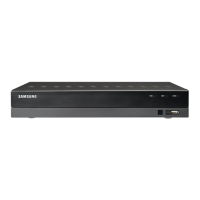
Samsung SDS-P5100 - User Manual

Samsung SDS-P5100
135 pages
Print Icon
To Next Page IconTo Next Page
Loading...
8 CHANNEL/
16 CHANNEL DVR
User Manual
SDS-P5101/SDS-P5100/SDS-P4080

Table of Contents

Other manuals for Samsung SDS-P5100

Questions and Answers

  • T
    Tammy JuarezAug 18, 2025
    What to do if the “NO HDD” icon and error message appear on my Samsung DVR?
    • R
      ricezacharyAug 18, 2025
      If the “NO HDD” icon and an error message are displayed, first check the HDD connection. If the problem persists, even with a normal connection, it is recommended to contact the nearest service center to have the HDD checked by service personnel.
  • K
    Katherine BarronAug 20, 2025
    How to turn off the alarm on my Samsung SDS-P5100 when the [ALARM] button doesn't work?
    • A
      Andrea RogersAug 21, 2025
      If you press the [ALARM] button on the remote control to release the alarm, but it does not work, try the following steps using the [MENU] button on the remote control: 1) To release the event monitoring mode: Go to Monitoring Mode and set the duration of the event monitoring to Off. 2) To release the alarm sound: Go to Event Record Mode - Alarm (Motion Detection/Video Loss) and deactivate the alarm sound. 3) To release the event: Go to Event Record Mode - Alarm (Motion Detection/ Video Loss) and set the mode to Off.
  • M
    Meghan BlakeAug 23, 2025
    Why do some channels show a black screen on my Samsung DVR, even with a video source?
    • J
      jennifer88Aug 23, 2025
      If some channels display only a black screen, even when they should be receiving video, check if the camera connected to the system properly displays the image and check if the camera is properly supplied with power. The issue might also occur on a channel with a weak video signal. In this case, input the video source of the camera directly into the DVR to potentially identify and resolve the problem.
  • L
    Lisa LeonAug 26, 2025
    What to do if my Samsung DVR does not turn on?
    • J
      Jennifer CallahanAug 26, 2025
      If the system does not turn on and the indicator on the front panel does not work, check if the power supply system is properly connected and check the system for the input voltage from the power source. If the problem continues, check the power supplier and replace it if needed.
  • E
    Erica ScottAug 28, 2025
    Why is my Samsung DVR not recording?
    • J
      Johnny ThorntonAug 28, 2025
      If recording does not work, first check if you see an image on the screen. If the player does not display a Live image at all, it may be the reason. If the recording settings are not properly configured, you can start manual recording by pressing the [REC] button on the remote control. You can also set up a scheduled record by specifying a desired time in Menu – Record - Recording Schedule. Recording will then start at the specified time.
  • A
    anna64Aug 30, 2025
    How to improve the recording quality on my Samsung SDS-P5100?
    • K
      Katherine AcostaAug 30, 2025
      If the image quality of your recording data is not good, increase the resolution and quality level in Menu – Record – Quality / Resolution. Also, specify a bigger size when specifying the recording size and specify a bigger level for the recording quality.
  • J
    Jenny RichSep 2, 2025
    What to do if the record button doesn't work on my Samsung SDS-P5100 remote?
    • D
      dtownsendSep 2, 2025
      If the [REC] button on the remote control doesn't start recording, check if there is free space on the HDD for recording. Also, check if the record mode is set to ON in the record mode setting.
  • M
    moorekennethSep 4, 2025
    Why doesn't the channel button work on my Samsung DVR?
    • A
      archerlukeSep 5, 2025
      If the Channel button does not work on the Live screen, it may be because the current screen is in the event monitoring mode. In the event monitoring screen, press the [ALARM] button to exit the screen and then select a channel.
  • W
    wallacejasonSep 7, 2025
    How to display the time bar in search mode on a Samsung SDS-P5100?
    • K
      Katherine NavarroSep 7, 2025
      If the time bar is not displayed in Search mode, switch to normal mode or use the left or right button to navigate through the time bar.
  • M
    Mark CampbellSep 9, 2025
    Why can't I move the cursor to the Start button in the calendar search on my Samsung DVR?
    • A
      adam84Sep 9, 2025
      If the cursor will not move to the Start button when you start the calendar search, check if the channel and the date that you want to play are marked with the V symbol.

Summary

overview

Important Safety Instructions

Essential guidelines for safe operation and usage of the unit.

Before Start

Preliminary information and notices before operating the DVR.

Features

Key capabilities and functionalities of the DVR.

Package Contents

List of items included in the SDS-P5101/P5100 package.

PART NAMES AND FUNCTIONS (FRONT)

SDR-5100;4100

Identification and description of the front panel components of the SDR-5100/4100.

PART NAMES AND FUNCTIONS (REAR)

SDR-4100; SDR-5100

Identification and description of the rear panel components of the SDR-4100/SDR-5100.

REMOTE CONTROL

Using the numeric buttons

Guide on using the numeric buttons for channel selection and input.

CONNECTING WITH OTHER DEVICE

INSTALLATION

Guidelines and precautions for installing the DVR unit.

CONNECTING THE USB

Instructions for connecting USB devices for external connectivity.

CONNECTING THE CAMERA (SDC-5340 BC)

Steps for connecting the SDC-5340BC camera to the DVR system.

live

GETTING STARTED

Initial system startup and shutdown procedures.

Login

Process for accessing the DVR interface by logging in with credentials.

Live Screen Configuration

Understanding and configuring icons displayed on the live viewing screen.

main menu

SYSTEM SETUP

Configuration of system properties like date, time, language, and permissions.

Permission Management

Setting user access levels, groups, and individual permissions for DVR functions.

System Management

Checking system information and updating the DVR software.

SETTING THE DEVICE

Configuring camera, storage, remote, and monitor settings for optimal performance.

Recording Schedule

Setting up scheduled recordings based on date and time for each channel.

Motion Detection

Configuring motion detection parameters and regions for event recording.

NETWORK CONFIGURATION

Setting up network parameters for remote access and communication.

search & play

SEARCH

Performing searches for recorded video data by time, event, or motion.

PLAYBACK

Playing back recorded video files and managing playback controls.

Web Viewer

Introducing Web Viewer

Overview of the Web Viewer functionality and system requirements.

CONNECTING WEB VIEWER (WINDOWS)

Guide to installing and connecting the Web Viewer on a Windows operating system.

Saving the Live Screen On The PC

Instructions for capturing, printing, and recording live video feeds to a PC.

Mobile Viewer

Using the iPOLiS mobile app for remote access and control via smartphone.

backup viewer

SEC BACKUP VIEWER

Playing back backup files in SEC format using the dedicated viewer.

appendix

Product Specification (Camera)

Technical specifications for the SDC-5340BC camera model.

Product Specification(DVR)

Technical specifications for the SDR-4100 DVR model.

Default Setting

Overview of the factory default settings for various DVR configurations.

Troubleshooting

Common issues and their solutions for operating the DVR system.

Open Source License Report on the Product

Samsung SDS-P5100 Specifications

General IconGeneral
ModelSDS-P5100
TypeDVR
Video InputBNC
Resolution1920 x 1080
Recording Frame Rate30fps
Storage CapacityUp to 6TB
Hard Drive Bays1
Compression FormatH.264
CompressionH.264
Network InterfaceRJ45
Power Supply12V DC
Operating SystemEmbedded Linux
Video Input Channels16
Video OutputHDMI, VGA
Recording Resolution1080p
USB Ports2
Remote AccessYes
Audio InputRCA
Audio OutputRCA
Operating Temperature-10°C to 55°C

Related product manuals