EasyManua.ls Logo

Samsung SDE-500X - User Manual

Samsung SDE-500X
152 pages
Print Icon
To Next Page IconTo Next Page
Loading...
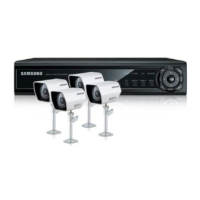
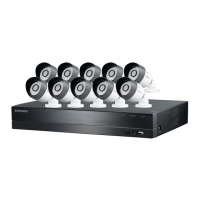
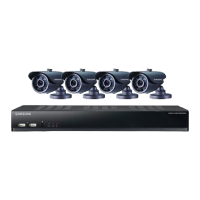
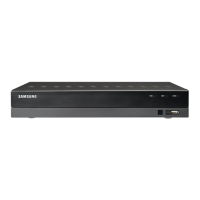
8 CHANNEL/
16 CHANNEL DVR
User Manual
SDE-400x/SDE-500x

Table of Contents

Questions and Answers

  • J
    Jason CarrAug 17, 2025
    What to do if the “NO HDD” icon and an error message are displayed on my Samsung DVR?
    • A
      akentAug 17, 2025
      If the Samsung DVR displays the message “NO HDD” and shows an error message, first check the HDD connection. If the problem persists, contact the nearest service center to have the HDD checked.
  • T
    Tyler MooreAug 19, 2025
    How to switch to normal split mode on Samsung SDE-500X DVR WebViewer if ESC key doesn't work?
    • D
      dana23Aug 19, 2025
      If the system does not switch to a normal split mode when you press the ESC key in full screen mode of the WebViewer, press the ALT+TAB keys to select ‘ACTIVE MOVIE’ and press the ESC key again.
  • M
    monicastevensAug 22, 2025
    What to do if the [REC] button on my Samsung SDE-500X doesn't start recording?
    • R
      Robert BuchananAug 22, 2025
      If your Samsung DVR does not start recording when you press the [REC] button, check if there is free space on the HDD. Also, verify that the record mode is set to ON in the record mode settings.
  • N
    nperryAug 25, 2025
    Why won't my Samsung DVR turn on?
    • R
      Richard SawyerAug 26, 2025
      If the Samsung DVR does not turn on and the indicator on the front panel is not working, check if the power supply system is properly connected and check the system for the input voltage from the power source. If the problem persists, check the power supplier and replace it if necessary.
  • C
    Cynthia JohnsonAug 27, 2025
    How to improve the image quality of recording data on my Samsung SDE-500X?
    • S
      Shawn BennettAug 28, 2025
      If the image quality of the recording data on your Samsung DVR is not good, increase the resolution and quality level in Menu – Record – Quality / Resolution. Select a bigger size when specifying the recording size (4CIF>2CIF>CIF) and specify a bigger level for the recording quality. Note that increasing the resolution and the recording quality will increase the data size, filling the HDD faster.
  • R
    Ronnie HuntAug 30, 2025
    Why is backup data from my Samsung SDE-500X DVR not playing on PC or DVR?
    • D
      Dorothy GlennAug 30, 2025
      If backup data from your Samsung DVR is not played by the PC or DVR, ensure that you have selected the correct player option (PC or DVR) during backup. If using a PC, the format of the backup file should be SEC. If using the DVR, formatting backup files should be done by the DVR.
  • C
    Carla RamosSep 2, 2025
    Why do some channels on my Samsung DVR display a black screen?
    • F
      Faith ButlerSep 2, 2025
      If some channels on your Samsung DVR display just a black screen, check if the camera connected to the system properly displays the image and if the camera is properly supplied with power. If the video signal is weak due to a video distributor, input the video source of the camera directly into the DVR.
  • S
    Stephen TerrellSep 5, 2025
    Why doesn't the Channel button work on the Live screen of my Samsung DVR?
    • A
      Alex WilliamsSep 5, 2025
      If the Channel button does not work on the Live screen of your Samsung DVR, it may be because the current screen is in the event monitoring mode. In the event monitoring screen, press the [ALARM] button to exit the screen and select a channel.
  • M
    Matthew WelchSep 7, 2025
    What to do if the [ALARM] button on my Samsung SDE-500X DVR doesn't release the alarm?
    • J
      Joshua BrownSep 7, 2025
      If you press the [ALARM] button on the front panel of your Samsung DVR to release the alarm and it does not work, press the [MENU] button on the front panel to release the alarm in the following way: 1) To release the event monitoring mode : Monitoring Mode – set the duration of the event monitoring to Off. 2) To release the alarm sound : Event Record Mode - Alarm (Motion Detection/Video Loss) – deactivate the alarm sound. 3) To release the event : Event Record Mode - Alarm (Motion Detection/ Video Loss) – set the mode to Off.
  • C
    cjohnsonSep 12, 2025
    Why won't the cursor move to the Start button when I start the calendar search on my Samsung SDE-500X DVR?
    • A
      Ashley MillerSep 12, 2025
      To move the cursor to the Start button when starting a calendar search on your Samsung DVR, check if the channel and the date that you want to play are marked with the V symbol. Both channel and date should be checked before you can start playing with the Start button.

Summary

Overview

Important Safety Instructions

Essential safety guidelines for using the DVR unit to prevent hazards.

Before Start

Notices and warnings to be considered before operating or installing the DVR.

Part Names and Functions

Detailed identification of front panel parts and their functions.

Connecting With Other Devices

Installation and Environment Check

Guidance on installing the DVR and checking the operating environment.

Live Mode Operations

Main Menu Configuration

System Setup

Configuring date, time, language, permissions, and system information.

Recording Settings

Setting recording schedules, quality, and options.

Backup Settings

Configuring data backup procedures and schedules.

Network Configuration

Setting up network connection, protocols, DDNS, and mailing services.

Search and Playback

Web Viewer

Connecting and Using Web Viewer

Steps for connecting and using the Web Viewer on MAC and Windows.

Troubleshooting

Troubleshooting Guide

Common symptoms and their corresponding countermeasures for the DVR.

Samsung SDE-500X Specifications

General IconGeneral
BrandSamsung
ModelSDE-500X
CategoryDVR
LanguageEnglish

Related product manuals