EasyManua.ls Logo

Samsung SDS-P5101 - User Manual

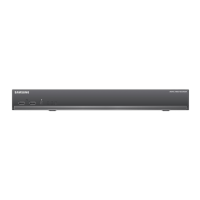
Samsung SDS-P5101
135 pages
Print Icon
To Next Page IconTo Next Page
Loading...
8 CHANNEL/
16 CHANNEL DVR
User Manual
SDS-P5101/SDS-P5100/SDS-P4080

Table of Contents

Questions and Answers

  • S
    Stephanie RodgersAug 18, 2025
    What to do if the “NO HDD” icon and error message appear on my Samsung SDS-P5101?
    • G
      Gregory BrownAug 18, 2025
      If the “NO HDD” icon and an error message are displayed, first check the HDD connection. If the problem persists, even with a normal connection, it is recommended to contact the nearest service center to have the HDD checked by service personnel.
  • L
    Linda WilliamsAug 20, 2025
    How to turn off the alarm on my Samsung SDS-P5101 when the [ALARM] button doesn't work?
    • N
      Nicole SuttonAug 21, 2025
      If you press the [ALARM] button on the remote control to release the alarm, but it does not work, try the following steps using the [MENU] button on the remote control: 1) To release the event monitoring mode: Go to Monitoring Mode and set the duration of the event monitoring to Off. 2) To release the alarm sound: Go to Event Record Mode - Alarm (Motion Detection/Video Loss) and deactivate the alarm sound. 3) To release the event: Go to Event Record Mode - Alarm (Motion Detection/ Video Loss) and set the mode to Off.
  • C
    Christopher RossAug 23, 2025
    Why do some channels show a black screen on my Samsung SDS-P5101, even with a video source?
    • J
      jessicafosterAug 23, 2025
      If some channels display only a black screen, even when they should be receiving video, check if the camera connected to the system properly displays the image and check if the camera is properly supplied with power. The issue might also occur on a channel with a weak video signal. In this case, input the video source of the camera directly into the DVR to potentially identify and resolve the problem.
  • D
    Desiree WashingtonAug 26, 2025
    What to do if my Samsung SDS-P5101 does not turn on?
    • J
      James EwingAug 26, 2025
      If the system does not turn on and the indicator on the front panel does not work, check if the power supply system is properly connected and check the system for the input voltage from the power source. If the problem continues, check the power supplier and replace it if needed.
  • J
    Jonathan MontgomeryAug 28, 2025
    Why is my Samsung DVR not recording?
    • A
      Angela BraunAug 28, 2025
      If recording does not work, first check if you see an image on the screen. If the player does not display a Live image at all, it may be the reason. If the recording settings are not properly configured, you can start manual recording by pressing the [REC] button on the remote control. You can also set up a scheduled record by specifying a desired time in Menu – Record - Recording Schedule. Recording will then start at the specified time.
  • H
    Helen BakerAug 30, 2025
    How to improve the recording quality on my Samsung DVR?
    • P
      Paula HarrisAug 30, 2025
      If the image quality of your recording data is not good, increase the resolution and quality level in Menu – Record – Quality / Resolution. Also, specify a bigger size when specifying the recording size and specify a bigger level for the recording quality.
  • C
    Carla GreenSep 2, 2025
    What to do if the record button doesn't work on my Samsung SDS-P5101 DVR remote?
    • A
      Angelica HenrySep 2, 2025
      If the [REC] button on the remote control doesn't start recording, check if there is free space on the HDD for recording. Also, check if the record mode is set to ON in the record mode setting.
  • B
    bthomasSep 4, 2025
    Why doesn't the channel button work on my Samsung DVR?
    • K
      Kristina PriceSep 4, 2025
      If the Channel button does not work on the Live screen, it may be because the current screen is in the event monitoring mode. In the event monitoring screen, press the [ALARM] button to exit the screen and then select a channel.
  • C
    cassandra68Sep 7, 2025
    How to display the time bar in search mode on a Samsung SDS-P5101?
    • X
      Xavier BrewerSep 7, 2025
      If the time bar is not displayed in Search mode, switch to normal mode or use the left or right button to navigate through the time bar.
  • D
    Douglas DavisSep 9, 2025
    Why can't I move the cursor to the Start button in the calendar search on my Samsung DVR?
    • K
      Kerri MathisSep 9, 2025
      If the cursor will not move to the Start button when you start the calendar search, check if the channel and the date that you want to play are marked with the V symbol.

Summary

overview

Important Safety Instructions

Provides crucial safety guidelines before operating the unit.

Before Start

Outlines important notices and prerequisites before beginning.

Features

Lists the key features and capabilities of the DVR system.

Package Contents

Details all items included in the product package.

PART NAMES AND FUNCTIONS

Front Panel Components

Identifies front panel components and their functions.

Rear Panel Components

Identifies rear panel components and their functions.

REMOTE CONTROL

Remote Control Operations

Explains the functions of each button on the remote control.

CONNECTING DEVICES

Installation and Environment

Provides essential installation guidelines and environmental precautions.

Connecting Peripherals

Guides on connecting video, audio, USB, cameras, RS-485, and network devices.

Network Connectivity

Guides on establishing network connections via Ethernet, router, or ADSL.

LIVE VIEW OPERATIONS

System Startup and Shutdown

Provides initial steps for starting and safely shutting down the system.

Login and Security

Describes login procedures and button locking for DVR access.

Live Screen Interface

Explains icons, status indicators, and menus on the live viewing screen.

Screen Modes and Controls

Describes live view modes (split, single) and controls like zoom and freeze.

Event Monitoring

Explains how the system displays channels during specific events.

MAIN MENU CONFIGURATION

System Setup

Allows configuration of system properties, date, time, language, and permissions.

Device Settings

Configures camera, storage, PTZ, and monitor settings.

Recording Settings

Configures recording schedules, quality, options, and event triggers.

Event Settings

Configures motion detection, video loss, and alarm schedules.

Network Configuration

Configures network connections, protocols, DDNS, and mail services.

PTZ Camera Control

Explains how to adjust PTZ camera settings and control them.

SEARCH AND PLAYBACK

Searching Recorded Data

Explains how to search recorded data by time, event, backup, or motion.

Playback Operations

Explains how to play recorded data from HDD or backup and use playback controls.

WEB VIEWER OPERATIONS

Web Viewer Introduction

Provides an overview of the Web Viewer functionality and features.

Connecting and Using Web Viewer

Guides on connecting and using the Web Viewer on Mac and Windows.

Viewer Setup and Controls

Allows remote configuration of DVR settings and controls playback.

Saving Live Screens to PC

Guides on capturing, printing, and recording live screens to a PC.

Mobile Viewer

Introduces the mobile application for connecting to the DVR.

BACKUP VIEWER

SEC Backup Viewer

Explains how to play backup files in SEC format.

Playback Controls

Details the functions of playback controls like audio, speed, and zoom.

APPENDIX

Product Specifications

Lists detailed specifications for the DVR and cameras.

Default Settings

Lists the factory default settings for the DVR.

Troubleshooting

Provides solutions for common system issues and symptoms.

Open Source Licenses

Details the open-source licenses used in the product.

Samsung SDS-P5101 Specifications

General IconGeneral
ModelSDS-P5101
TypeDVR
Video OutputHDMI, VGA
Audio Output1 channel
Compression FormatH.264
Operating SystemEmbedded Linux
Network InterfaceEthernet
Remote AccessYes
USB Ports2
Power SupplyDC 12V

Related product manuals