EasyManua.ls Logo

Samsung SDS-P4082 - User Manual

Samsung SDS-P4082
242 pages
Print Icon
To Next Page IconTo Next Page
Loading...
English _1
English
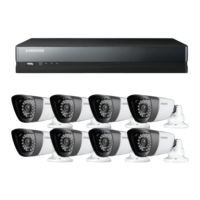
SAMSUNG ALL-IN-ONE SECURITY SYSTEM
KIT MODEL
SDS-P3042 / V3042/ S3042/ P3022/ P4042 / V4042/
S4042/ P4082/ P5082 / S5082 / P5102 / P5122
DVR MODEL
SDR-3102
/
4102
/
5102
Quick Start Guide
Thank you for purchasing a Samsung DVR Security System.
Follow the simple steps in this guide to set up and start using your new system.
If you have any questions or need help installing your new product please contact our free technical support.
Telephone: 1-877-349-3149
9am - 9pm EST, Monday - Friday
Internet: http://www.samsungsv.com
INSTALLING YOUR SYSTEM
M
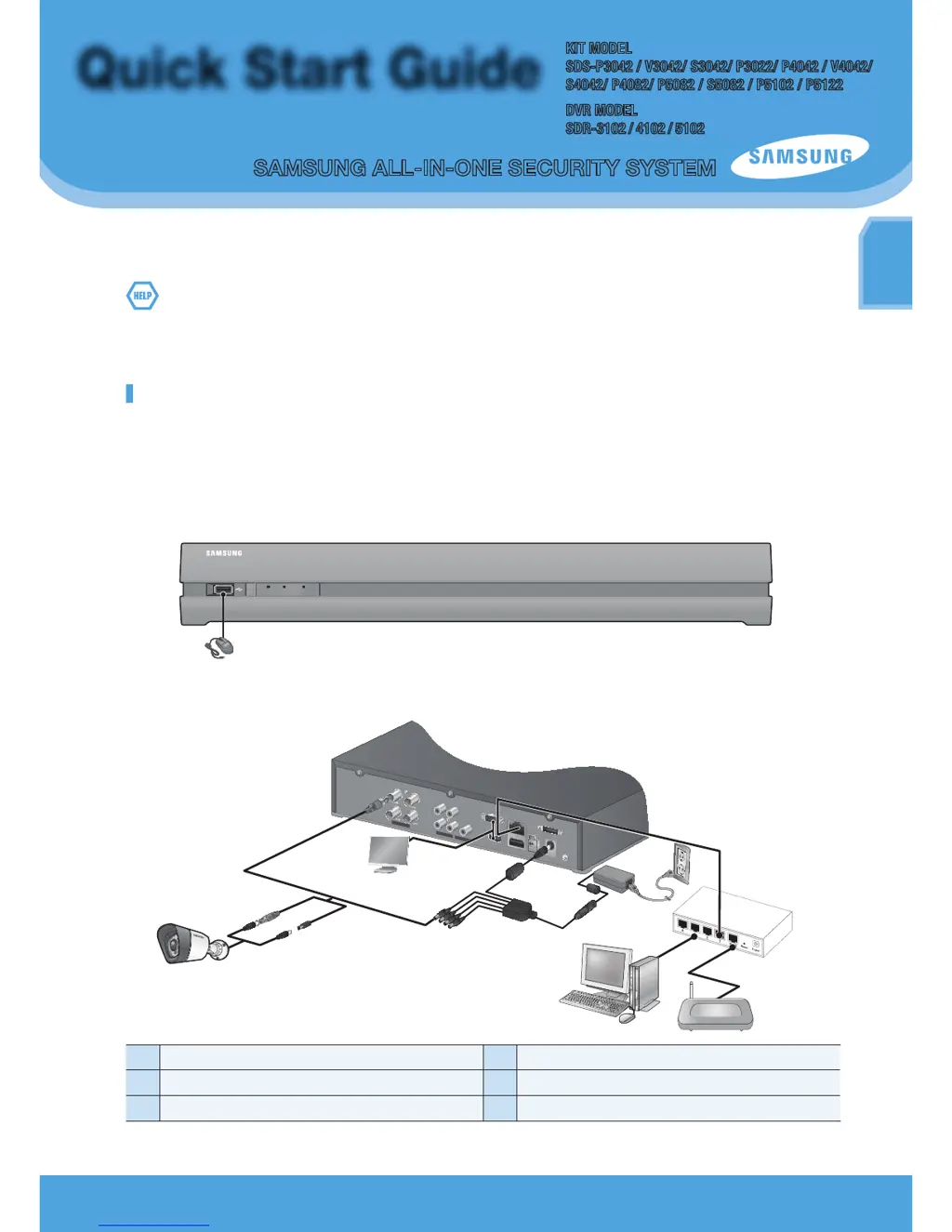
Images may differ depending on the model.
4CH DVR
Front
Rear
1
Connect a mouse
4
Connect the DC adaptors
2
Connect a camera
5
Connect to a network router
3
Connect a monitor
POWER REC NETWORK
1
IN1
IN3
IN4
AUDIO IN
AUDIO OUT
VGA
IN2
HDMI
eSATA
VIDEO IN
LAN
USB
RS485
DC12V
2
3
4
5

Table of Contents

Other manuals for Samsung SDS-P4082

Questions and Answers

  • L
    Laura AndrewsSep 14, 2025
    Why do some channels display a black screen on my Samsung Security System?
    • M
      Matthew JohnsonSep 14, 2025
      If some channels display just a black screen on your Samsung Security System, check if the camera connected to the system properly displays the image and if the camera is properly supplied with power. This problem may also occur on a channel with a weak video signal from a video distributor connected to multiple systems; in this case, input the video source of the camera directly into the DVR.
  • C
    christineellisAug 25, 2025
    Why is my Samsung DVR not recording?
    • A
      April MartinezAug 25, 2025
      If your player does not display a Live image at all, that indicates recording does not work, so first check if you see an image on the screen. Recording does not work if the recording settings are not properly configured. To start recording manually, press the [REC] button on the remote control. To schedule recording, specify a desired time in Menu – Record – Recording Schedule. Continuous Recording will proceed in any conditions at the specified time. Event Recording will perform only if the event is of alarm, motion detection, video loss and Tampering Detection. If there is no event found, Continuous recording will perform. Whereas, if an event occurs, Event recording will perform.
  • T
    Tanya OconnellAug 25, 2025
    How to improve the recording quality on my Samsung DVR?
    • D
      Destiny GonzalezAug 26, 2025
      To enhance the image quality of your recorded data, increase the resolution and quality level in Menu – Record – Quality / Resolution. You can select a bigger size when specifying the recording size and specify a bigger level for the recording quality.
  • A
    adam16Aug 26, 2025
    Why can't I play backup data from my Samsung DVR on my PC?
    • K
      kbrooksAug 27, 2025
      When you are backing up data, you have choices about the player either: PC or DVR. Make your selection before proceeding. If you are using the PC to play the data, the format of the backup file should be SEC. If you are using the DVR for this purpose, formatting backup files should be done by the DVR.
  • J
    jasonwalshSep 15, 2025
    What to do if the REC button doesn't work on my Samsung SDS-P4082 Security System?
    • R
      Ronald BeckSep 15, 2025
      If the REC indicator does not flash and the player does not start recording when you press the [REC] button on your Samsung Security System, check if there is free space on the HDD for recording and if the record mode is set to ON in the record mode setting.
  • A
    Anthony OneillSep 23, 2025
    What to do if the ESC key doesn't exit full screen mode in WebViewer on my Samsung SDS-P4082?
    • R
      Robert ButlerSep 23, 2025
      If pressing the ESC key in full screen mode of the WebViewer on your Samsung Security System does not switch the system to a normal split mode, press the ALT+TAB keys to select ‘ACTIVE MOVIE’ and press the ESC key again.
  • S
    Shelia GloverSep 7, 2025
    Why is the Channel button not working on my Samsung DVR Live screen?
    • M
      Matthew AllenSep 7, 2025
      The Channel button does not work if the current screen is in the event monitoring mode. Press the [ALARM] button to exit the screen and select a channel.
  • N
    Nathan PerrySep 8, 2025
    Why can't I move the cursor to the Start button in calendar search on my Samsung DVR?
    • N
      Nancy HodgesSep 8, 2025
      Check if the channel and the date that you want to play are marked with the V symbol.
  • L
    Lisa VargasSep 2, 2025
    Why doesn't my Samsung DVR recognize all of my external HDDs?
    • B
      Brandon SmithSep 2, 2025
      It takes time for the DVR to recognize multiple external HDDs, so try again in a moment. The problem may occur due to a mechanical error of the HDD installed, so try again with a different HDD.
  • K
    Katherine GomezAug 31, 2025
    What does NO HDD icon mean on my Samsung DVR?
    • E
      Elizabeth HerreraAug 31, 2025
      Check the HDD for connection. If the problem persists in a normal condition, contact the nearest service center to have the HDD checked by the service personnel.

Summary

Quick Start Guide

INSTALLING YOUR SYSTEM

Instructions for setting up the Samsung DVR Security System.

IMPORTANT SAFETY INSTRUCTIONS

SYSTEM SETUP

Date;Time;Language

Configuring system date, time, and interface language settings.

System Management

Storage Device

SETTING THE RECORDING

Recording Schedule

Setting up scheduled recording for specific dates and times.

SETTING THE EVENT

Motion Detection

Configuring motion detection regions, sensitivity, and alarm output.

NETWORK CONFIGURATION

Connection Mode

Setting network connection route and protocol types.

CONTROLLING A PTZ DEVICE

SEARCH

Time Search

Searching for recorded video data by specifying a date and time.

PLAYBACK

WEB VIEWER

CONNECTING WEB VIEWER (Windows)

USING LIVE VIEWER (Windows)

SETUP

OPTION TAB

Configuring Live Viewer or Search Viewer settings.

DEVICE REGISTRATION TAB

Samsung SDS-P4082 Specifications

General IconGeneral
BrandSamsung
ModelSDS-P4082
CategorySecurity System
LanguageEnglish

Related product manuals