Accounts and Messaging 101
1. From the Gmail Inbox, tap a message to view it.
2. The following options are available at the bottom of the screen:
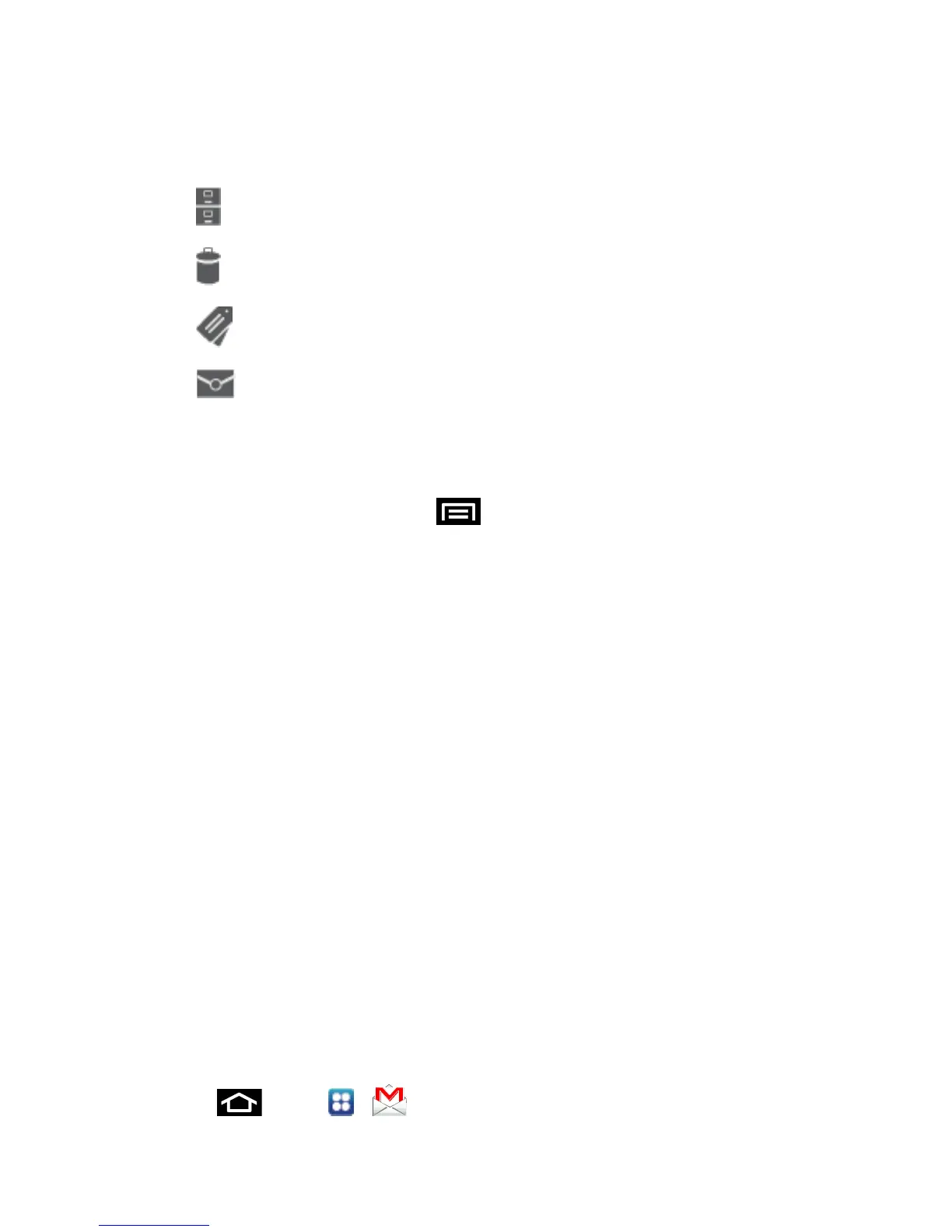
: archives the selected message.
: deletes the message.
: allows you to attach labels to a message. This is similar to putting it in a folder.
: after reading a message, marks as unread.
Newer: swipe your screen to the right to see newer messages.
Older: swipe your screen to the left to see older messages.
3. Before selecting a message, press to select one of the following additional
options:
Label settings: allows you to set sync and notification settings.
Settings: displays Email settings that you can modify.
Help: displays the Google.com webpage so you can search the web for help.
Send feedback: allows you to send feedback or report a problem.
4. After selecting a message, press to select one of the following additional options:
Mark important/not important: allows you to set the importance of a message.
Mute: allows you to mute the sound in a message if applicable.
Report spam: allows you to report a message as spam. Tap the UNDO option if you
change your mind.
Settings: displays Email settings that you can modify.
Help: displays the Google.com webpage so you can search the web for help.
Send feedback: allows you to send feedback or report a problem.
Reply to Gmail Messages
You can reply to Gmail messages from your device.
1. Press and tap > .






 To Next Page