EasyManua.ls Logo

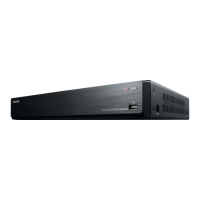
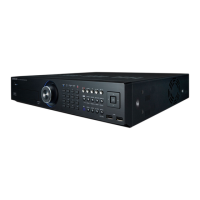
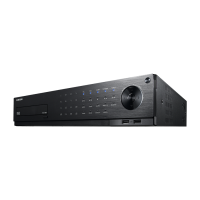
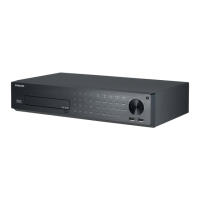
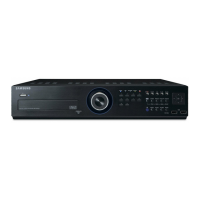
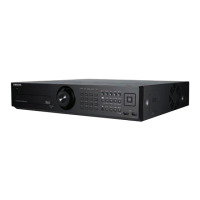
Samsung SRD-1630D - User Manual

Samsung SRD-1630D
132 pages
Print Icon
To Next Page IconTo Next Page
Loading...
8 CHANNEL/
16 CHANNEL DVR
User Manual
SRD-830/830D/830DC/
850/850D/850DC/870/870D/870DC/
1610/1610D/1610DC/1630/1630D/1630DC/
1650/1650D/1650DC/1670/1670D/1670DC

Table of Contents

Other manuals for Samsung SRD-1630D

Questions and Answers

  • C
    Christopher VasquezSep 17, 2025
    What to do if ESC key doesn't exit full screen on Samsung SRD-1630D DVR WebViewer?
    • K
      Kurt ColeSep 18, 2025
      If pressing the ESC key in full screen mode of the WebViewer on your Samsung DVR doesn't switch the system to a normal split mode, press the ALT+TAB keys to select ‘ACTIVE MOVIE’ and then press the ESC key again.
  • P
    Patricia KingAug 25, 2025
    What to do if my Samsung SRD-1630D displays 'NO HDD' icon?
    • C
      Christopher SanchezAug 25, 2025
      If your Samsung DVR displays the “NO HDD” icon and an error message, check the HDD for connection. If the problem persists in a normal condition, contact the nearest service center to have the HDD checked by the service personnel.
  • K
    Kristopher TurnerAug 25, 2025
    What to do if my Samsung DVR does not recognize all installed disks?
    • T
      Teresa HurstAug 26, 2025
      If your Samsung DVR does not recognize all the installed disks, it may simply need more time to recognize multiple external HDDs, so try again in a moment. If the problem persists, it may occur due to a mechanical error of the HDD installed, so try again with a different HDD.
  • M
    Michael HahnAug 26, 2025
    Why does my Samsung SRD-1630D DVR display a black screen on some channels?
    • J
      jonesnatalieAug 27, 2025
      If some channels on your Samsung DVR display a black screen even if they receive video sources, first check if the camera connected to the system properly displays the image and if the camera is properly supplied with power. Sometimes, this problem may occur on a channel with weak video signal from a video distributor that is connected to multiple systems. In this case, input the video source of the camera directly into the DVR.
  • D
    Donna WilliamsSep 18, 2025
    Why is the time bar not showing in search mode on my Samsung DVR?
    • R
      Rebecca PruittSep 18, 2025
      The timeline on your Samsung DVR can switch between normal and extension mode. If the time bar is not displayed in Search mode, switch to normal mode or use the left or right button to navigate through the time bar.
  • F
    fmilesSep 23, 2025
    How to exit full screen mode on Samsung SRD-1630D DVR WebViewer?
    • K
      Keith WilliamsSep 23, 2025
      Press the ALT+TAB keys to select ‘ACTIVE MOVIE’ and press the ESC key again.
  • D
    Donald Gordon DDSSep 9, 2025
    How to improve the recording quality on my Samsung SRD-1630D DVR?
    • R
      Richard BullockSep 9, 2025
      If the image quality of the recording data on your Samsung DVR isn't satisfactory, try increasing the resolution and quality level in Menu – Record – Quality / Resolution. Select a bigger size when specifying the recording size (4CIF>2CIF>CIF). Specify a bigger level for the recording quality. Keep in mind that increasing resolution and recording quality will increase the data size, filling the HDD faster and overwriting existing data sooner.
  • L
    Linda RandallSep 10, 2025
    What to do if the REC button doesn't work on my Samsung SRD-1630D DVR?
    • R
      Ricky MosesSep 12, 2025
      If you press the [REC] button on the front panel of your Samsung DVR and the REC indicator doesn't flash, and the player doesn't start recording, check if there is free space on the HDD. Also, verify that the record mode is set to ON in the record mode setting.
  • J
    Jacob GreenSep 3, 2025
    How to fix a Samsung DVR that does not turn on?
    • J
      Jimmy WoodSep 3, 2025
      If your Samsung DVR does not turn on and the indicator on the front panel remains off, check whether the power supply system is properly connected. Also, verify the system's input voltage from the power source. If the problem continues, it might be necessary to inspect the power supplier and replace it if needed.
  • R
    Robin MorrisonSep 1, 2025
    Why does my Samsung DVR say 'Need to reset date/time'?
    • A
      Andrew WilliamsSep 1, 2025
      If your Samsung DVR displays a message saying “Need to reset date/time,” it means there's an issue with the internal clock's time setting or the clock itself. In this case, it is recommended to contact the retailer or a service center for further assistance.

Summary

OVERVIEW

Important Safety Instructions

Provides essential safety guidelines and precautions for operating the DVR.

Before Start

Outlines preliminary information and notices before using the DVR.

Features

Details the key functionalities and capabilities of the SRD DVR.

Part Names and Functions (Front)

Identifies and explains the function of each component on the front panel.

Part Names and Functions (Rear)

Identifies and explains the function of each connection port on the rear panel.

Remote Control

Explains the layout and operation of the DVR's remote control.

INSTALLATION

Checking the Installation Environment

Provides recommendations for ensuring a suitable installation environment.

Rack Installation

Details the procedure for installing the DVR into a rack.

HDD Addition

Explains how to install additional Hard Disk Drives (HDDs).

CONNECTING WITH OTHER DEVICE

Connecting the Video, Audio, and Monitor

Guides on how to connect video, audio, and monitor outputs.

Connecting the USB

Instructions for connecting USB devices like memory or external drives.

Connecting External SATA HDD (eSATA)

Details on connecting external SATA HDDs for storage expansion.

Connecting POS Device

Explains how to connect Point of Sale (POS) devices via RS-232C.

Connecting the Alarm Input;Output

Information on connecting alarm input and output devices.

Connecting the RS-485 Device

Instructions for connecting RS-485 devices, such as PTZ cameras.

Connecting the Network

Provides guidance on establishing network connectivity.

LIVE

Getting Started

Steps to start and shut down the DVR system.

Login

Procedure for logging into the DVR to access menus and features.

Live Screen Configuration

Explains the icons and status indicators on the live screen.

Live Mode

Describes how to switch between different screen layout modes.

Spot Out

Details how to select and configure output screen modes for events.

Zoom

Instructions on using the digital zoom function on the live screen.

Audio ON;OFF

Explains how to turn audio on or off for a selected channel.

Freeze

Describes how to temporarily pause the live image.

Event Monitoring

Explains how to display channels synchronized with specific events.

USING THE DVR

System Setup

Covers settings for Date/Time, Language, Permissions, and System.

Setting the Device

Guides on configuring Camera, PTZ, Storage, Remote, POS, and Monitor settings.

SETTING THE RECORDING

Details on configuring scheduled, event, and other recording settings.

SETTING THE EVENT

Configures recording options for sensor, motion, and video loss events.

BACKUP

Covers checking the backup device and setting the backup schedule.

NETWORK CONFIGURATION

Explains how to configure network settings for remote access and events.

CONTROLLING A PTZ DEVICE

Provides instructions for adjusting PTZ camera settings.

SEARCH & PLAY

SEARCH

Details on performing searches by time, event, backup, POS, or motion.

PLAYBACK

Instructions on playing stored data from HDD or backup.

Using the Playback Button

Explains the functions of the playback control buttons.

WEB VIEWER

Introducing Web Viewer

Overview of the Web Viewer's capabilities for remote DVR access.

Connecting Web Viewer

Steps to connect to the DVR using a web browser.

Using Live Viewer

Guides on navigating and using the live viewer interface.

Split-Screen

Explains how to change display modes for multiple camera views.

Saving the Live Screen on the PC

Instructions on capturing and saving live screen images to a PC.

Using Search Viewer

Guides on using the search viewer to find recorded video.

Viewer Setup

Covers configuration of system, device, network, and event settings.

Record

Details on recording settings and schedules.

Event

Configuration for sensor, motion, and video loss events.

Alarm Schedule

Allows scheduling of alarms based on day of week and time.

ABOUT

Mobile Viewer

Information about the mobile viewer application for DVR management.

BACKUP VIEWER

SEC Backup Viewer

Explains how to play files backed up in the SEC format.

Recommended System Requirements

Lists the minimum system requirements for the backup viewer.

APPENDIX

PRODUCT SPECIFICATION (SRD-830;830 D;830 DC;1610;1610 D;1610 DC;1630;1630 D;1630 DC)

Detailed specifications for SRD-830/830D/830DC and 1610/1610D/1610DC/1630/1630D/1630DC models.

PRODUCT SPECIFICATION (SRD-850;850 D;850 DC;870;870 D;870 DC;1650;1650 D;1650 DC;1670;1670 D;1670 DC)

Detailed specifications for SRD-850/850D/850DC/870/870D/870DC and 1650/1650D/1650DC/1670/1670D/1670DC models.

PRODUCT OVERVIEW

Provides a physical overview and dimensions of the DVR.

DEFAULT SETTING

Lists the factory default settings for system configuration.

TROUBLESHOOTING

Offers solutions to common problems encountered with the DVR.

Samsung SRD-1630D Specifications

General IconGeneral
Product colorBlack
Channels quantity16 channels
Video compression formatsAVI, H.264
Operating system installedEmbedded LINUX
Analog signal format systemNTSC, PAL
Display frame rate480 fps
Display resolution704 x 576 pixels
BNC input ports1
eSATA ports quantity2
USB 2.0 ports quantity3
Ethernet interface typeGigabit Ethernet
Supported network protocolsTCP/IP, DHCP, PPPoE, SMTP, NTP, HTTP, DDNS, RTP, RTSP
HDD interfaceeSATA
Power requirements100 - 240V AC ±10%, 50/60Hz
Power consumption (typical)60 W
Weight and Dimensions IconWeight and Dimensions
Weight7500 g
Dimensions (WxDxH)440 x 426.8 x 88 mm

Related product manuals