EasyManua.ls Logo

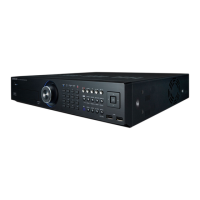
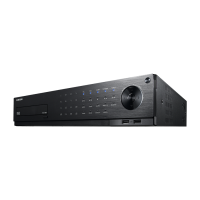
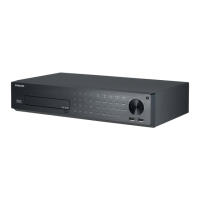
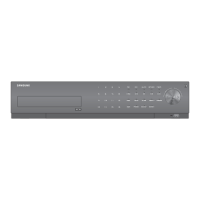
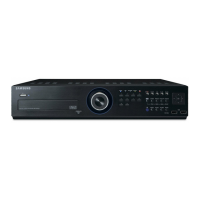
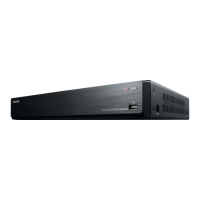
Samsung SRD-1642 - User Manual

Samsung SRD-1642
145 pages
Print Icon
To Next Page IconTo Next Page
Loading...
8 CHANNEL/
16 CHANNEL DVR
User Manual
SRD-842/1642

Table of Contents

Other manuals for Samsung SRD-1642

Questions and Answers

  • L
    lvincentAug 12, 2025
    What to do if my Samsung DVR does not turn on?
    • A
      Autumn ColemanAug 12, 2025
      If your Samsung DVR doesn't turn on, check if the power supply is properly connected and ensure the system is receiving the correct input voltage from the power source. If it still doesn't turn on, the power supplier may be faulty and need replacement.
  • L
    Linda BooneAug 15, 2025
    What to do if the REC button on my Samsung SRD-1642 DVR doesn't work?
    • P
      Patrick JonesAug 16, 2025
      If the REC button on your Samsung DVR isn't working, check if there is free space on the HDD for recording and verify that the record mode is set to ON in the record mode setting.
  • S
    sosatimothyAug 19, 2025
    Why won't the cursor move to the Start button on my Samsung SRD-1642 calendar search?
    • Z
      Zachary CareyAug 19, 2025
      Ensure that the channel and date you want to play on your Samsung DVR are marked with the V symbol.
  • M
    mark55Aug 23, 2025
    What to do if some channels on my Samsung DVR display a black screen?
    • D
      deborahfrederickAug 23, 2025
      If some channels on your Samsung DVR display a black screen, first check if the camera connected to the system properly displays the image and is properly supplied with power. If you are using a video distributor connected to multiple systems, try inputting the camera's video source directly into the DVR to rule out a weak signal issue.
  • L
    Laura WrightAug 27, 2025
    Why does the Channel button not work on the Live screen of my Samsung SRD-1642 DVR?
    • I
      Ivan ChapmanAug 27, 2025
      The Channel button won't work on the Live screen of your Samsung DVR if the current screen is in event monitoring mode. To exit this mode, press the [ALARM] button. Then you can select a channel.
  • J
    justin91Aug 31, 2025
    What to do if the alarm on my Samsung SRD-1642 won't turn off?
    • J
      Jimmy AlvaradoAug 31, 2025
      To release the alarm on your Samsung DVR, press the [MENU] button and follow these steps: 1) To release the event monitoring mode: Monitoring Mode – set the duration of the event monitoring to Off. 2) To release the alarm sound: Event Record Mode - Alarm (Motion Detection/Video Loss/Tampering Detection) – deactivate the alarm sound. 3) To release the event: Event Record Mode - Alarm (Motion Detection/ Video Loss/Tampering Detection) – set the mode to Off.
  • F
    frederickmooreSep 3, 2025
    What to do if the PTZ button doesn't work on my Samsung DVR?
    • E
      Eric StevensSep 3, 2025
      Go to Menu ? Camera ? Check if the current protocols and other settings in the PTZ device are properly configured according to the PTZ camera.
  • E
    Eugene CruzSep 7, 2025
    Why doesn't my Samsung SRD-1642 recognize all installed HDDs?
    • K
      Kevin JacksonSep 7, 2025
      It takes time for the Samsung DVR to recognize multiple external HDDs. Try again in a moment. If the problem persists, it may be due to a mechanical error of the installed HDD.

Summary

OVERVIEW

IMPORTANT SAFETY INSTRUCTIONS

Essential safety guidelines for unit operation and handling.

FEATURES

Lists the key functionalities and capabilities of the DVR product.

PART NAMES AND FUNCTIONS (FRONT)

Identifies and explains the function of front panel components.

PART NAMES AND FUNCTIONS (REAR)

Identifies and explains the function of rear panel connectors and ports.

REMOTE CONTROL

Details the functions of each button on the remote control.

INSTALLATION

CHECKING THE INSTALLATION ENVIRONMENT

Guidelines for ensuring a suitable environment for product installation.

RACK INSTALLATION

Instructions for mounting the DVR unit in a rack system.

INSTALLING THE HDD

Step-by-step guide for installing a Hard Disk Drive into the DVR.

CONNECTING WITH OTHER DEVICE

Connecting External Devices

Describes how to connect USB storage devices and other peripherals.

CONNECTING THE NETWORK

Explains how to establish a network connection for the DVR.

LIVE

GETTING STARTED

Initial steps for powering up and starting the system.

LIVE SCREEN CONFIGURATION

Details on interpreting icons and status indicators on the live screen.

LIVE MODE

Explains different screen layout options for live viewing.

SPOT OUT

Configuration for the Spot Out monitoring feature.

EVENT MONITORING

How the system displays channels during specific events.

MAIN MENU

SYSTEM SETUP

Configuration of system properties like date, time, and language.

SETTING THE DEVICE

Settings related to cameras, storage, remote devices, POS, and monitors.

SETTING THE RECORDING

Options for configuring recording schedules and quality.

SETTING THE EVENT

Configuration for sensor, motion, video loss, and tampering detection.

NETWORK CONFIGURATION

Settings for connecting the DVR to a network.

CONTROLLING A PTZ DEVICE

How to control PTZ cameras connected to the DVR.

SEARCH & PLAY

SEARCH

Instructions for searching recorded data by various criteria.

PLAYBACK

How to play back recorded video data.

WEB VIEWER

INTRODUCING WEB VIEWER

An overview of the Web Viewer's capabilities and system requirements.

CONNECTING WEB VIEWER (Windows)

Steps to connect to the DVR using a web browser on Windows.

USING LIVE VIEWER (Windows)

How to use the live viewer interface on Windows via web browser.

USING LIVE VIEWER (Mac)

Steps to connect and use the live viewer on a Mac.

MOBILE VIEWER

Information about the mobile application for DVR access.

BACKUP VIEWER

SEC BACKUP VIEWER

Instructions for playing backup files in SEC format.

APPENDIX

PRODUCT SPECIFICATION

Detailed technical specifications for the DVR models.

DEFAULT SETTING

Lists the factory default settings for the DVR.

TROUBLESHOOTING

Samsung SRD-1642 Specifications

General IconGeneral
ModelSRD-1642
Video Input Channels16
Audio Inputs/Outputs4 inputs / 1 output
CompressionH.264
USB Ports2
Power Supply12V DC
Operating Temperature0°C to 40°C
Weight3.5 kg
Video Output1 BNC, 1 VGA
Hard Drive SupportSATA
Alarm Inputs/Outputs4 inputs
Network Interface10/100 Mbps Ethernet
RS-4851

Related product manuals