Tablet must be fully docked to send most data to Zonar servers.
Power button:
Press and release to power-on, wake and place in sleep mode.
Press and hold to power down unit.
Prolonged exposure to extreme temperatures can aect tablet performance. See System Specifications.
Tag Placement Guidelines
See Tag Types and Placement Guidelines (/hc/en-us/articles/360021179711) for best practices in placing EVIR NFC tags.
EVIR Scanning
he scanner on the Tab Active3 is located in the upper right-hand corner on the back of the tablet. The scanner on the
Tab Active2 is located on the back side of the tablet.
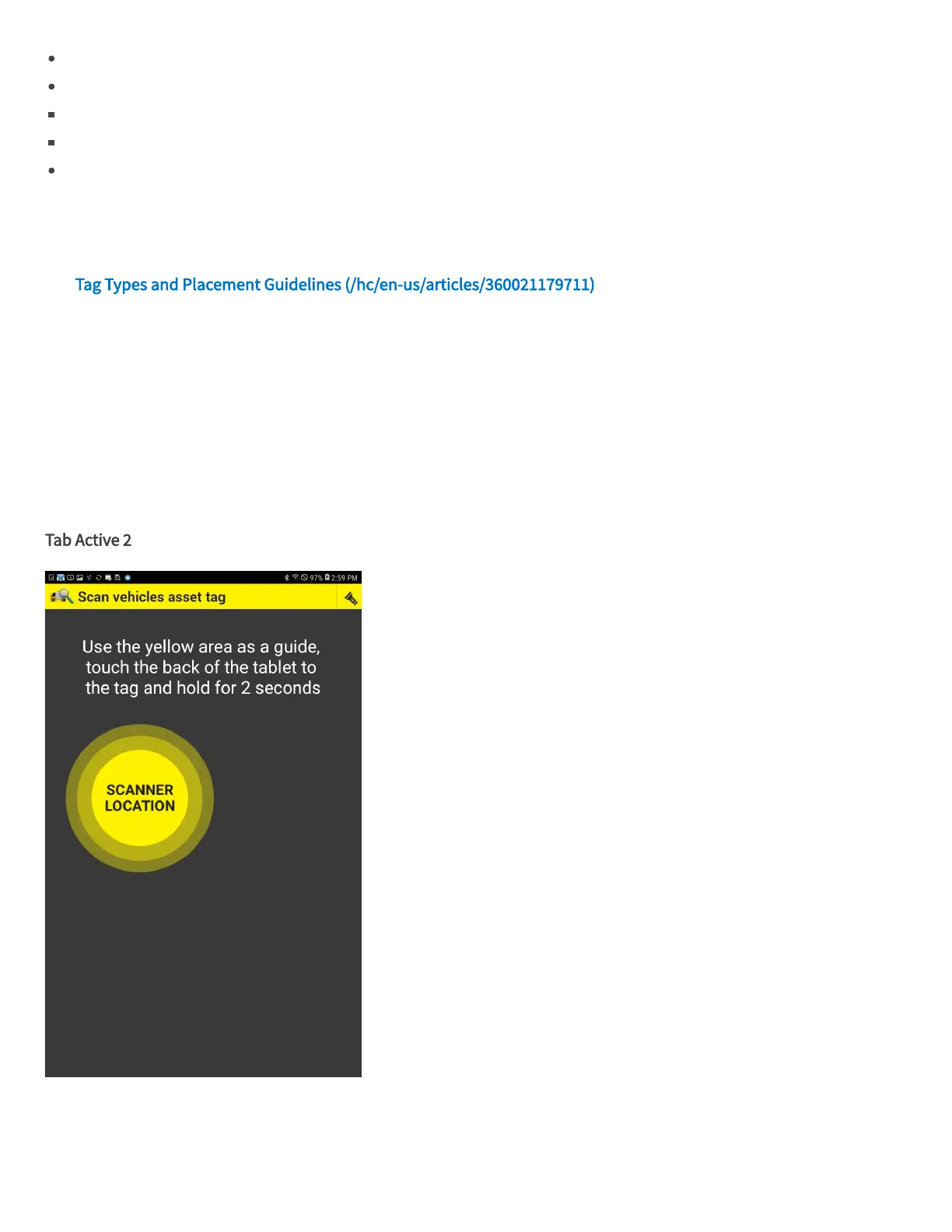
When it is necessary to scan an inspection tag during an EVIR inspection, a scanner location graphic displays on the
screen. Touch the indicated area on the back of the tablet to the tag and hold for two seconds.
Tab Active 2
System Specifications






 To Next Page