EasyManua.ls Logo

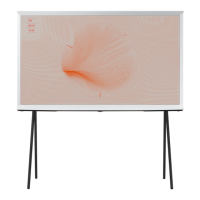
Samsung The Serif 108 cm - User Manual

Samsung The Serif 108 cm
198 pages
Print Icon
To Next Page IconTo Next Page
Loading...
SMART TV
E-MANUAL
Click on the Menu Tutorial link below to go directly to the
section with instructions on menu use for individuals who have
 seeing.
“Learning the Menus” Link

Table of Contents

Questions and Answers

  • J
    Jessica LeonardAug 17, 2025
    Why does my Samsung The Serif 108 cm Smart TV turn off by itself?
    • M
      margaret54Aug 18, 2025
      If your Samsung Smart TV is turning off on its own, it could be due to the Sleep Timer being enabled. If not, check if Auto Power Off or Off Timer are enabled. For The Sero models, you can also check The Sero Auto On/Off and Off Timer options in the SmartThings app on your mobile device.
  • R
    Rebecca MeltonAug 20, 2025
    Why is my Samsung Smart TV not getting channels?
    • U
      ucortezAug 20, 2025
      If your Samsung Smart TV isn't getting channels, try running Auto Program. If you're using a set-top box, IPTV, or another broadcast receiver, check the device's connection status to the TV.
  • T
    Trevor JimenezAug 22, 2025
    How to fix a dark Samsung The Serif 108 cm screen?
    • T
      tina97Aug 22, 2025
      If your Samsung Smart TV screen is flickering or dimming, try disabling energy efficiency features. Specifically, disable Ambient Light Detection, Power Saving Mode, Motion Lighting, and Contrast Enhancer and then check the screen again.
  • L
    lindseywashingtonAug 26, 2025
    How to fix screen brightness on Samsung The Serif 108 cm?
    • E
      Eric RhodesAug 26, 2025
      If the screen on your Samsung Smart TV appears too dim, try changing the settings under Reset Picture or disabling Ambient Light Detection. If the colors are correct but the screen is still too dim or bright, adjust the Contrast settings under Settings Picture Expert Settings.
  • K
    Karen RodriguezAug 28, 2025
    How to fix color issues on Samsung The Serif 108 cm?
    • M
      Michael SandovalAug 28, 2025
      If the colors on your Samsung Smart TV seem off, run the Picture Test. If you are using One Connect, check that the video-in port and the external device's video-out port are connected properly. If you're using a component cable, make sure the green (Y), blue (Pb), and red (Pr) cables are connected correctly.
  • N
    Natalie GonzalezAug 30, 2025
    What to do if the colors don't appear vibrant or the picture isn't bright enough on Samsung The Serif 108 cm?
    • M
      melissa47Aug 30, 2025
      If the colors on your Samsung Smart TV aren't vibrant or the picture isn't bright enough, navigate to the Picture settings and adjust the Picture Mode, Brightness, Sharpness, and Color settings. Also, check if Power Saving Mode is enabled, and try resetting all the picture settings.
  • S
    Scott AustinSep 1, 2025
    What to do if I am getting an "Input signal not found" message on my Samsung The Serif 108 cm?
    • Z
      zburnettSep 1, 2025
      If you see an "Input signal not found" message on your Samsung Smart TV, first check the cable connections and ensure the external device is powered on. If the issue persists, go to the Sources menu and select a different source.
  • W
    William RomeroSep 4, 2025
    What to do if my Samsung The Serif 108 cm Smart TV is not getting any of the channels?
    • J
      joseph03Sep 4, 2025
      If your Samsung Smart TV isn't receiving any channels, ensure the antenna cable is securely connected to the TV. If it is, try running Reset or Auto Program to add all incoming channels.
  • J
    Jeffrey HowardSep 7, 2025
    Why isn't the picture quality as good as it appeared at the store on my Samsung The Serif 108 cm Smart TV?
    • J
      jason51Sep 7, 2025
      If the picture quality on your Samsung Smart TV isn't as good as expected, change the digital broadcast receiver, IPTV, or set-top box’s output resolution to UHD or HD. Also, ensure that the set-top box or cable box supports UHD content and broadcasts, and configure the resolution accordingly.
  • P
    Paula ReyesSep 9, 2025
    How to fix blurry image on Samsung The Serif 108 cm?
    • A
      Andrew FloresSep 9, 2025
      If you notice a blurry shape on your Samsung Smart TV screen, use the Picture Clarity Settings feature to resolve the issue.

Summary

Guide

Connections

Connect antenna cable for broadcasts and LAN for internet. Connect various external devices.

Using Remote and Peripheral Devices

Use Samsung Smart Remote or peripherals like a keyboard for easier TV use.

Smart Features

Using Smart Hub

Access and enjoy a wide collection of apps, internet, photos, videos, and music.

Apps

Install and enjoy news, sports, weather, games, and other apps from Smart Hub.

Using Bixby

Control the TV using voice commands via Samsung Smart Remote's microphone.

TV Viewing and Recording Features

Recording Programs

Connect a USB device to record current and upcoming programs directly on the USB device.

Picture and Sound Settings

General

Troubleshooting

Record

Solutions for issues with Scheduled Recording or Timeshift features.

Frequently Asked Question

The TV does not Turn On

Steps to resolve issues when the TV does not turn on.

The Remote Control does not Work

Troubleshoot problems when the remote control is not functioning.

Guide to Accessibility Features

Samsung The Serif 108 cm Specifications

General IconGeneral
Display TechnologyQLED
Smart TVYes
HDRQuantum HDR
Operating SystemTizen
HDMI Ports4
USB Ports2
AudioDolby Digital Plus
Screen Size108 cm (43 inches)
Resolution3, 840 x 2, 160
ConnectivityWi-Fi, Bluetooth
Smart FeaturesVoice Assistant
DesignThe Serif Design

Related product manuals