OPERATION
34
1
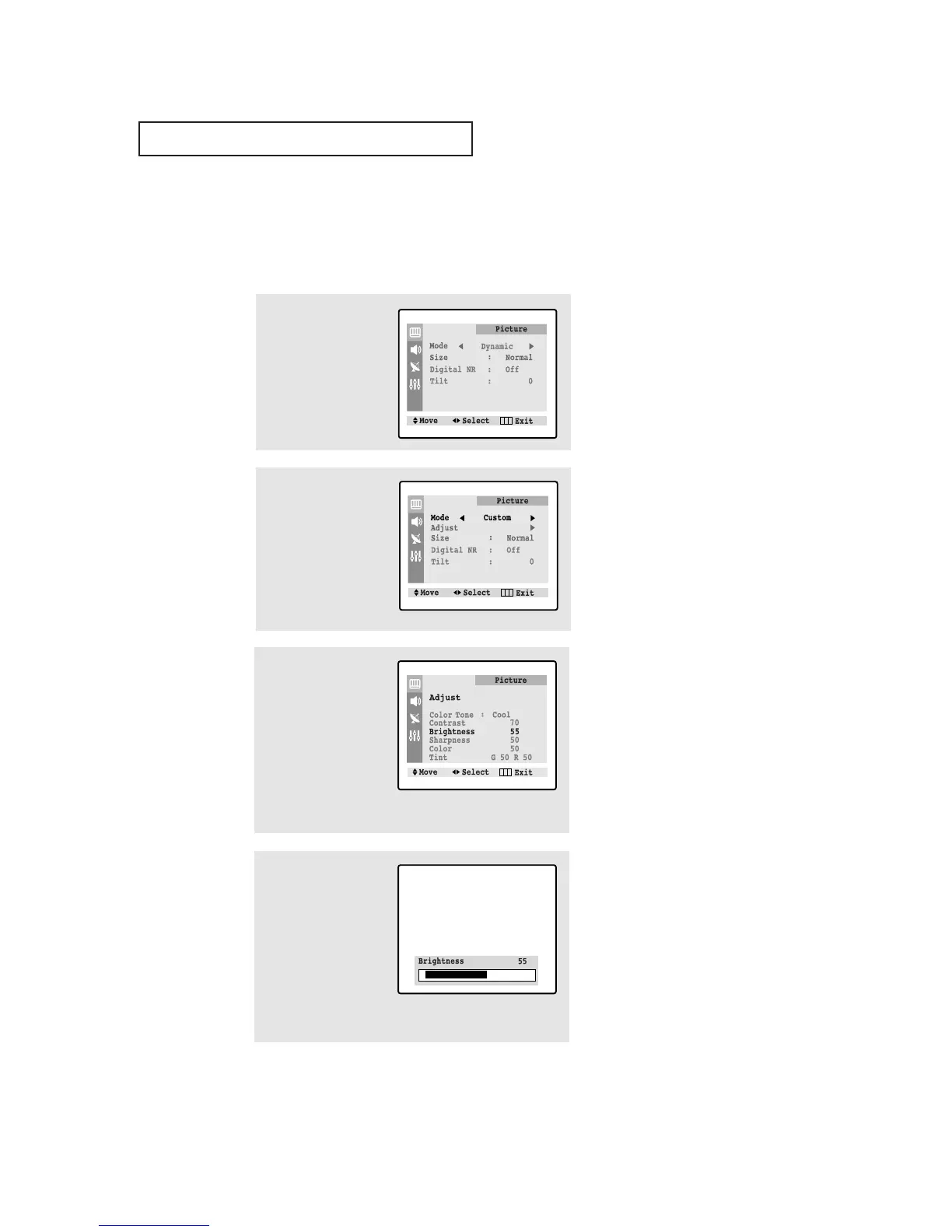
Press the MENU button to
display menu.
Customizing the Picture
You can use the on-screen menus to change the contrast, brightness, tint, color, and
sharpness according to personal preference. (Alternatively, you can use one of the
“automatic” settings. See next page.)
2
Press the
œœ
or
√√
button
repeatedly, until the word
“Custom” is selected. (When
Custom is highlighted, the
words “Adjust” will appear
on the screen.)
4
Press the
œœ
or
√√
button
to increase or decrease
the value of a particular
item.
Press the MENU button
four times to exit.
▼
After adjusting an item, the gauge
will automatically disappear (after
about 5 seconds).
▼
The customer can select
“Normal”, “Warm” or “Cool”
according to personal preference.
3
Press the ▼ button to
select “Adjust”, then
Press the
√√
button.
(The words Color Tone,
Contrast, Brightness,
Sharpness, Color and
Tint will appear on the
screen.) Press the
▲ or ▼ button to select
a particular item.




 To Next Page