53
SPECIAL FEATURES
Using the V-Chip
The V-Chip feature automatically locks out programming that is deemed inappropriate for
children. The user must first enter a PIN (personal ID number) before any of the V-Chip
restrictions can be set up or changed.
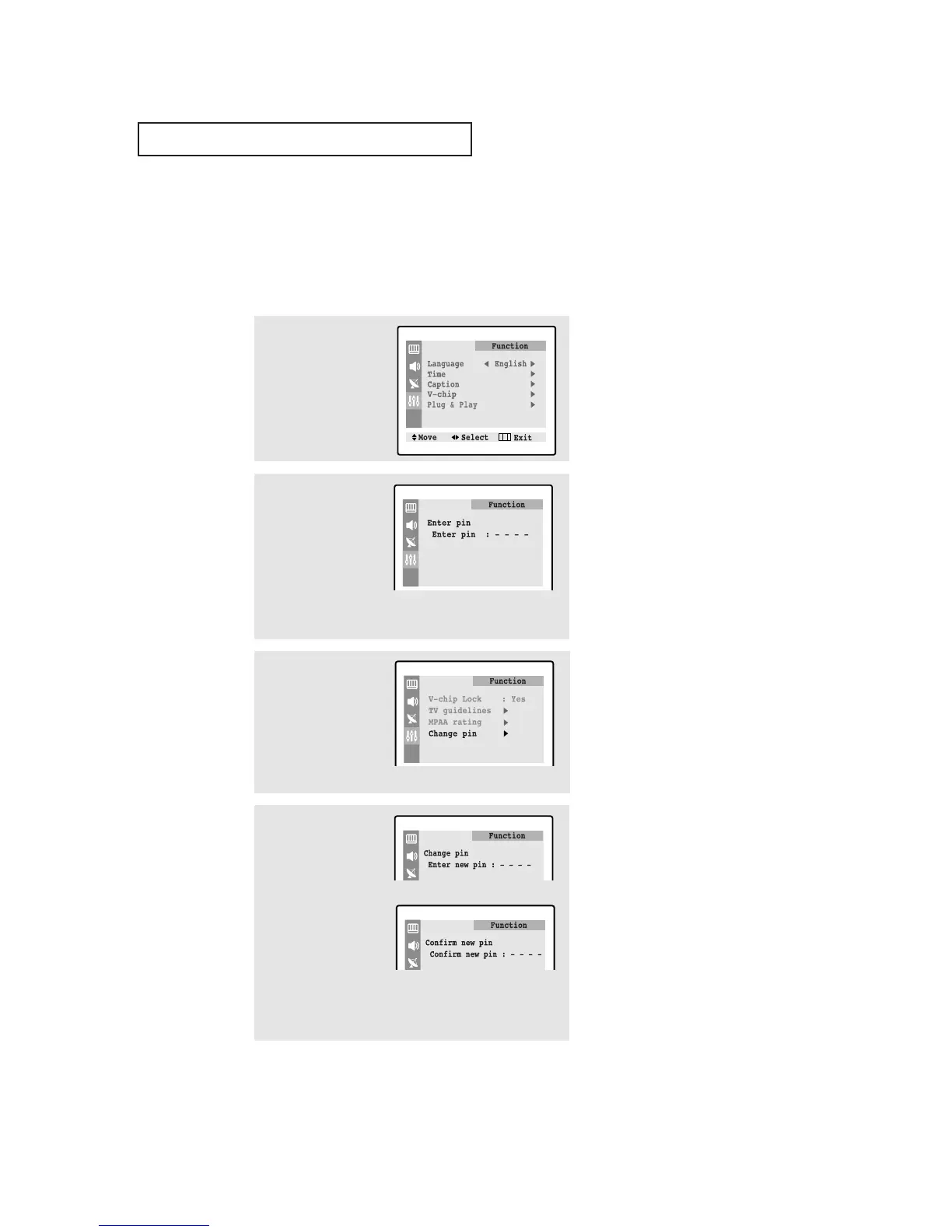
Setting Up Your Personal ID Number (PIN)
1
Press the MENU button to
display the menu.
Press the ▼ button three
times to select the
“Function” menu.
Press the
√√
button.
2
Press the ▼ button three
times to select the “V-
chip” menu.
Press the
√√
button.
3
After entering a valid PIN
number, the “V-chip”
screen will appear.
Press the ▼ button three
times and highlight
“Change pin”.
4
While the “Change pin”
field is selected, press the
√√
button. The Change pin
screen will appear.
Choose any 4-digits for
your PIN and enter them.
As soon as the 4 digits are entered, the “Confirm new pin”
screen appears. Re-enter the same 4 digits. When the Confirm
screen disappears, your PIN has been memorized.
Press the MENU button three times to exit.
The “Enter pin” screen will appear. Enter your 4-digit PIN
number. Note: The default PIN number for a new TV set is
“0-0-0-0.”
▼
Note: If you forget the PIN,
press the remote-control keys in the
following sequence, which resets the
pin to 0-0-0-0:
POWER OFF ➜ MUTE ➜ 1 ➜ 8 ➜
2 ➜ POWER ON.
➜




 To Next Page