OPERATION
3.3 CHAPTER THREE: TV OPERATION
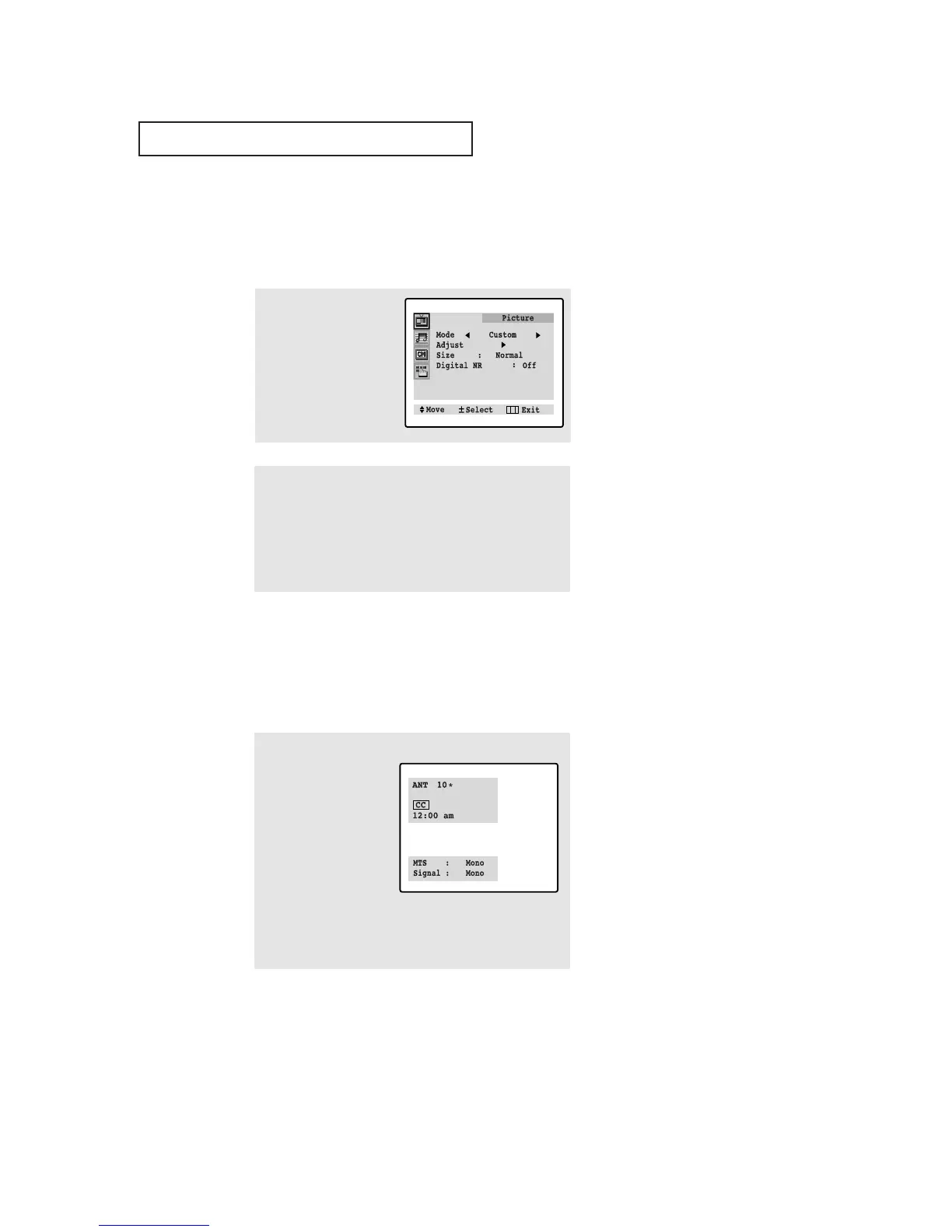
Viewing the Display
The display identifies the current channel and the status
of certain audio-video settings.
▼
The on-screen displays
disappear after ten seconds.
Viewing the Menus and On-Screen Displays
Viewing the Menus
▼
1
With the power on,
press MENU.
The main menu appears
on the screen. Its left
side has four icons:
Picture, Sound, Channel,
and Function.
The on-screen menus disappear
from the screen after thirty seconds.
▼
You can also use the MENU,
CHANNEL, and VOLUME buttons
on the control panel of the TV to
make selections.
1
Press DISPLAY
on the remote control.
The on-screen display
shows any or all of the
following: Active chan-
nel, the channel label,
video source, the time,
and the time remaining
on the sleep timer.
(“*” indicates a channel
has been manually fine
tuned.)
2
Use the CH▲ and CH▼ buttons to highlight one of the 4 icons.
Then press VOL+ to access the icon’s sub-menu.
3
Press MENU to exit.




 To Next Page