Basics
22
Moving items
On the Apps screen, tap and hold an item and drag it to a new location.
To move the item to another panel, drag it to the side of the screen.
To move an item to a new panel, tap and hold it. Then, drag it to the right side of the last
panel and release it on the new panel.
Creating folders
1
On the Apps screen, tap
→
Create folder
.
2
Tick the apps to contain in a folder.
3
Tap
DONE
.
A new folder containing the selected apps will be created.
4
Enter a folder name and tap or
Done
.
To add more apps to the folder, tap and hold another app, and then drag it to the folder.
Indicator icons
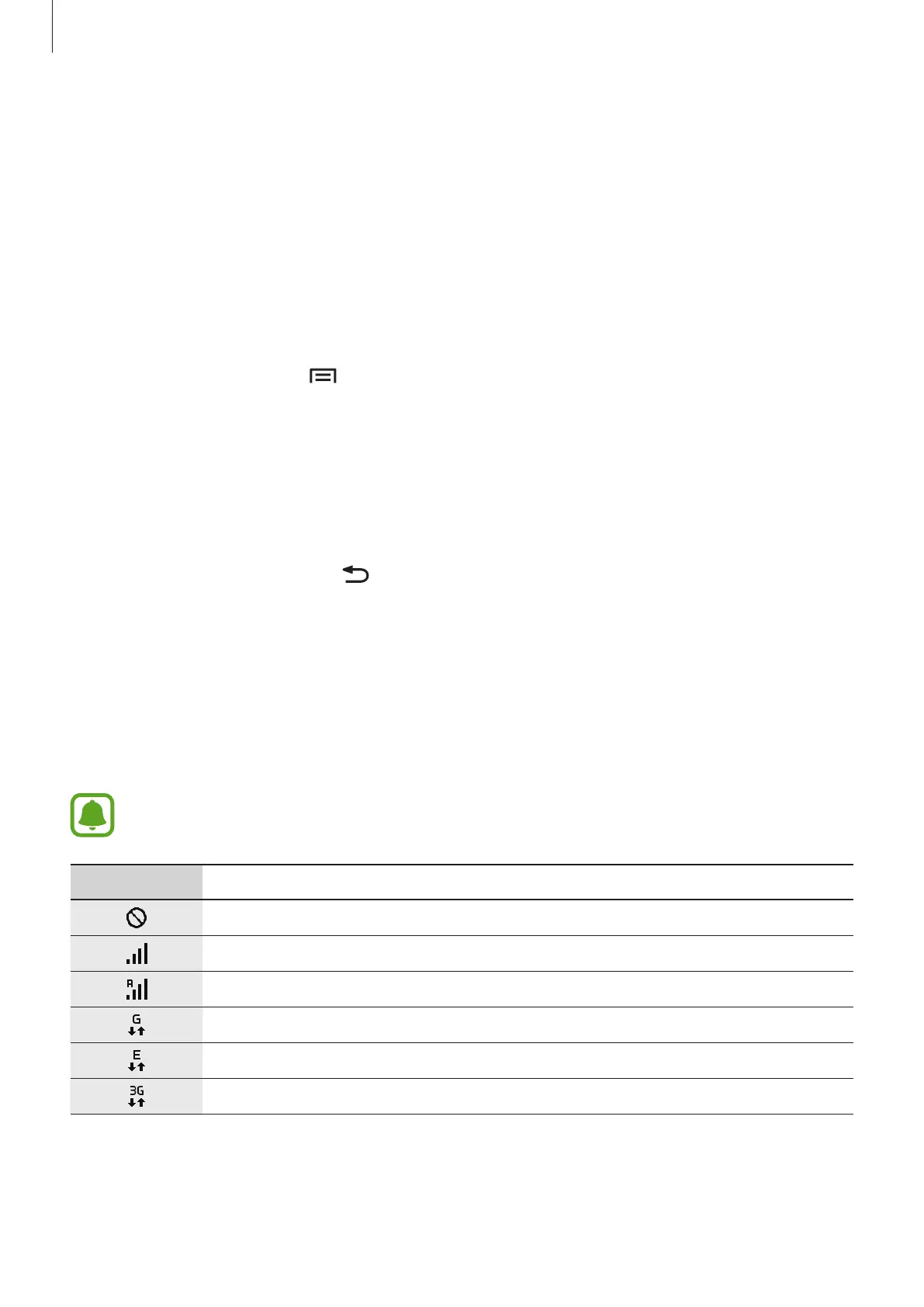
Indicator icons appear on the status bar at the top of the screen. The icons listed in the table
below are most common.
The status bar may not appear at the top of the screen in some apps. To display the
status bar, drag down from the top of the screen.
Icon Meaning
No signal
Signal strength
Roaming (outside of normal service area)
GPRS network connected
EDGE network connected
UMTS network connected




 To Next Page