Need help?
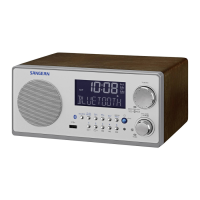
Do you have a question about the Sangean WFR-28 and is the answer not in the manual?
How to insert and manage batteries for radio power.
Connecting the radio to mains power via the adapter.
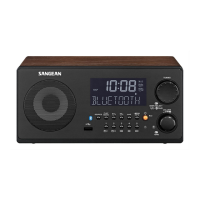
Identifies all buttons and controls on the radio's front panel.
Describes the sockets and switches located on the radio's rear.
Explains how to use Standby, Mode, Menu, Info, Back, and Tuning controls.
Step-by-step guide to establishing a wireless network connection for the radio.
How to scan for and connect to different Wi-Fi networks.
Manually inputting network details like IP address and SSID.
Setting a PIN for device-specific control via applications.
Introduction to browsing, searching, and saving internet radio stations.
Locating stations based on continent and country.
Finding stations by selecting music or program genres.
Using keywords to search for specific radio station names.
Accessing lists of recently added or frequently played stations.
Finding and playing podcasts and BBC Listen Again programs.
Saving current stations to memory for quick recall.
Accessing previously saved radio stations using preset buttons.
Reviewing and playing the last ten listened-to stations.
Shows station details, reliability, format, date, and other data.
Creating an online account for managing favorite and added stations.
Selecting stations via website to add to the 'My Favourites' list.
Inputting details for stations not in the database.
Playing stations previously saved in the 'My Favourites' list.
Playing stations manually added via the 'My Added Stations' list.
Connecting to music libraries on Windows, Mac, and Linux.
Guide to configuring WMP12 for UPnP media streaming.
Navigating music files by Artist, Album, or Genre on UPnP servers.
Selecting and playing an entire album from the music library.
Using playback controls for play, pause, skip, and fast-forward/rewind.
Enabling or disabling repeat play and shuffle mode for audio tracks.
Shows playback progress, artist, album, format, and buffer status.
Adding single tracks or entire albums/folders to a custom playlist.
Removing unwanted songs from the created playlist.
Clearing the entire playlist or selecting specific tracks to play.
Waking a network-connected computer using a Wake On LAN command.
Removing inactive UPnP servers from the list to refresh connections.
Maintaining Wi-Fi connection in standby for remote access.
Streaming media from a Windows 7 PC to the radio.
How to connect USB flash drives for audio playback.
Selecting and playing audio files stored on a USB drive.
First-time setup and scanning for available DAB radio stations.
Selecting and listening to available DAB radio stations.
Accessing associated secondary DAB broadcasts.
Shows text, program type, signal, bit rate, date, and multiplex details.
Rescanning for DAB stations when moving or if none were found initially.
Directly tuning to specific DAB channels by frequency.
Adjusting audio dynamic range for noisy environments to improve clarity.
Configuring how DAB station lists are sorted (alphanumeric, ensemble, valid).
Removing unavailable or invalid DAB stations from the station list.
Basic steps for operating the FM radio mode, including auto-tuning.
Manually adjusting the frequency to find FM stations.
Shows text, program type, frequency, and date for FM stations.
Configuring FM scanning to find strong-only or all available stations.
Adjusting audio output to mono to reduce hiss on weak FM signals.
Saving favorite DAB and FM stations to memory presets.
Accessing saved DAB and FM stations using preset buttons.
Connecting the radio to Spotify for streaming music via Wi-Fi.
Shows playback progress, artist, album, bit rate for Spotify Connect.
Configuring streaming quality based on internet connection speed.
Personalizing the radio's network name for easy identification.
Setting up automatic clock synchronization from internet, DAB, or FM.
Choosing between 12-hour and 24-hour display formats for the clock.
Manually adjusting time, date, timezone, and daylight savings.
Configuring alarms with sources (radio, buzzer), time, frequency, and volume.
How the alarm operates and how to cancel it.
Turning off individual alarms that have been set.
Silencing the alarm temporarily and setting snooze durations.
Setting the radio to turn off automatically after a preset time.
Configuring automatic standby based on idle time.
Muting and un-muting the sound output from the loudspeakers.
Adjusting sound profiles using preset equalizer modes.
Setting custom treble, bass, and loudness levels for personalized audio.
Adjusting screen brightness for standby and active use modes.
Changing the display language for menus and messages.
Connecting headphones and safety recommendations for volume.
Connecting the audio signal to an external amplifier.
Connecting external audio sources like MP3 or CD players via the aux input.
Restoring the radio to its default factory settings, erasing all user data.
Updating the radio's internal software for new features and improvements.
Storing, viewing, and deleting Wi-Fi network connection profiles.
Viewing software version, radio ID, and accessing audio help FAQs.
Setting up UPnP access using Windows Media Player on older operating systems.
Information on audio codecs and streaming protocols supported by the radio.
Table detailing maximum supported bit-rates for various audio formats.
Important safety guidelines and precautions for using the radio correctly.
Details on power requirements, frequency coverage, and WiFi capabilities.
Information on output power, sockets, and aerial system types.
 General
| Radio type | Internet |
|---|---|
| Tuner type | Digital |
| RDS features | CT, PS, PTY, RT |
| FM band range | 87.5 - 108 MHz |
| PLL synthesizer | No |
| Supported radio bands | FM |
| Radio Data System (RDS) | Yes |
| Preset stations quantity | 10 |
| Equalizer modes | Classic, Flat, Jazz, Pop, Rock |
| RMS rated power | 1.2 W |
| Audio formats supported | MP3, WMA |
| Subwoofer driver diameter (imperial) | 3 \ |
| Display type | LCD |
| Display resolution | 128 x 64 pixels |
| Headphone outputs | - |
| USB 2.0 ports quantity | 1 |
| Product color | Black |
| Input voltage | 7.5 V |
| Apple docking compatibility | Not supported |
| Battery voltage | 1.5 V |
| Number of batteries supported | 4 |
 Weight and Dimensions
| Depth | 62 mm |
|---|---|
| Width | 273 mm |
| Height | 148 mm |
| Weight | 851 g |


 To Next Page