TESTING
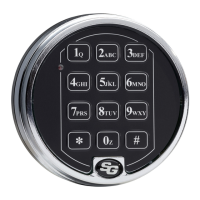
1 Enter123456#intothe box.
2 Hitthe button.
3 OnthescreenyouwillseetheRESPONSEturngreenandBOLT
STATUSturnred.Thisindicatesthelockisopen.
4 Whenthelockboltsecures,theBOLTSTATUSturnGreen.This
indicatesthelockissecure.TheBOLTSTATUSwillindicationis
validaslongastheconnectionisestablished.
5 Thelockwillsendinformationaboutthestatusofthebattery
whenitisopenedandclosed.
CONNECTING TO AxisBlu™
1 NavigatetotheAxisBlu™Iconandselecttheapplication
icon.Thedefaultstartupwillshowthedeviceisnotconnected.
2 Inthebottomrightcornerclickontheicon.Thiswillopen
theapplicationoptions.
3 Youwillseethreeselections:
Reconnect - Connecttodevice
Instructions - Operatinginstructions
AddPhone - Addadditonalphones
4 ClickontheReconnectIcon.
5 ClickthenameofyourAxisBlu™devicetoconnect.
6 WhenconnectedtheCONNECTIONIconwillbegreenandthe
nameofthedevicewillbedisplayedbelowtheCONNECTIONIcon.
YouarenowconnectedtotheAxisBlu™lock.
YouhavesuccessfultestedyourAxisBlu™lock.
Sargent & Greenleaf S.A.
9, Chemin du Croset
1024 Ecublens, Switzerland
Phone: +41-21 694 34 00
Fax: +41-21 694 34 09
Document630-945
Revised10/22/2018
Sargent & Greenleaf, Inc.
One Security Drive
Nicholasville, KY 40356 USA
Phone: (800)-826-7652
Fax: (800)-634-4843
Copyright
©
2018, Sargent & Greenleaf, Inc.
ADD PHONE
1 FromthePrimaryPhone,navigatetotheAxisBlu™Icon and
selecttheapplicationicon.Thedefaultstartupwillshowthe
deviceisnotconnected.
2 Inthebottomrightcornerclickontheicon.Thiswillopen
theapplicationoptions.
3 Youwillseethreeselections:
Reconnect - Connecttodevice
Instructions - Operatinginstructions
AddPhone - Addadditonalphones
4 ClickontheAddPhoneIcon.
5 ClosetheAxisBlue™app.
6 UsetheCONNECTINGprocesstoconnectnewphone.
APP COMMUNICATION
1. Bolt secured aer opening code.
2. Bolt open aer valid code.
3. Connecting to lock.
4. Not connected.



 To Next Page