3104/2018
2. Log in to the Customer Portal or Partner Portal as appropriate.
3. Point to Support on the top navigation bar and a drop down menu will appear. Select Services from
the drop down choices.
4. The Professional Services page will be displayed. A list of all open professional services cases for your
account will be shown along with their current Status. Select Schedule Services to the left of the
appropriate case number to begin scheduling.
5. The Professional Services Scheduler will appear. All of the purchased and/or included professional
services will be listed to the left of the page in the order they are required to be completed.
6. Conrm the listed time zone is correct. If not, select the correct time zone from the drop down list and
click Update Time Zone before scheduling any events.
7. Complete the Contact Info section as applicable for each professional service engagement. Some
professional service engagements have more than one step, as shown by the transitional arrows at the
top of the scheduling details.
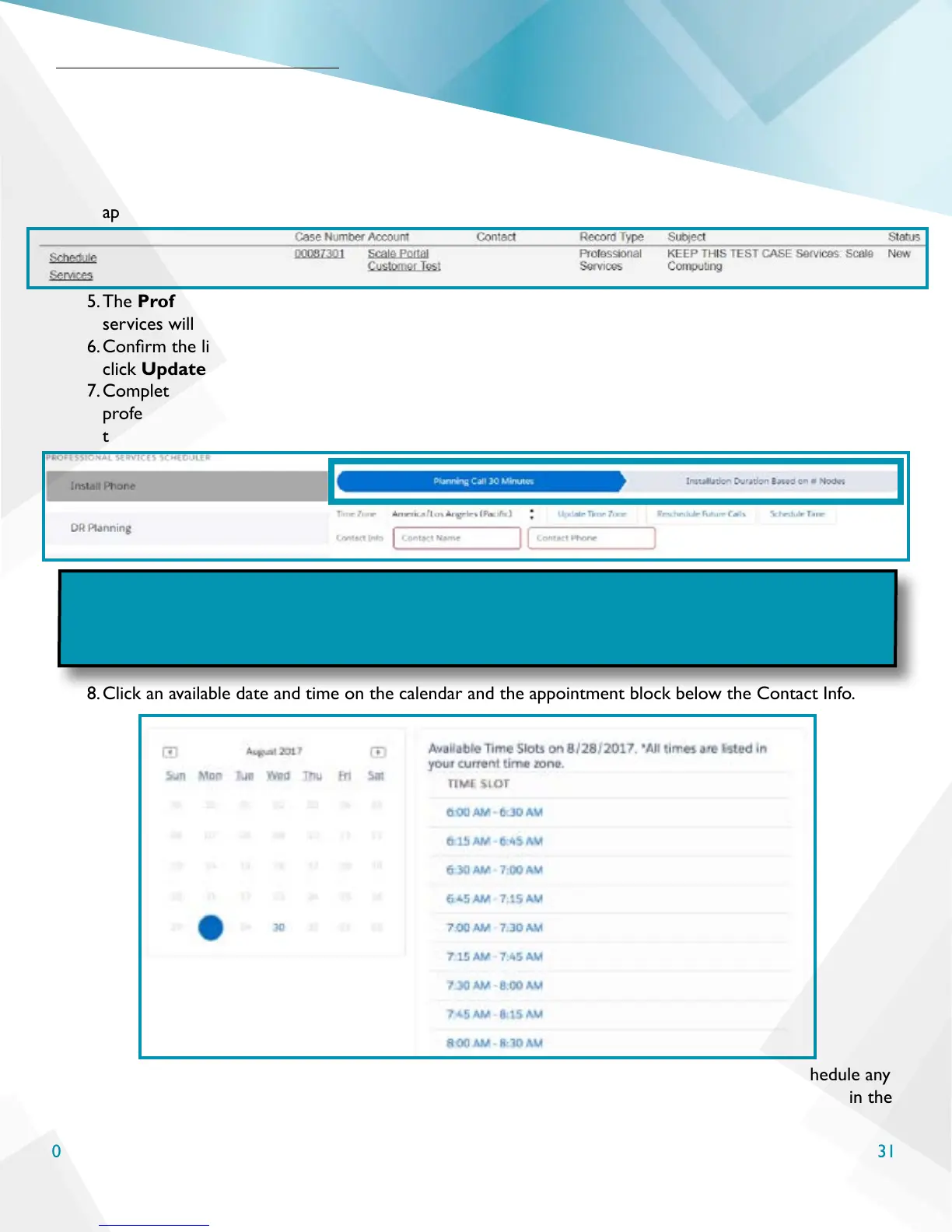
8. Click an available date and time on the calendar and the appointment block below the Contact Info.
9. Conrm the selected date and time by clicking Schedule Time. If there is ever need to reschedule any
upcoming events the Reschedule Future Calls button can be used. It cannot reschedule events in the
Schedule Your Installation
NOTE: All steps of a single professional service engagement can be scheduled in a single
session, but will only allow each piece to be scheduled in order (the Planning Call cannot be
scheduled after the Installation, for example). Each part of the current professional service
will need to be completed before the next professional service engagement can be accessed.



 To Next Page