5–26 TextBridge Pro User’s Guide
Word Image window
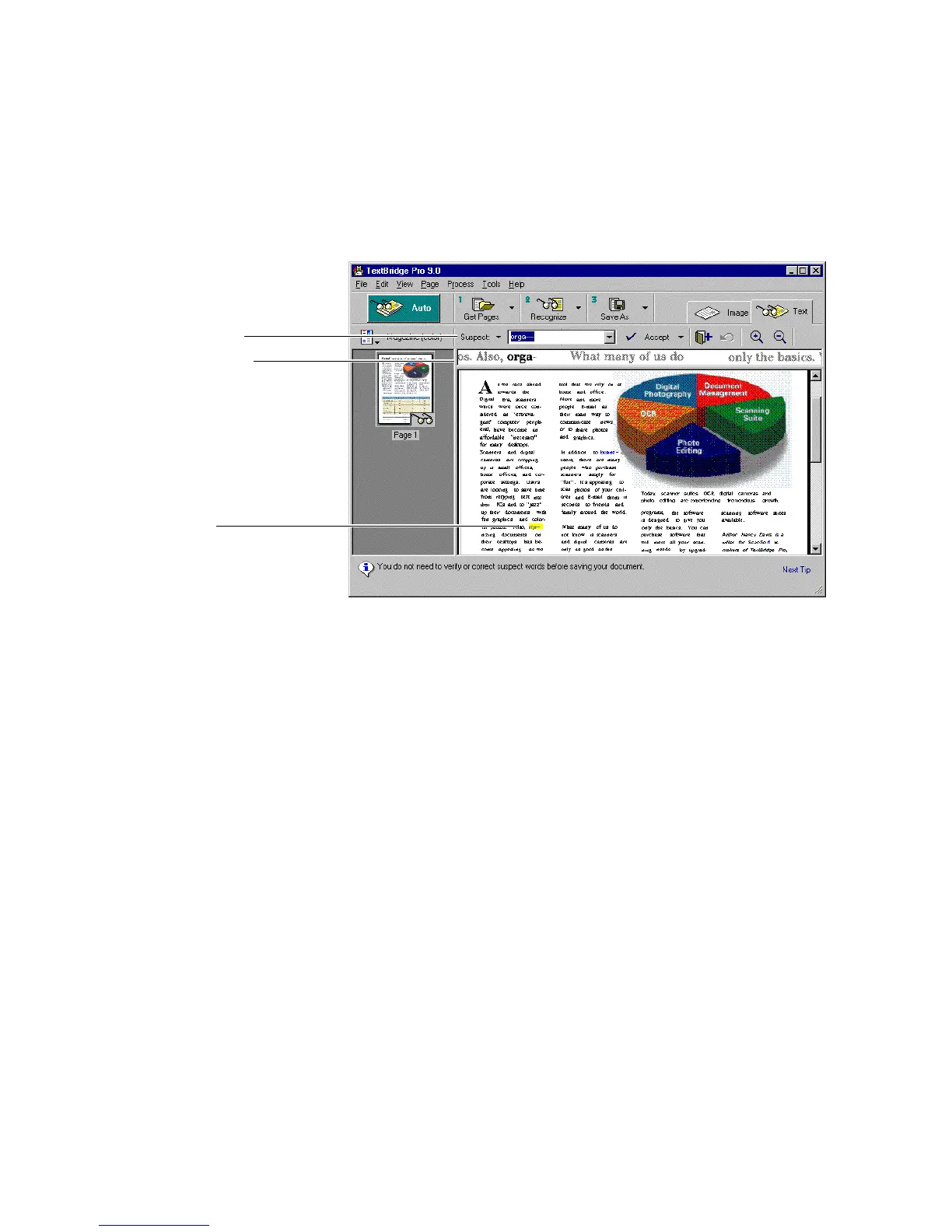
Proofreading tools
Suspect word
Figure 5–19. Proofreading a page
9. Change any words that were not accurately recognized
using the Proofreading tools.
• Examine the word in the Suspect word box.
If you want a closer look at the word as it appears in the
original page, look in the Word Image window, or display the
word image popup by moving the cursor over the highlighted
word on the page.
☞ To view the entire original page image, click the Image tab. Then,
click the Text tab to return to the recognized page.
• If the suspect word is the word you want, click the Accept
button.
TextBridge removes the suspect highlighting and continues to
the next suspect word.
or



 To Next Page