4–10 TextBridge Pro User’s Guide
Selecting the Page Source
Before you start processing a new document, you can indicate
whether pages are from your scanner or an image file.
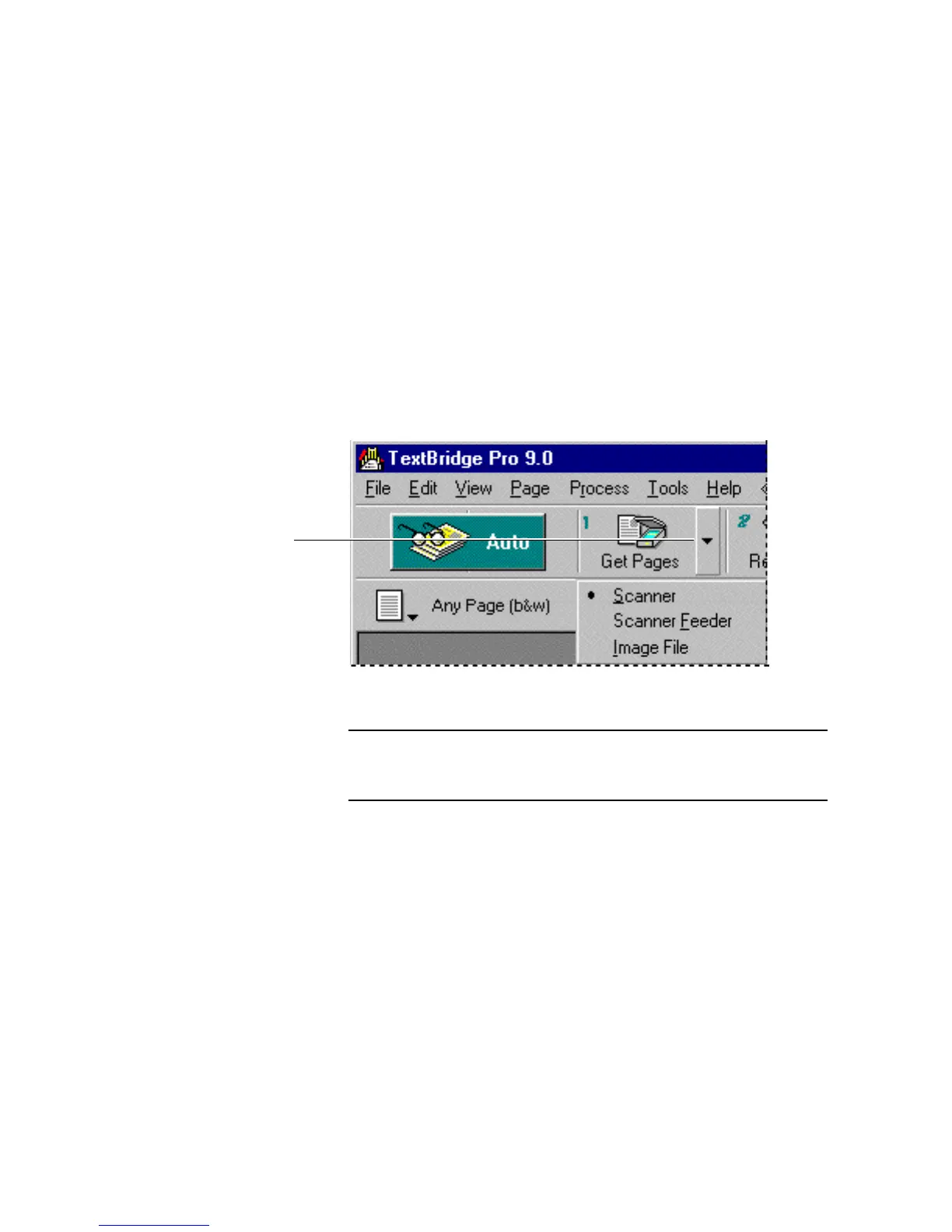
To do so, click the drop down arrow on the Get Pages button to
select the source of the page image: your scanner, scanner feeder,
or image file (Figure 4–5).
Click the drop down arrow
to display page image
source options
Figure 4–5. Select the Page image source
Note Some scanners have a scanner feeder in which you can place a
stack of pages to be scanned. The Scanner Feeder setting is only
available if your scanner has a scanner feeder.



 To Next Page