4–12 TextBridge Pro User’s Guide
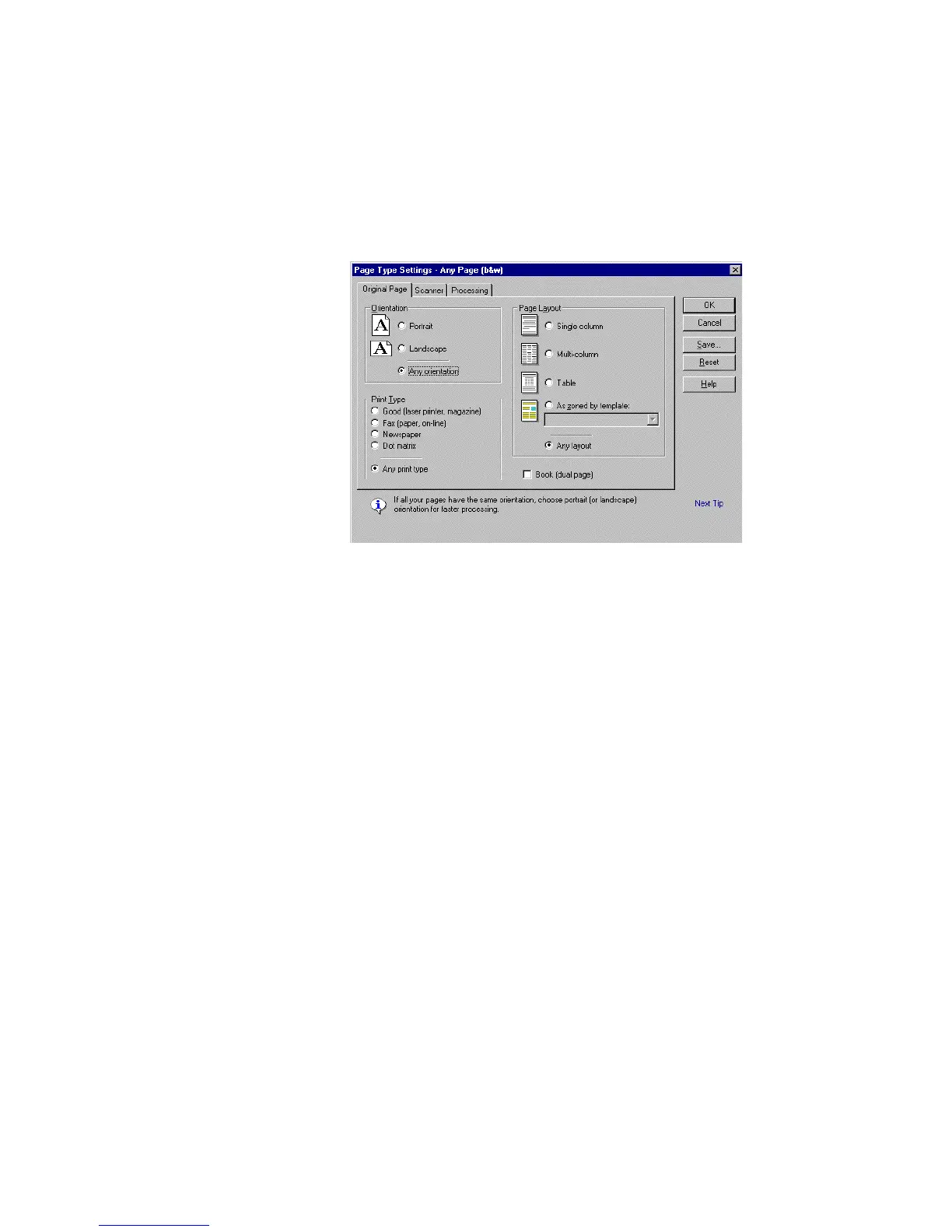
Figure 4–7. Change settings for this page type
TextBridge provides page types for the most common types of
pages. You can also define your own page types with settings
optimized for other specialized types of documents.
Previewing the Page
When manually processing, TextBridge displays the image of
each page in the Image view (Figure 4–8).
Processing stops after TextBridge gets pages and displays the
image of the original page. At this point, you can perform one or
more of the activities in the following list:
◆ Check that this is the page you want.
◆ Use the Zoom commands to magnify or reduce the page view.
◆ Check the “scan” quality of the scanned page.
◆ Adjust scanner settings and rescan the page, if necessary.
◆ Rotate the page to make the page upright, if necessary.



 To Next Page