Learning to Use TextBridge 4–17
Proofreading the Document
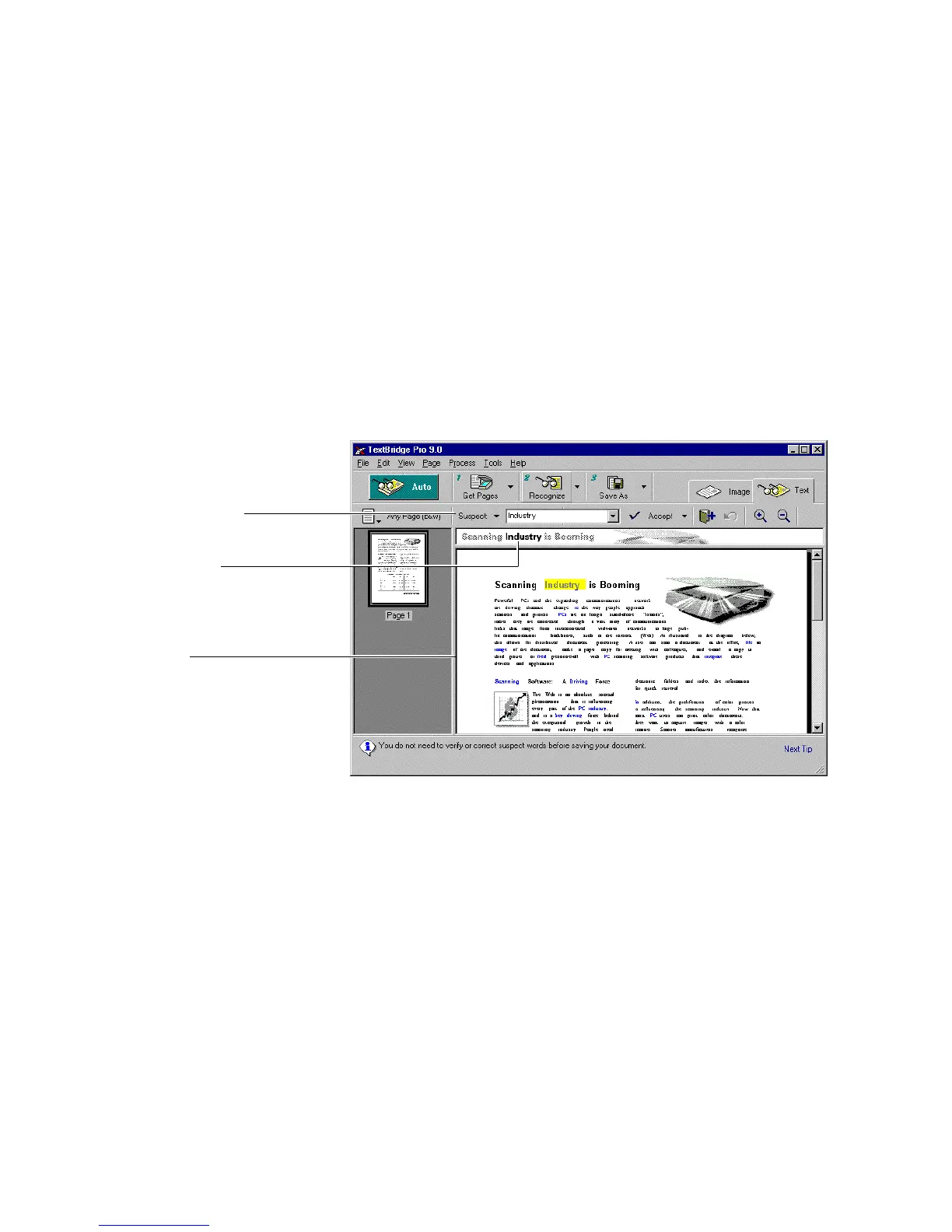
In manual mode, after TextBridge recognizes each page, it stops
for you to proofread the recognition results (Figure 4–10).
TextBridge displays recognized pages in the Text view. The page
is laid out like the original page. Pictures found by OCR are
displayed in the same location as in the original page.
Proofreading tools
Original image
View area
Figure 4–10. Proofreading the page using the Proofreading tools
Words that TextBridge suspects may not have been recognized
correctly are color coded. Suspect words are identified by one color
and unrecognized characters are highlighted in another color. By
default, the suspect words are blue, and the current word in the
Suspect box is yellow in the view. Use the Proofreading tools to
correct words.



 To Next Page