6–6 TextBridge Pro User’s Guide
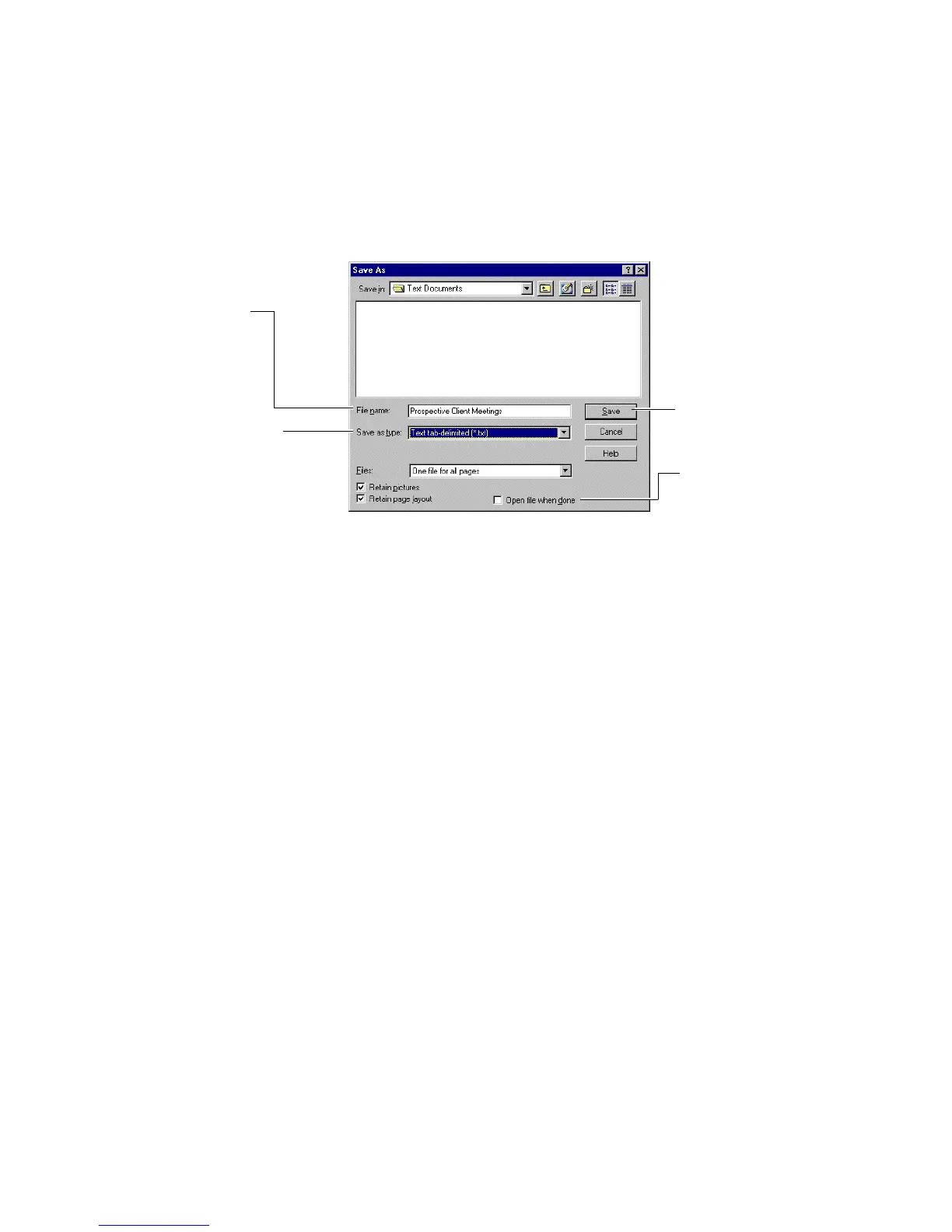
Accept the default name,
or type a new name
Select Text tab-delimited
output format
Click Save
Deselect Open file
when done
Figure 6–5. Save As dialog box
9. Save the document in tab-delimited format.
• In the Save As dialog box, TextBridge provides a suggestion
for the file name. If you prefer another name, enter the new
name in the File name box.
• Select Text tab-delimited (*.txt).
• Check to be sure that Open file when done is not selected;
you must import the tab-delimited text file into your database
application.
☞ Selecting Retain layout and Retain pictures has no effect on a
tab-delimited text file.
• Make any other changes, then click the Save button.
TextBridge formats the document and saves the file.
10. Import the file into a database application, such as
Microsoft Access.
• Start your database application and open a new database.
• Import the text file into your database, selecting delimited
text.



 To Next Page