EasyManua.ls Logo

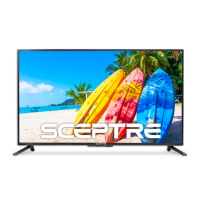
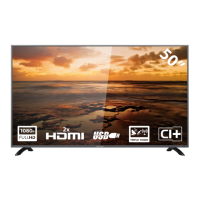
Sceptre X50 - User Manual

Sceptre X50
54 pages
Print Icon
To Next Page IconTo Next Page
Loading...
- 1 -
www.SCEPTRE.com
SCEPTRE X50 HDTV User Manual
Dear Sceptre Customer,
Congratulations on your new SCEPTRE X50 HDTV purchase. Thank you for
your support. To ensure safety and many years of trouble free operation of
your TV, please read the manual carefully before making any adjustments,
and keep them in a safe place for future references. We hope you enjoy your
new SCEPTRE HDTV.
For technical assistance, please call 1800-788-2878 and select option 3 or
email our tech support group at monitor-ts@sceptre.com.
For all other inquiries, please call 1800-788-2878 and select option 4 or
email our customer service group at cs@sceptre.com.
We recommend you register your SCEPTRE HDTV with the enclosed
registration card and mail it in. For peace of mind and to protect your
investment beyond the standard warranty, SCEPTRE offers a two year
extended warranty service for your HDTV. This plan gives additional
coverage once your standard warranty period runs out. Please call our
customer service group to purchase the extended warranty.
Sceptre wants to help you save energy! This HDTV meets the ENERGY
STAR® guidelines. The default setting for this HDTV is set to POWER
SAVING mode. You can change this setting by pressing the PICTURE
button on the remote control twice.

Questions and Answers

  • J
    Julie BrownSep 23, 2025
    Why is my Sceptre X50 HDTV picture very dim?
    • R
      Ronald SmithSep 23, 2025
      If your Sceptre HDTV picture is very dim, check to see if you are under POWER SAVING mode for your picture mode. Keep pressing the PICTURE button on the remote control to cycle out of POWER SAVING.
  • E
    Elizabeth HallAug 25, 2025
    How to get more channels on Sceptre HDTV?
    • J
      joann25Aug 25, 2025
      If your Sceptre HDTV cannot receive sufficient channels, change the direction of your antenna and rescan your channels. If you have cable, contact your cable company and ask about the signal strength of your local cable, since the TV’s tuner signal must not be lower than 65 %.
  • H
    heatherconwayAug 25, 2025
    Why is there no picture on my Sceptre HDTV?
    • C
      charlesmelissaAug 26, 2025
      If your Sceptre HDTV displays no picture, ensure the power cord is correctly connected and the power is turned on. Also, verify that the video cable is properly connected. Select the correct input signal source using the source button, ensuring it matches your cable connection.
  • V
    Vanessa WhiteAug 27, 2025
    Why is there picture but no audio on my Sceptre HDTV?
    • A
      adamsheatherAug 27, 2025
      If you see a picture but hear no audio on your Sceptre HDTV, first ensure the audio cable is properly connected. Then, readjust the volume using the remote control. Also, the TV’s tuner signal must not be lower than 65 %.
  • M
    Michelle BarnettAug 27, 2025
    Why is there audio but no picture on my Sceptre X50 HDTV?
    • M
      mitchellkellyAug 27, 2025
      If you're getting audio but no picture on your Sceptre HDTV, make sure both your video and audio cables are connected correctly. Also, the TV’s tuner signal must not be lower than 65 %.
  • M
    mandy16Sep 13, 2025
    How to get rid of big black box in the middle of Sceptre X50 screen?
    • T
      tyler87Sep 13, 2025
      The big black box in the middle of your Sceptre HDTV screen indicates that you have turned on closed captioning and are using TEXT1 – TEXT4. Change the setting to CC1 or turn off closed captioning to remove the box.
  • B
    Brittany JonesSep 12, 2025
    Why are there pixels that are always displaying the same color on Sceptre X50?
    • W
      Walter WrightSep 12, 2025
      Your Sceptre HDTV is manufactured with high precision technology. However, sometimes some pixels may not display correctly. Pixel defects within industry specifications are inherent to this type of product and do not indicate a defective product.
  • L
    lori21Sep 12, 2025
    Why can't I change the time manually on my Sceptre HDTV?
    • A
      Anne MyersSep 12, 2025
      Your Sceptre HDTV syncs time automatically according to your local TV channel. This function only works while the TV’s tuner is connected to an ANTENNA.
  • D
    David BakerSep 4, 2025
    How to fix no sound on PC connected to Sceptre X50?
    • L
      Laura JohnstonSep 4, 2025
      To get sound when your PC is connected to your Sceptre HDTV, ensure you have a 3.5 mm mini-jack cable connected from your PC’s sound output to the TV’s VGA STEREO INPUT.
  • M
    Melanie GonzalezSep 2, 2025
    How to fix distorted picture and abnormal sound on Sceptre HDTV?
    • E
      Edward RichardsonSep 2, 2025
      If your Sceptre HDTV picture is distorted or has abnormal sound, it might be due to interference from large electrical appliances, cars, motorcycles, or fluorescent lights. If the TV is close to the wall, try moving it to another room to see if the problem persists.

Summary

IMPORTANT INFORMATION

Television Antenna Connection Protection

Guidelines for grounding TV antennas to protect against surges and static charges.

Lightning Protection

Steps to protect the TV during lightning storms or when unattended.

Power Lines

Advice on locating antennas away from overhead power circuits.

SAFETY INSTRUCTIONS

Opening the Package

X50 Package Contents

Lists all items included in the SCEPTRE X50 HDTV package.

Installation

Instructions and precautions for installing the HDTV safely.

Attaching or Removing the Stand

Identifying Front and Rear Panel

Front View

Description of the TV's front panel, including indicator light and remote sensor.

Rear View Mounting Pattern

Details the VESA mounting pattern and screw specifications for the TV.

Side Control Buttons

Rear View Connections

SCEPTRE Remote Control

Installing Batteries to the Remote Control

Connection Suggestions

Digital Cable Connection

How to connect digital cable without a cable box to the TV.

DVD Player Component Connection

Steps to connect a DVD player using YPbPr component cables.

Wii Composite Connection

Guide to connecting a Wii console using composite video cables.

HDMI Cable Connection

Instructions for connecting cable or satellite boxes via HDMI.

PC VGA Connection

How to connect a PC using VGA and a 3.5mm audio cable.

Digital Audio Receiver Connection

Steps to connect a digital audio receiver using Coax SPDIF.

Switching Sources

Ready to Watch Some TV?

Antenna or Cable Setup

Initial setup process for connecting antenna or cable without a box.

OSD (On Screen Display) Controls

Remote Control Navigation

Explains how to use the remote control for OSD navigation.

TV Side Panel Navigation

Details using TV side panel buttons for OSD navigation.

OSD (On Screen Display) Options

Picture Settings

Adjusts TV picture sharpness, color, tint, and other visual functions.

Sound Settings

Allows adjustment of TV sound functions like bass, treble, and mode.

Channel Settings

Options for managing TV tuner functions, channel scanning, and favorites.

Parental Controls

Features for filtering TV programs and movies based on ratings.

Setup Options

Miscellaneous TV settings including language, clock, and closed captioning.

Other Settings

Options for TV background, power off settings, and factory reset.

Detailed Explanations

USB Connection Guide

Explains how to connect USB devices for media playback and firmware updates.

Closed Captioning Explained

Rating Explained

Aspect Ratio Explained

Channel Browsing Shortcuts

Direct Function Buttons

How do I clean the TV?

Cleaning Bezel and Remote

Instructions for cleaning the TV bezel and remote control safely.

Cleaning the Screen

Guidelines for cleaning the TV screen without causing damage.

Troubleshooting

Call Us If You Need Help!

Specification

LIMITED PRODUCT WARRANTY

Disclaimer, Trademarks, & Copyright

FCC Compliance Statement

Sceptre X50 Specifications

General IconGeneral
BrandSceptre
ModelX50
CategoryHDTV
LanguageEnglish

Related product manuals