EasyManua.ls Logo

Sceptre X405 - User Manual

Sceptre X405
56 pages
Print Icon
To Next Page IconTo Next Page
Loading...
- 1 -
www.SCEPTRE.com
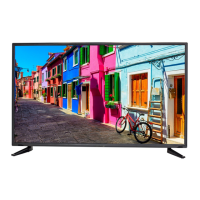
SCEPTRE X405 HDTV User Manual
Dear Sceptre Customer,
Congratulations on your new SCEPTRE X405 HDTV purchase. Thank you
for your support. To ensure safety and many years of trouble free operation
of your TV, please read the manual carefully before making any adjustments,
and keep them in a safe place for future references. We hope you enjoy your
new SCEPTRE HDTV.
For technical assistance, please call 1800-788-2878 and select option 3 or
email our tech support group at SceptreTS@sceptre.com. For all other
inquiries, please call 1800-788-2878 and select option 4 or email our
customer service group at SceptreCS@sceptre.com.
Live Chat also available during business hours M-F 8:30AM-5:30PM.
We recommend you register your SCEPTRE HDTV at our online website
http://www.sceptre.com/Support/Register.htm .
Sceptre wants to help you save energy! The default setting for this HDTV
is set to POWER SAVING mode. You can change this setting by pressing
the PICTURE button on the remote control twice.
This TV is ROKU™ and MHL
®
ready using HDMI 3.

Questions and Answers

  • L
    lorireyesSep 12, 2025
    Why are there dead pixels on my Sceptre X405 screen?
    • T
      Tyler AndersonSep 12, 2025
      Your Sceptre TV is manufactured with high precision technology; however, some pixels may not display correctly. Pixel defects within industry specifications are inherent to this type of product and do not constitute a defective product.
  • H
    howardjoshuaAug 25, 2025
    Why is there picture but no sound on my Sceptre X405 HDTV?
    • S
      ssmithAug 25, 2025
      If your Sceptre HDTV shows a picture but has no audio, check that the audio cable is connected properly. Also, readjust the volume using the remote control. Ensure that the TV’s tuner signal is not lower than 65%.
  • U
    urogersAug 25, 2025
    Why can't my Sceptre X405 receive enough channels?
    • M
      Mallory AguirreAug 26, 2025
      If your Sceptre HDTV cannot receive enough channels through the ATSC/NTSC tuner, ensure that the TV’s tuner signal is not lower than 65 %. You can try changing the direction of your antenna and rescanning the channels. If you have cable, contact your cable company to ask about the signal strength of your local cable.
  • L
    Linda StrongSep 23, 2025
    Why Sceptre LED TV turns on slowly?
    • R
      rachelcohenSep 23, 2025
      This Sceptre LED TV, being a High Definition liquid crystal display panel TV, requires a few more seconds than normal TVs to power up and display the picture.
  • S
    Sarah JonesSep 12, 2025
    Why doesn't my cell phone work with MHL on my Sceptre HDTV?
    • T
      Theresa LambSep 12, 2025
      When connecting your cell phone to your Sceptre HDTV via MHL, ensure you are using the HDMI3 port, as ONLY HDMI3 supports MHL. Also, verify you have the correct MHL cable. If issues persist, consult your cell phone manufacturer for compatibility information.
  • A
    April MorenoSep 18, 2025
    How to get 1920x1080 on Sceptre LED TV?
    • N
      ndiazSep 18, 2025
      If you cannot get 1920x1080 resolution on PC VGA with your Sceptre LED TV, ensure the TV is recognized as a plug and play monitor. Try updating your video card’s drivers. If that doesn't help, you might need to upgrade your video card to a newer one.
  • A
    alejandro56Sep 5, 2025
    How to unblock channels on Sceptre HDTV?
    • A
      alyssawhiteSep 5, 2025
      If TV channels are blocked on your Sceptre HDTV, check the auto lock function’s settings inside the OSD. You may have locked some channels and forgotten about it.
  • K
    Katherine MillerSep 6, 2025
    Why is the picture quality horrible on my Sceptre HDTV?
    • M
      Michael PooleSep 6, 2025
      For the best image quality on your Sceptre HDTV, view HD widescreen programs whenever possible. If HD content isn't available, view "Standard Definition" from a digital source. Standard analog TV will always appear inferior to HD because the TV’s video capabilities are far superior to older TVs, revealing interference and deficiencies.
  • D
    David MorrisSep 18, 2025
    Why does volume change when switching channels on Sceptre LED TV?
    • J
      joanstewartSep 18, 2025
      When switching channels or sources on your Sceptre LED TV, volume changes can occur because different channels and inputs might have inherently loud signals. To combat this, turn on the TV's AUTO VOLUME LEVEL function.
  • K
    Kimberly EllisAug 30, 2025
    How to fix no audio with HDCP video on Sceptre X405 HDTV?
    • B
      Brenda GarrettAug 30, 2025
      If your HDCP video source has no audio on your Sceptre HDTV, make sure a 3.5 mm mini-jack cable is connected from the HDCP device's sound output to the TV's VGA STEREO INPUT. If your HDCP device uses RCA AUDIO jacks, you'll need an RCA audio to 3.5 mm mini-jack adapter.

Summary

Safety Instructions

Important Information

Television Antenna Connection Protection

Guidelines for proper grounding of antenna and cable systems against surges.

Lightning Protection

Recommendations for protecting the TV during lightning storms or periods of non-use.

Power Lines

Advice on locating the antenna away from overhead power circuits.

Opening the Package

X405 BV-FMD Package Contents

Lists all the items included in the SCEPTRE X405 HDTV package.

Installation

Instructions for setting up the TV before initial operation.

Attaching or Removing the Stand

Identifying Front and Rear Panel

Front View

Details the components and indicators on the front panel of the TV.

Rear View Mounting Pattern

Specifies VESA mounting hole dimensions and screw requirements for installation.

Side Control Buttons

Rear View Connections

SCEPTRE X405 Remote Control

Installing Batteries to the Remote Control

Connection Suggestions

If You Have Digital Cable without Cable Box or Antenna...

Instructions for connecting digital cable directly to the TV tuner.

Connecting DVD Player with Component YPbPr...

Connecting Wii with Composite...

Connecting Cable or Satellite boxes with HDMI...

Connecting to a PC with VGA and 3.5 mm minijack...

Connecting a Digital Audio Receiver with Coax SPDIF...

Switching Sources

Ready to Watch Some TV?

Starting up the HDTV

Steps for powering on the TV and connecting initial devices.

If Youve Connected Antenna or Cable to the TV...

Guide to the initial setup process for antenna or cable input.

OSD (On Screen Display) Controls

Via Remote Control

Explains using the remote for OSD navigation and adjustments.

Via TV Side Panel Buttons

Explains using TV side buttons for OSD navigation and adjustments.

OSD (On Screen Display) Options

PICTURE

Adjusts picture settings like sharpness, color, tint, brightness, and advanced options.

SOUND

Adjusts sound settings like mode, bass, treble, balance, and SRS effects.

CHANNEL

Manages tuner functions: channel lists, favorites, signal type, auto scan.

PARENTAL

Filters TV programs and movies based on ratings for children.

SETUP

Configures miscellaneous options: closed captioning, language, clock.

OTHERS

Resets TV settings and configures features like blue back and power off.

Detailed Explanations

USB Connection Explained

Details USB connection, file playback, media settings, and technical limits.

Browsing Music and Photo

Instructions for navigating and playing media files from a USB drive.

Closed Captioning (digital and analog) Explained

MHL Explained

Ratings Explained

Aspect Ratio Explained

Shortcuts to Browsing Channels

TO ADD TO THE FAVORITE LIST

Steps to add channels to the favorite list for quick access.

TO DELETE FROM THE FAVORITE LIST

Steps to remove channels from the favorite list.

BROWSING CHANNELS WITH THE FAVORITE LIST

How to navigate and select channels using the favorite list.

Direct Function Buttons

Color Buttons A-D

Explains the function of color buttons for 2D/3D and channel list display.

Sceptre Sound Bar

Details how direct function buttons control the Sceptre Sound Bar accessory.

ROKU Function Buttons

How do I clean the TV?

Cleaning the bezel and remote control

Instructions for safely cleaning the TV bezel and remote control.

Cleaning the Screen

Guidelines for safely cleaning the TV screen with a microfiber cloth.

Troubleshooting

Call Us If You Need Help!

Specification

Limited Product Warranty

SCEPTREs Responsibility

Details SCEPTRE's warranty coverage for manufacturing defects and part replacement.

Service Labor

Explains warranty service labor coverage and procedures for obtaining service.

Parts

Describes the warranty coverage and limitations for replacement parts.

Service

Outlines SCEPTRE's service options for defective parts and panel replacement.

Packaging and Shipping Instruction

Provides instructions for packaging and shipping the product for authorized service.

Not Covered

Lists exclusions from the product warranty, such as cosmetic defects and misuse.

Dead Pixel Policy

Owners Responsibility

Warranty Service

Disclaimer, Trademarks, & Copyright Information

FCC Compliance Statement

Sceptre X405 Specifications

General IconGeneral
Screen Size40 inches
Resolution1920 x 1080
Display TypeLED
Refresh Rate60 Hz
HDMI Ports3
USB Ports1
Aspect Ratio16:9
Built-in SpeakersYes
VESA Mount CompatibleYes
Audio OutputDigital Audio Output, Headphone Jack
InputsHDMI, USB, Component, Composite

Related product manuals