2.1.4. PC Workstation
The PC workstation connects to the USB Interface via compatible USB cable and serves
as host for CDR software and CDR utilities. In addition, the workstation provides the
capabilities to display, manipulate, store, and print images acquired with CDR Wireless
hardware. The recommended system requirements for PC workstations are listed below:
•
Compatible operating system (Windows 98, 2000, or XP)
•
Minimum of 64 MB RAM
•
Minimum of 20 MB free disk space (to install CDR software)
•
Minimum of 20 GB free disk space (to store X-ray images you acquire or
convert to DICOM format)
•
Available USB port
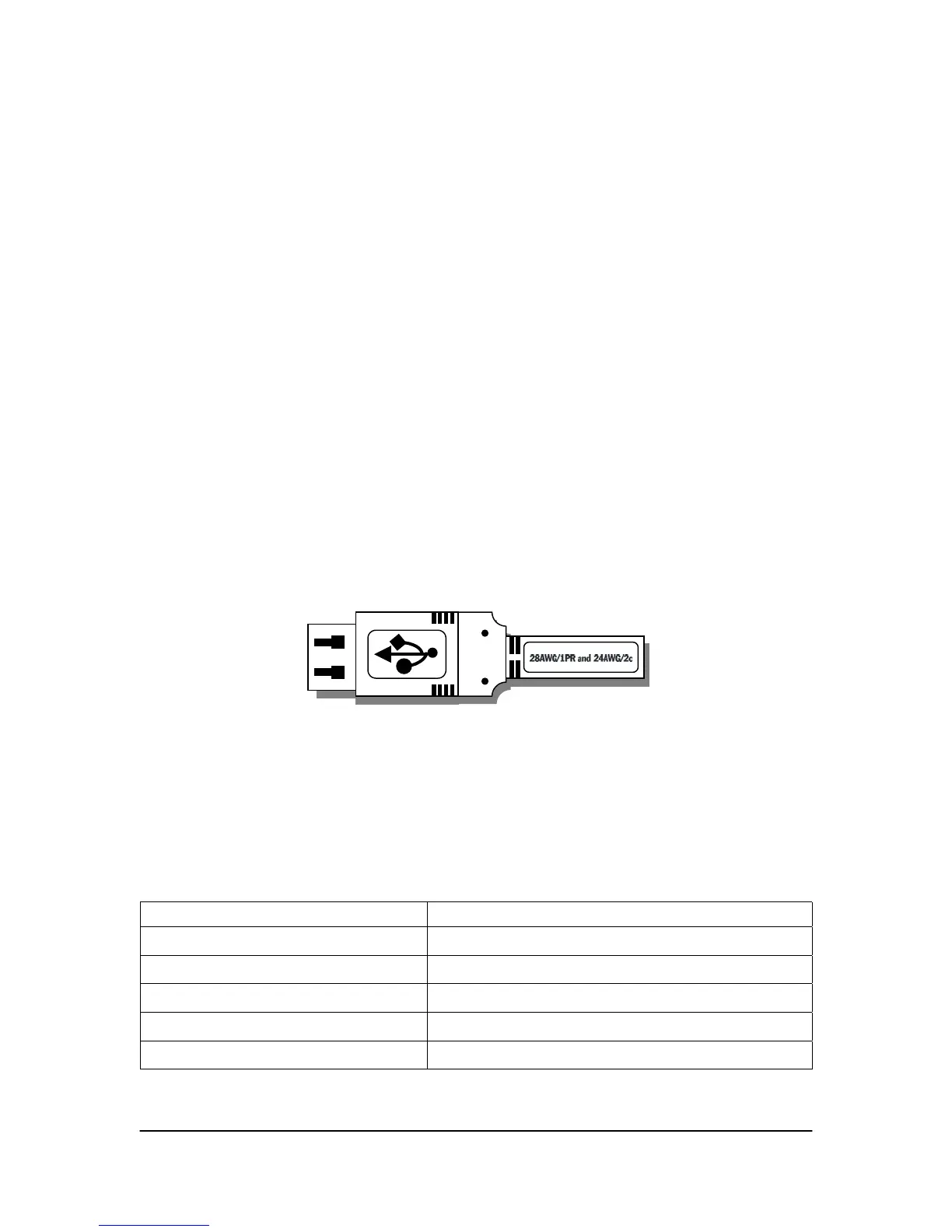
When connecting the USB Interface to the PC workstation, verify that the USB cable has
a “/2c” designation marked along the cable, typically at either end and close to the
connector. The “/2c” designation is the USB spec designation for power connectors
inside the cable, and is a requirement for this system.
Figure 5. USB Connector and Cable Marking
Different lengths of USB cables will be marked differently. Refer to Table 1 for a list of
compatible USB cables and their designations.
Table 1. USB Cable Markings
Length of Cable Proper Gauge for CDR USB Cables
0.81 meters (32 inches) 28AWG/1PR and 28AWG/2c
1.31 meters (4.3 feet) 28AWG/1PR and 26AWG/2c
2.08 meters (6.8 feet) 28AWG/1PR and 24AWG/2c
3.33 meters (10.9 feet) 28AWG/1PR and 22AWG/2c
5.00 meters (16.4 feet) 28AWG/1PR and 20AWG/2c
8 B1051301 Rev. - (DRAFT) CDR Wireless User Guide



 To Next Page